The Mac app
A menu-bar app that records calls in any app on your Mac and captures your mic and the other side on separate channels.
The Mac app records calls that no bot can join — WhatsApp, FaceTime, a Slack huddle — and it hears both halves of the conversation. It lives in your menu bar, has no window and no Dock icon, and everything you do with the recording afterwards still happens in the browser.
The one thing the browser cannot do
The browser Record tab captures your microphone. That is all it can capture. Your microphone hears you clearly and hears the other person only as whatever leaks out of your speakers.
The Mac app records two channels at once: your microphone on one, your computer's audio on the other. Springbase transcribes them separately, so the transcript comes back with the two sides actually labelled rather than guessed at from voice alone. On a two-person call that is the difference between a usable transcript and a wall of "Speaker 1".
Everything else — transcripts, summaries, search, sharing — stays at springbase.ai. The app does not duplicate any of it.
Heads up: local recording with the Mac app requires a paid plan — see Plans and credits. On a free account the app installs and signs in, but recording is refused with "Local recording is available on paid Springbase plans."
Installing it
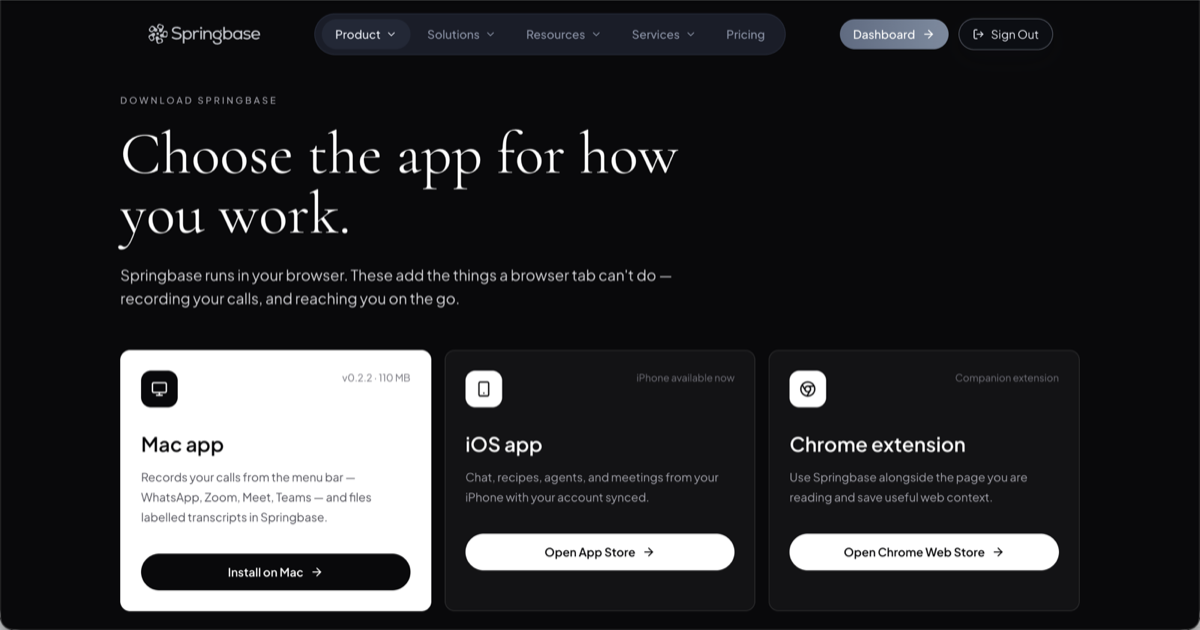
- Click your account avatar in the sidebar and choose Install apps.
- On the install page, open the Mac card.
- Download the installer, then double-click it.
- Drag the Springbase icon into your Applications folder.
- Open Springbase, then click its icon in the menu bar to sign in.
The app is signed with an Apple Developer ID and notarized by Apple, so macOS trusts it on first launch, and it updates itself quietly in the background.
Permissions macOS will ask for
| Permission | Why it is needed | If you decline |
|---|---|---|
| Microphone | Records your side of the call | Nothing can be recorded |
| Screen Recording | Captures your computer's audio — the other side | You get a mic-only recording, no better than the browser |
| Accessibility | Detects WhatsApp and Slack calls reliably | Call detection degrades; WhatsApp in particular may not be spotted |
Grant all three. Screen Recording is the permission people skip, and it is the one that makes the app worth installing.
What it detects
The app watches for calls in both native apps and browsers, and recognises:
WhatsApp · FaceTime · Zoom · Google Meet · Microsoft Teams · Slack huddles · Discord
When it spots one, it asks before recording anything. Nothing is captured until you press Start. You can set a per-app rule to always record or to stop asking about that app entirely.
Because it buffers audio from the moment a call is detected, pressing Start a few seconds late does not cost you the opening of the conversation.
There is also an optional setting to delete the local audio chunks from your Mac once they have uploaded.
Where the recordings go
The Mac app uploads through the same chunked pipeline as the browser Record tab described in Capturing a meeting, so its meetings appear in Meetings under the Recordings filter chip alongside browser recordings. From there they behave exactly like any other meeting — see After the meeting.
Real constraints
- Paid plans only for local recording, as above. An enterprise administrator can also turn meetings off for the whole organisation, which disables the app's uploads too.
- You cannot quit mid-recording. The app blocks it with "Keep Springbase open until the recording finishes so local chunks can upload safely." Stop the recording first.
- Chunks that fail to upload are kept on disk and retried, and the app recovers interrupted sessions the next time it launches — so a dropped connection does not lose the call, but the meeting will not appear in the browser until those chunks land.
- Without Accessibility permission, WhatsApp detection is unreliable. You can still start a recording by hand from the menu bar.
- Signing out of the Mac app stops detection and recording on the Mac. It does not sign you out of the browser.
The iPhone app
The iOS app is a full Springbase client — chat, recipes, library, marketplace, projects — with meetings included. For capture it offers three options: record, join a call with a bot, and upload a file. It has the same ceilings as the web: recording auto-stops at 90 minutes and uploads are capped at 1024 MB. You can connect a Google or Microsoft calendar from the phone as well.
A meeting on the phone opens with Summary and Transcript tabs, checkable action items, decisions, speaker editing, an editable summary, delete, retry, and chat with the meeting.
What the phone app does not do, all of which are web-only:
- Pasting a transcript — there is no paste option on iOS
- Collections and the People rail
- The source filter chips
- Sharing a meeting and its visibility options
- Export PDF and Save to Context
- Automations
Get the app from the Install apps page, the same place as the Mac download.
Related docs
Six ways to get a call into Springbase — a bot in the call, browser recording, the Mac app, an upload, a pasted transcript, or your calendar.
What Springbase produces once a call ends — summary, decisions, action items, participants — and how to ask questions about it in chat.