Instructions and Brand Kit
Tell the AI how to read a context's documents, and define the palette, logos and voice that generated work inherits.
Documents tell the model what is true. Instructions tell it how to read those documents, and the Brand Kit tells it what your work should look like. Both live on the context, so they apply everywhere the context does.
What the Instructions tab is for
The Instructions panel holds what the system internally calls the Context Reading Guide: short notes on how to interpret this context's material. Its own description says it plainly — "Tell the AI how to read this context — glossaries, abbreviations, unit conventions". It is not a place for facts; facts belong in documents. It is for the things a new colleague would need told:
- Glossaries and abbreviations. "ARR = annual recurring revenue; MAU = monthly active users."
- Unit and currency conventions. "All amounts are in USD thousands unless a sheet says otherwise."
- Reading rules for messy data. "Treat blank cells in the revenue sheet as zero, not missing."
- House rules for the answer. "Answer in plain English for a non-technical audience; keep responses brief and cite the source document."
The tab header carries a count of what you have set, and on an empty context it offers a few starter chips along those lines — click one and it fills in an instruction you can then edit.
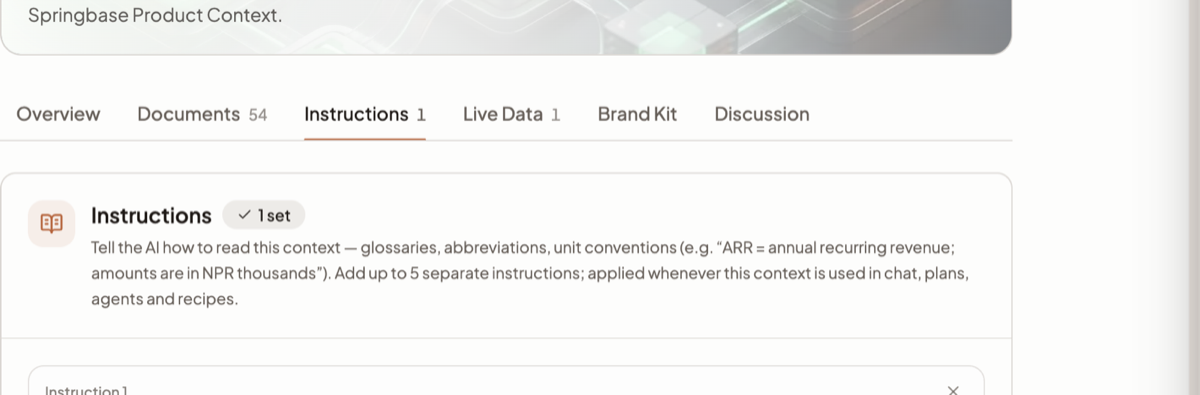
Adding instructions
- Open the context and select Instructions.
- Type into the card headed Instruction 1. A counter under it tracks the per-item cap — "135/2,000".
- Click Add another instruction (1/5) for a second one. A running total, "135/6,000", sits under the set.
- Or click Upload file to load a file's contents as one instruction — drag and drop works too, up to 3 MB.
- Click Save.
The limits
| Limit | Value |
|---|---|
| Instructions per context | 5 |
| Characters per instruction | 2,000 |
| Total budget across all instructions | About 1,500 tokens — the panel counts it out as 6,000 characters |
A counter on each card tracks the per-item cap and a second counter tracks the total. The budget is checked on save, and going over returns an error naming your current size — trim or remove an instruction rather than expecting silent truncation.
Where instructions apply
Once saved, the guide travels with the context. It applies wherever that context is used — in chat, in recipes, and in automated runs — so you do not restate it per surface.
Heads up: instructions are guidance on how to read sources, not a command channel. They cannot override safety, role, tool or output constraints, and a scoped request in the chat itself wins over a general instruction here. Treat them as a reading guide, not a rule engine.
Brand Kit
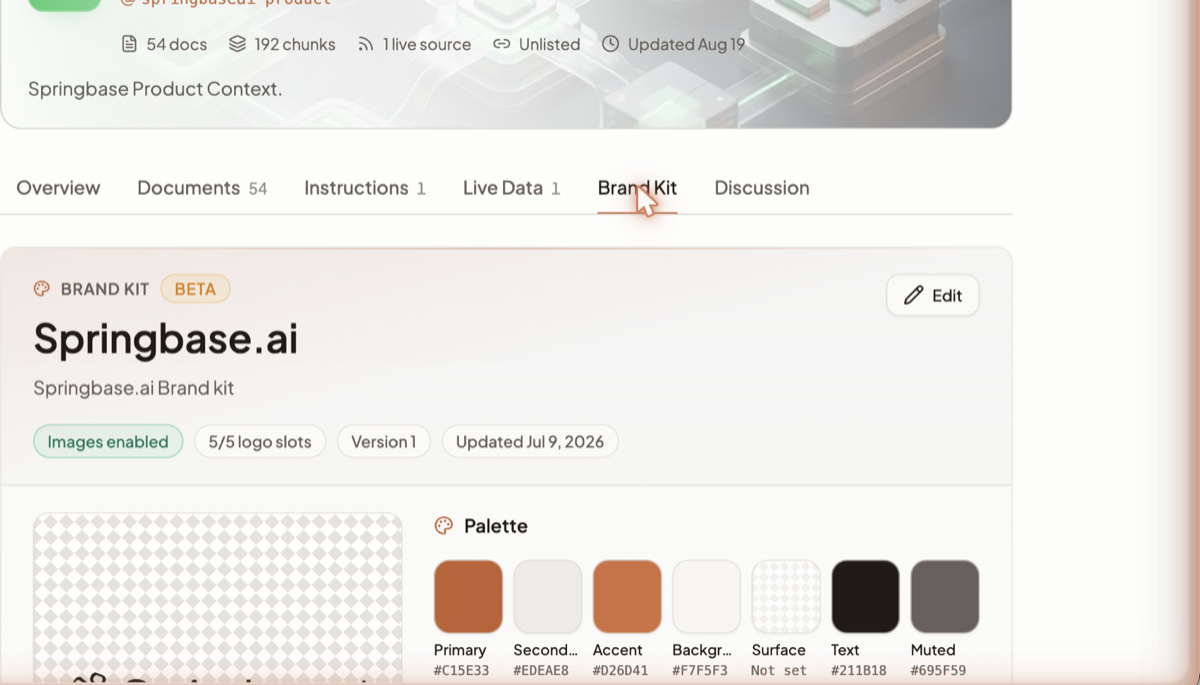
The Brand Kit tab is where a context carries your visual identity: the colours, the logos and the look that generated work should inherit. It sits beside Instructions because it does the same job for look that instructions do for reading. It is marked BETA.
The tab opens on the kit itself — its name, its one-line description, and an Edit button top right. A row of status chips summarises it:
| Chip | What it tells you |
|---|---|
| Images enabled | Generated images may use the kit. |
| 5/5 logo slots | How many of the kit's logo slots are filled. |
| Version 1 | Which version of the kit this is. Editing produces a new one. |
| Updated <date> | When the kit last changed. |
Below the chips sit a logo preview panel and the Palette. The palette is seven named swatches — Primary, Secondary, Accent, Background, Surface, Text and Muted — and each shows either its hex value or Not set, so a half-filled kit is visible at a glance rather than silently incomplete.
Two optional groups follow. SEMANTIC is for meaning-carrying colours (success, warning and the like) and CHART PALETTE is the series colours for charts. Both are empty until you fill them, and read "No semantic colors set." and "No chart palette set." while they are.
When a context with a kit is in play, that identity is folded into what the assistant is told before it writes — so generated pages, decks and documents pick up your palette and logos instead of generic defaults, rather than being assembled mechanically from a template.
What this does not do
Five instructions sharing one token budget is a small space, so write conventions rather than content — anything that reads like a fact belongs in a document instead. And a Brand Kit is a strong hint rather than a renderer: output is generated to match it, not assembled from it, so expect to correct the occasional drift. A swatch left at Not set is not substituted for — the model has nothing to follow there.
Related docs
A Context is a named, reusable folder of knowledge you can pull into any chat with its @handle.
Four ways to bring a context into a chat, how citations work, and how to tell when an answer is thin.
Every way to get content into a context, the file types that work, and the three size limits that compound.