Models and effort
Saver, Balanced and Max are ready-made setups. Custom is the only one where your own model choices take effect.
The chip beside Auto sets how much a turn is allowed to spend on the models it reaches for — see How Auto works for what a turn actually does with them. It is one control with four positions, and the difference between them is not "quality level 1 to 4": three of them are setups Springbase maintains, and one is yours.
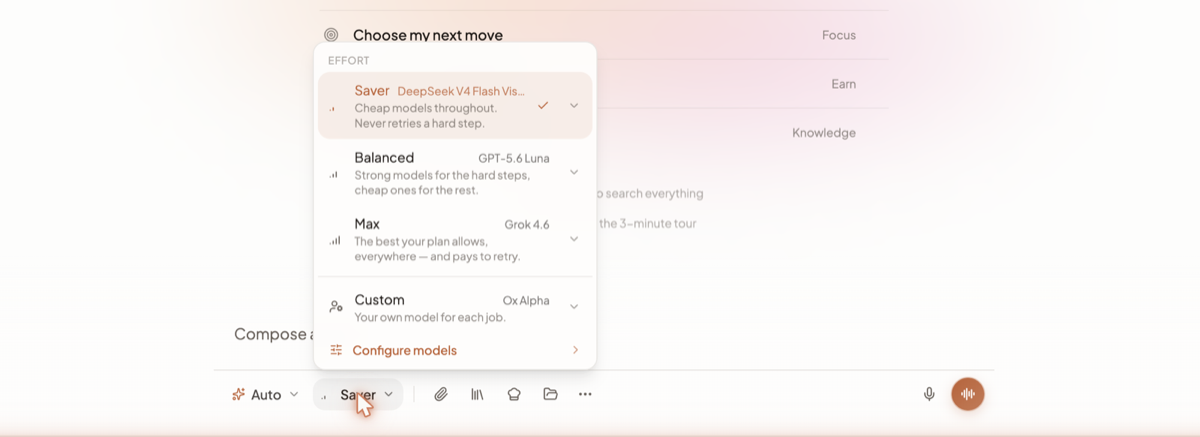
The four positions
The menu is headed EFFORT and holds one row per position.
| Position | What the menu says | Whose models |
|---|---|---|
| Saver | "Cheap models throughout. Never retries a hard step." | Springbase's |
| Balanced | "Strong models for the hard steps, cheap ones for the rest." | Springbase's |
| Max | "The best your plan allows, everywhere — and pays to retry." | Springbase's |
| Custom | "Your own model for each job." | Yours |
This is the part most people get wrong. Saver, Balanced and Max are ready-made setups. They resolve to exactly the same models for everyone on the same plan, and nothing you pin anywhere changes them. The footer under those three says so: "Chosen by Springbase for your plan."
Custom is the only position where your own model choices take effect. Its footer reads "Yours — Configure models to change any of them." Anything you leave unset there falls back to whichever of the other three you based it on, so a half-configured Custom bench still works.
Every row names the model that position would actually drive with, and each row has a caret. Expand one and you see that position's whole bench — Main model, Builder, Connected apps, Rescue, then Images, Video, Music and Voice. An empty Rescue reads "Never retries", a text job with no pin reads "Auto", and a media job the setup does not offer reads "Not offered". Thinking levels show as Off, Quick, Normal or Deep. Expanding a row neither selects it nor navigates anywhere.
Which positions your plan offers
| Plan | Positions available |
|---|---|
| Free | Saver |
| Starter | Saver, Balanced, Max |
| Pro | All four, including Custom |
| Max | All four, including Custom |
Locked positions still render, with a padlock and the model they would use, and clicking one opens the upgrade modal. The tooltips read "Choosing your own models is on Pro" and "Label effort is on paid plans".
Configure models
Configure models sits at the foot of the effort menu, under Custom, and only when Custom is unlocked. There is deliberately no second door to it.
- Open the effort chip.
- Expand Custom.
- Click Configure models. This also selects Custom, and slides the panel into the same menu with a single Back.
- Set a model per job on the Text tab, or switch to the Images, Video, Music or Voice tabs.
On the Text tab, your main model and Builder are open; connected apps and rescue fold away underneath. Research, long-form writing and summarising are not editable — research follows your main model, long-form writing follows the builder, and summarising runs on the platform's reading model. Every row shows the model that will actually run after your plan, any policy and availability are taken into account, not the one that was requested.
Where your account-wide default lives
The chip in the composer is for this chat. Your standing preference is at /profile → AI Defaults, and it is per account, not per chat — changing it changes every new chat, on every device.
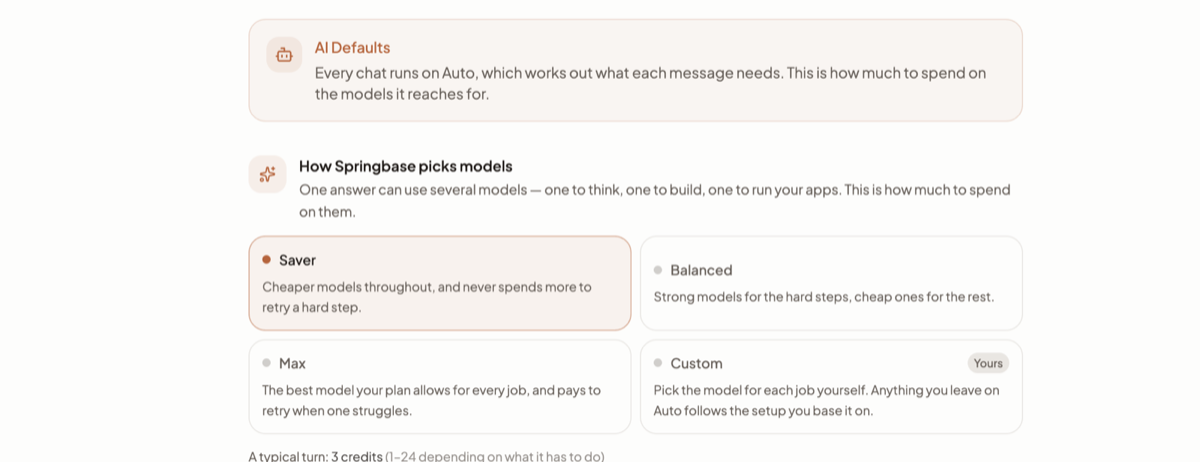
The tab holds the same four-position dial, plus a per-job table under How Springbase picks models:
| Job | What it does |
|---|---|
| Your main model | Answers you, plans, researches, and does quick builds |
| Builder | Steps in for longer builds, or when a build is struggling |
| Runs connected apps | Gmail, Slack, Drive, Calendar |
| Rescues a stuck turn | Takes over when a step keeps failing |
Below it, a Media block sets Images, Image edits, Video, Speech and Music, each Auto, Off or a specific model. Save with Save AI defaults; Reset to recommended clears your picks. The per-job and media controls only accept changes when you are on Custom.
Heads up: on the Free plan the AI Defaults tab shows no controls at all.
When a model is not available
A pin that your plan, an availability check or a policy rules out is treated as a conflict, not an error. Springbase substitutes the closest model it can run, reports the substitution, and finishes the turn. If nothing clears a job's quality bar it takes the most capable model available rather than refusing. If a policy leaves nothing at all, the turn tells you why.
What this costs
Effort is a spending control, so it moves your credit usage directly. Harder models cost more per step, and Max additionally pays to retry a step that struggles — so a turn that fails twice on Max spends far more than the same turn on Saver, which never retries.
Springbase warns you before you commit: choosing Max shows an amber banner above the composer reading "Max effort uses a lot more credits" that you have to acknowledge. Balanced shows a quieter note that it "costs a little more". Saver and Custom show nothing.
Limits worth knowing
- The effort chip does not appear at all until Springbase has worked out which models your plan allows. On a slow connection it arrives a beat after the rest of the composer.
- If your plan lapses, your effort position is clamped down silently on the next read — a former Pro account drops back to its base position with no prompt.
- The composer no longer offers a way to pin one model for a message. Model choice lives only in Configure models and AI Defaults.
Related docs
Auto is the only mode. The model decides what to do at each step instead of a router classifying your message up front.
The composer control by control, what an answer can contain, and the actions under every reply.
How credits are spent, why one answer costs more than another, where to see your balance, and what each plan unlocks.