Plans and credits
How credits are spent, why one answer costs more than another, where to see your balance, and what each plan unlocks.
Credits are the single meter for the AI work you ask for. One balance covers chat, research, images, video, music, meetings-derived work, recipes and automations — there is no separate quota per feature. Your plan decides which capabilities you can reach at all, and how much of your work is covered without spending credits.
What spends credits
Credits are charged from the measured cost of the work, not a flat price per message. Anything that reaches a model spends something:
- Every chat message, including every Auto turn, and re-running a message after you edit it.
- Web search inside a turn, and the Research intent.
- Images, video, music and speech — video is charged per second of output.
- Deep analysis over your contexts.
- Connected-app work: a charge for the turn plus a charge for each tool call it makes.
- Recipes and automations, whether you run them yourself or they run on a schedule.
- Canvas edits, prompt enhancement, workspace builds, the browser extension, and Live voice sessions.
- Extraction of the files you attach, billed alongside the model cost. Scanned PDFs cost more because they have to be read with OCR first.
- Live Data sources, every time they crawl.
Transcribing a meeting is the exception: transcription itself is not charged. You do need a non-zero balance to start one, and everything derived from it — summaries, automations, chatting about it — bills normally.
Why one answer costs more than another
A single Auto turn can take many steps, and each is metered separately. Two questions that look similar can differ a lot because one of them:
- ran more steps, or retried a step that failed;
- searched the web, or crawled and read pages;
- read a large attachment, or OCR'd a scanned document;
- generated an image, video, music or speech;
- called connected apps several times;
- ran at a higher effort setting. Saver never pays to retry a hard step; Max uses the best model your plan allows everywhere and pays to retry. Springbase warns you above the composer the first time you pick Max.
Heads up: the route chip under a reply names the models that actually ran, but it deliberately does not show cost. For the cost of a turn, look at Profile → Usage.
Where you see your balance
| Surface | What it shows |
|---|---|
| Sidebar account button | Your plan and the current balance, always visible |
| Composer send button | Whether the next send is charged or covered by your plan |
| Profile → Usage | Current Balance, Total Used, Total Purchased, plus Transaction History |
| Manage billing | Credit Balance with the monthly and purchased split |
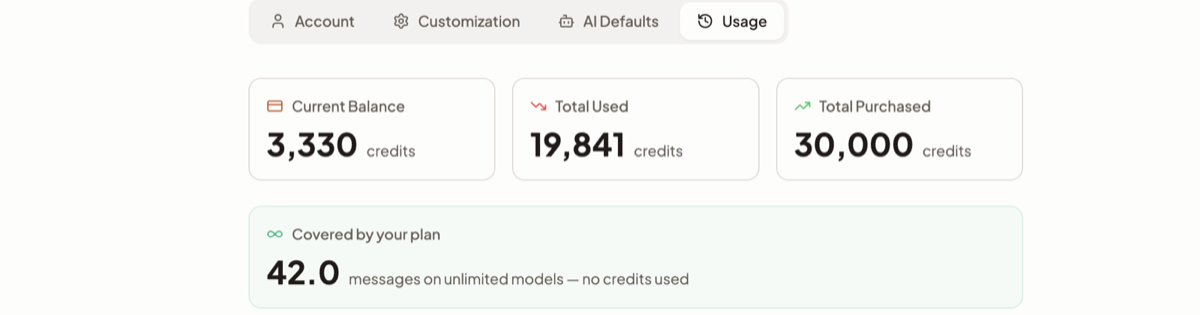
Transaction History can be filtered by All, Usage, Purchases, Renewals, Adjustments, Refunds, Expired and Included in plan. Rows earned from quests show as Reward; rows covered by your plan show as Included with the amount reading Free.
Models covered by your plan
Some models are included for some plans. When you pick one, the composer's send button reads Send · Free on your plan, and the model picker marks it with an infinity chip reading Unlimited on your plan.
Two things this does not mean:
- It covers the model's own thinking, nothing else. Web search, attachment extraction, video, music and audio in the same turn are still charged.
- It covers ordinary chat and image generation only. Connected-app runs, deep analysis, recipes and automations are always metered.
There is a fair-use ceiling on included models. Crossing it never blocks you — the turn goes back to costing credits, and the composer says so ("You've passed today's unlimited allowance — this turn uses credits").
When you run out
At zero you get a dismissable You're out of credits banner on every screen, with Upgrade and Top up buttons; dismissing it hides it for a couple of hours. If you send anyway, the reply is an inline message pointing at billing rather than an answer.
The useful escape hatch: models covered by your plan still work at a zero balance, within their fair-use ceiling. So you can keep chatting on an included model even when the meter is empty.
Getting more credits
- Open the account menu at the bottom of the sidebar.
- Pick Earn credits to work through the quest list — create a context, generate an image, connect an app, record a meeting, install the Mac or iOS app, refer someone. Each award lands in your balance as a Reward.
- Pick Referrals for your invite link. Both you and the person you invite get credits when they sign up and convert.
- Pick Manage billing to buy a top-up pack. Top-up credits never expire.
Heads up: quests have a lifetime cap, so treat them as a one-time boost rather than an income stream. Some quests need a paid plan and say Needs Starter or above. The Buy Credits section on the billing page is shown to paid accounts only — on Free, upgrade instead.
One renewal detail worth knowing: a subscription renewal replaces your monthly balance rather than adding to it, and monthly credits expire if you cancel. Purchased top-ups do not.
What changes as you move up plans
Plans are Free, Starter, Pro and Max.
| Capability | Free | Starter | Pro | Max |
|---|---|---|---|---|
| Effort settings | Saver only | Saver, Balanced, Max | + Custom and Configure models | + Custom and Configure models |
| Premium models in the picker | No | No | Yes | Yes |
| Research intent | No | Yes (Fast) | Yes (Thorough) | Yes (Thorough) |
| Music intent | No | Yes | Yes | Yes |
| Video intent | No | No | No | Yes |
| Deep analysis over contexts | No | No | No | Yes |
| Live Data sources on a context | No | No | Yes | Yes |
| Automations page | No | No | Yes | Yes |
| Local recording in the Mac app | No | Yes | Yes | Yes |
| Meetings | 5 per calendar month | Uncapped | Uncapped | Uncapped |
| Contexts you can own | 3 | 20 | 100 | 500 |
| Documents per context | 10 | 100 | 1,000 | 5,000 |
| Largest single upload into a context | 50 MB | 50 MB | 50 MB | 100 MB (110 MB for Excel) |
| Library storage | 250 MB | 5 GB | 25 GB | 100 GB |
A few capabilities — web search, image generation, file attachments and connected-app runs — are configured per plan rather than fixed in code, so which plans include them can change without a release. Rather than trusting a list, watch the app: a capability you cannot reach either does not appear in the menu at all, or opens an upgrade prompt naming the plan that unlocks it.
Locked effort settings behave differently from locked intents: they still render, with a padlock and the model they would use, and clicking one opens the upgrade prompt. If a paid plan lapses, your effort setting is clamped back to the highest one your current plan allows.
Related docs
A walkthrough of Profile settings — Account, Customization, AI Defaults and Usage — and everything else in the account menu.
Saver, Balanced and Max are ready-made setups. Custom is the only one where your own model choices take effect.
The problems people actually hit — stuck documents, answers that miss, disconnected apps, silent automations — and what to do about each.