How Auto works
Auto is the only mode. The model decides what to do at each step instead of a router classifying your message up front.
Springbase has one mode: Auto. Nothing reads your message and files it into a category before work starts. The assistant is handed the tools and decides, step by step, what this particular message needs — search the web, read your documents, run some code, write a file, call one of your connected apps, or answer directly.
That is the whole model. Everything below is what you see while it happens, and the few places where you can lean on it.
The Auto menu and the one-turn intents
Open the Auto ▾ chip and you get one row for Auto itself — "Picks the right models for each step" — and under a For this message heading, a short list of intents.
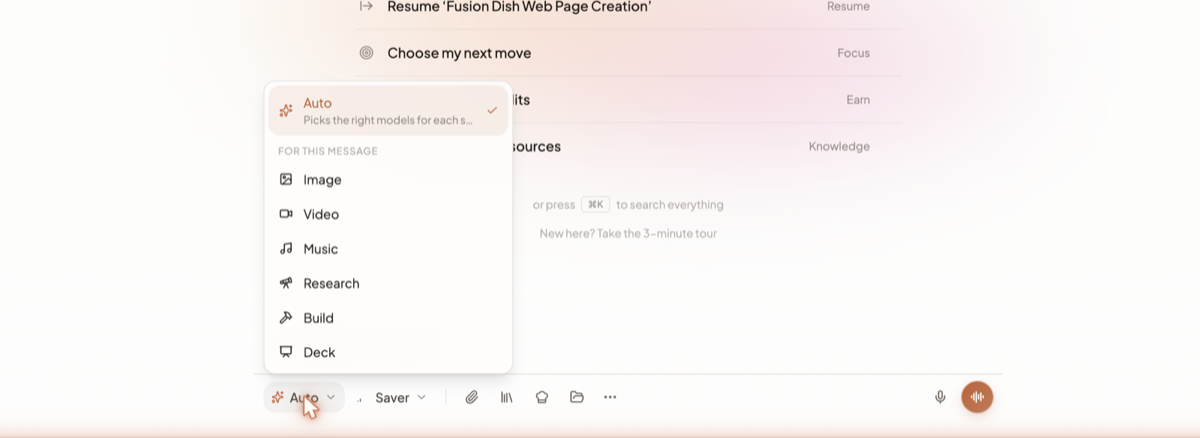
| Intent | Use it when | Availability |
|---|---|---|
| Image | You want a picture out of this turn | All plans |
| Video | You want a clip | Max plan |
| Music | You want a track | Starter, Pro and Max |
| Research | You want the web read properly, not skimmed | Starter, Pro and Max |
| Build | You want a working artefact — a page, an app, a document — not a description of one | All plans |
| Deck | You want slides | All plans |
An intent is a posture for one message, not a mode. Specifically:
- It does not lock the output type. "Make an image and write a caption for it" is one send with Image armed, and you get both.
- It does not pick a model. Only Research changes what a turn spends, by biasing it toward stronger models.
- It is cleared the moment you send. The chip goes back to reading Auto on its own.
- It is single-occupancy — arming one replaces the last. Picking the armed one again disarms it, and choosing Auto clears the intent and any model pin in one go.
- Typing
/image a heron at duskat the start of an empty draft arms Image and sends the rest as your message.
A locked intent still shows, with a padlock; clicking it opens the upgrade modal instead of arming.
Heads up: the intent list is configured by Springbase, not fixed in the app. It can hold up to twelve entries and it can be empty, so a build may show fewer than the six above.
What Auto can reach
Within a single turn the assistant can:
- Search and read your knowledge — the documents in your contexts, outlines, extracts and source lists.
- Search the web, open pages and crawl a site, including image search.
- Search and read your meetings, including full transcripts.
- Build files — write a project, check it for broken links and empty files, and export a real PDF, DOCX or PPTX.
- Work with spreadsheets — query, compare, consolidate and produce a new workbook.
- Run code.
- Use your connected apps through the Tools Marketplace connections, by searching for the right action and then calling it.
- Drive a browser, and — only when you switch Computer Use on for that message — your Mac.
- Use Springbase itself — schedules and recipes, your notes, memory, your skills, and your own past chats.
What you see while it works
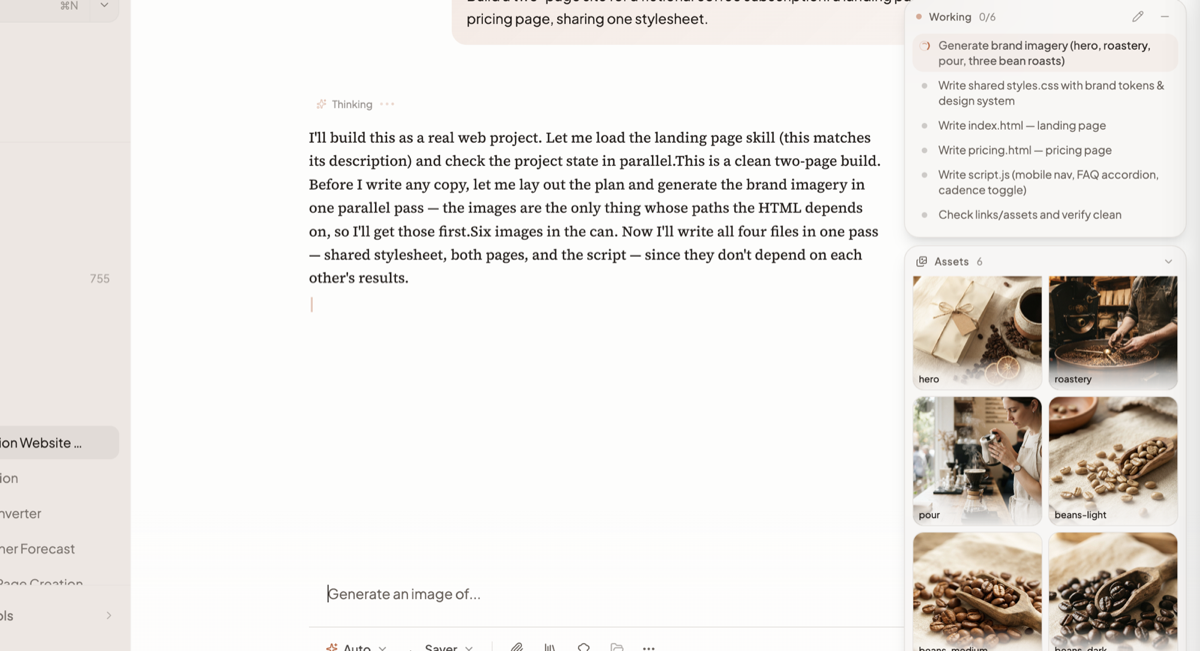
- A one-line status while the reply is still empty. It names the current step of the turn's plan rather than the tool underneath it. There is no skeleton and no elapsed timer, on purpose.
- The activity block, listing the tools as they run, with durations, expandable at any point.
- A live pulse on the one step that is happening now. It respects your reduced-motion setting.
- The plan floater — a panel headed Working n/N, floating top-right over the conversation, listing the steps with a spinner on the one running now. It carries a pencil for amending a step and a control to minimise it.
- The assets floater — what the turn is making, while it makes it.
- Steering. While a run is in flight the composer's mode, model and attachment controls are replaced by a "Steering · step n/N" pill. Anything you type becomes guidance for the running task and is picked up at its next step.
Some turns take minutes. A build that writes files, validates them and repairs what broke is doing several rounds of real work, and the ceiling on a single turn is 20 minutes. The step panel is there so you can tell the difference between slow and stuck.
After it finishes
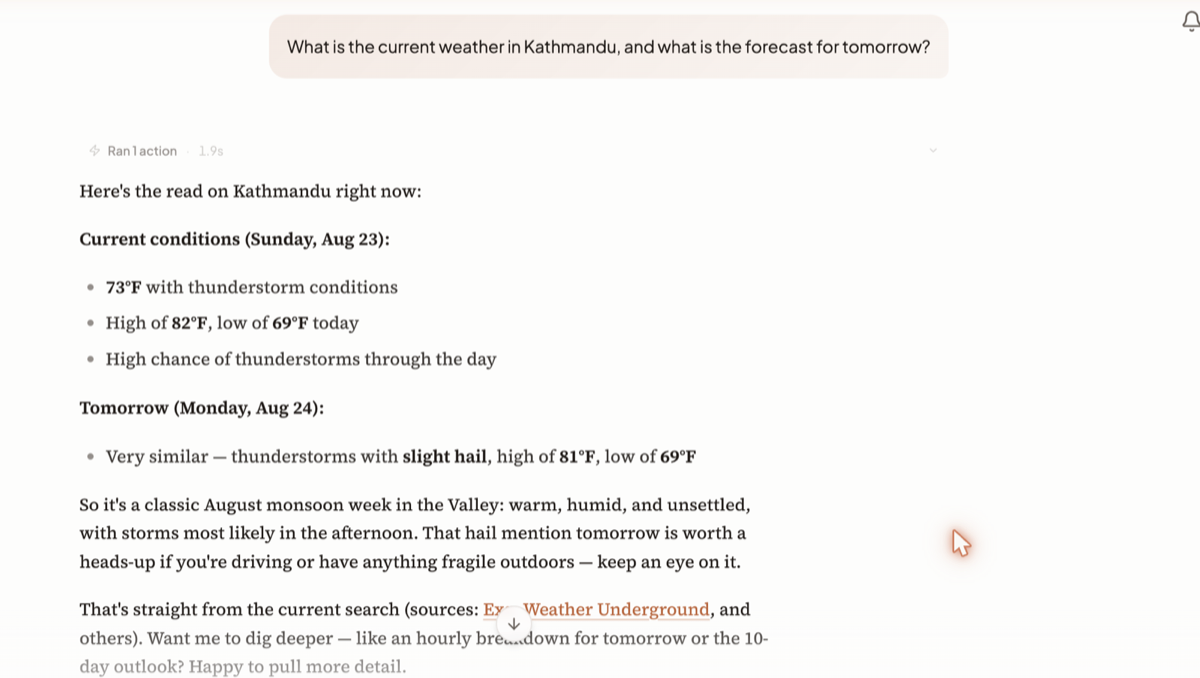
The activity block collapses into a summary header — Ran N actions, plus Thought if the model reasoned, plus the total time. Expand it to see every tool call in order with its result.
Under the reply, the model attribution line names which model or models actually ran. It never shows cost.
When Springbase asks first
Less often than you might expect. A turn can write to a connected app — create the draft, file the issue, add the row — without stopping to ask. Asked in a typed chat to create a Gmail draft, it created the draft and said so; no card appeared.
Some actions do raise one, and while a card is up the turn is genuinely blocked behind it: you have 120 seconds to decide, and after that it is treated as a refusal and the turn carries on without that action. The card names the action but shows no arguments — it is anchored to the call already streamed above it, so what you approve cannot drift from what runs. But a card is not guaranteed for any particular action, so treat a connected app as somewhere Springbase can make changes, and disconnect anything you would rather it did not touch.
Anything that only reads never asks. Live voice is stricter: a spoken task asks before every external write.
Limits worth knowing
- A turn is capped at 20 minutes. There is no way to extend it.
- An approval card that goes unanswered for 120 seconds denies the action rather than waiting for you — but not every external write raises one.
- Intents are per-message only. If you want the same posture on every message, write a skill instead.
Related docs
The composer control by control, what an answer can contain, and the actions under every reply.
Saver, Balanced and Max are ready-made setups. Custom is the only one where your own model choices take effect.
The Build intent makes a working project — files written, checked and handed back — instead of describing one. Plus Deck, exports and hosted sites.