Sharing a context
Four independent settings decide who can open a context, see its documents, edit it, and comment on it.
Sharing a context is not one switch. Four settings work independently, and the combination decides whether someone can merely ask your context questions or can delete what is in it. Open a context and use the access control in its header to reach the sharing wizard; step 1, Access, holds all four.
The four axes
| Axis | Question it answers | Options |
|---|---|---|
| Access | Who can open it at all? | Private · Unlisted · Team · Organization |
| Source visibility | Can they see the actual documents? | Open documents · RAG-only |
| Link role | Can link-holders change it? | Can view · Can edit |
| Comments | Who can start a discussion? | Collaborators · Anyone with access · Off |
1. Who can open it
| Setting | Meaning |
|---|---|
| Private | "Only you can access unless you invite people below" — and once you have invited people, it says how many. Private contexts are not listed anywhere and cannot be opened by link; people you invited by email still get in |
| Unlisted | "Anyone with the link can access". Not listed anywhere, but the link is the key |
| Team | Visible to members of one team in your organisation |
| Organization | Visible to everyone in your organisation |
Team and Organization tiles only appear if you belong to an organisation, and an organisation that restricts public sharing removes the Unlisted tile for you.
There is deliberately no Public tile for contexts. Making one public is admin-only — attempting it returns "Only admins can publish content to the public marketplace. Use private or unlisted visibility instead." Publishing to the Marketplace is not self-serve, so plan on unlisted links or organisation sharing.
2. Whether they can see the documents
A context can be shared for answers without being shared for files.
- Open documents — recipients can browse the Documents tab and open each source.
- RAG-only — recipients can ask questions and get cited answers, but the Documents tab is replaced with a note: "The owner has set this context to RAG-only. The AI can still reference the source documents when you query it, but they aren't visible here."
Use RAG-only when the knowledge is shareable but the underlying files are not. You can also override it per person when you invite them.
Heads up: RAG-only limits browsing, not inference. Someone who can query the context can still ask questions whose answers quote passages from those documents. It is a "don't hand out the files" control, not a redaction layer.
3. Whether the link can edit
For an unlisted context, the link carries a role: Can view or Can edit.
Switching to Can edit asks you to confirm, and the wording is the point: anyone who has the link "will be able to add, change, and delete its documents — not just read it". A link is not a person, it is whoever it was forwarded to — so prefer email invites when you want editors. You can switch back to Can view at any time. Edit access also requires document visibility: you cannot grant editing while keeping someone on RAG-only.
4. Who can comment
Comment threads appear on the Discussion tab, which only exists once a context is shared. The default is the strict setting:
- Collaborators (default) — people with a real role: the owner, invited people, team and organisation members. Someone who merely holds the link cannot comment.
- Anyone with access — any reader, including link-holders.
- Off — nobody.
Document-level comments additionally require document visibility, so a RAG-only viewer never sees or writes discussion attached to a source file.
The link and its token
An unlisted link carries a rotating token in the URL. The wizard shows it with a Generate link control (Regenerate link once one exists). Regenerating offers two outcomes:
| Choice | Effect |
|---|---|
| Just rotate the link | The old link stops working immediately; people who already added this context keep their access |
| Rotate & revoke everyone | The old link dies and everyone who came in through it loses access |
Both apply straight away — not part of Save, and not undoable. Only people who can manage the context ever see the token.
Inviting by email
Email invites are the precise instrument, and they work even on a Private context: you name the person, they get in, and nobody who was forwarded a link does.
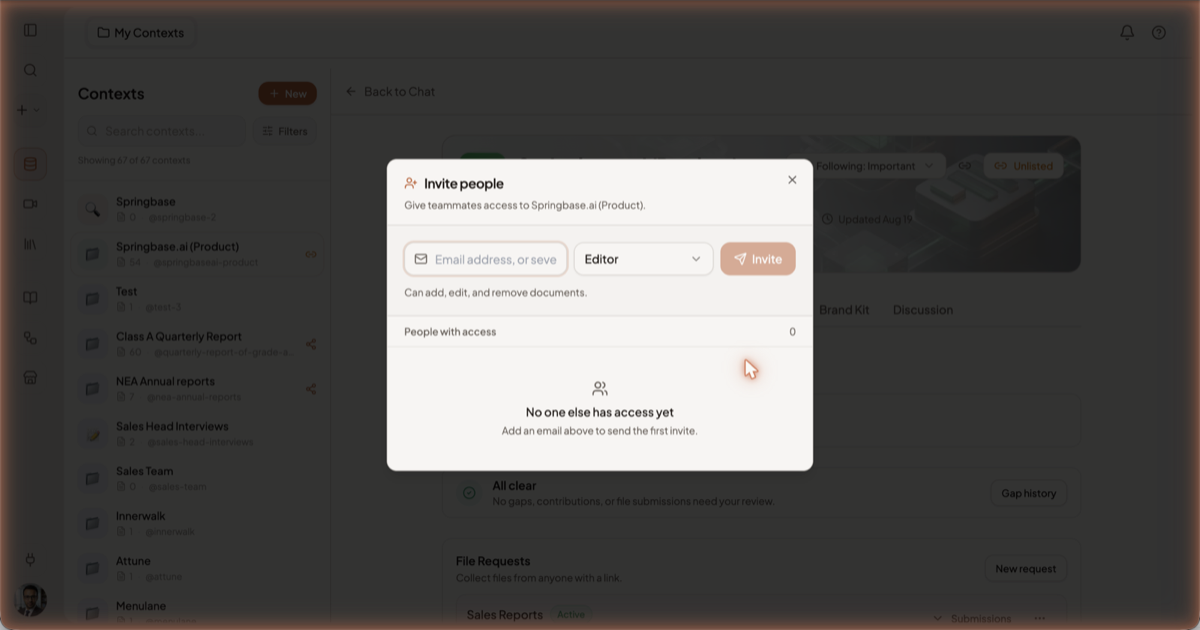
- Open the context and click Manage sharing on the Overview tab. The Invite people dialog opens, subtitled "Give teammates access to <context>".
- Type the email address. The field takes several at once.
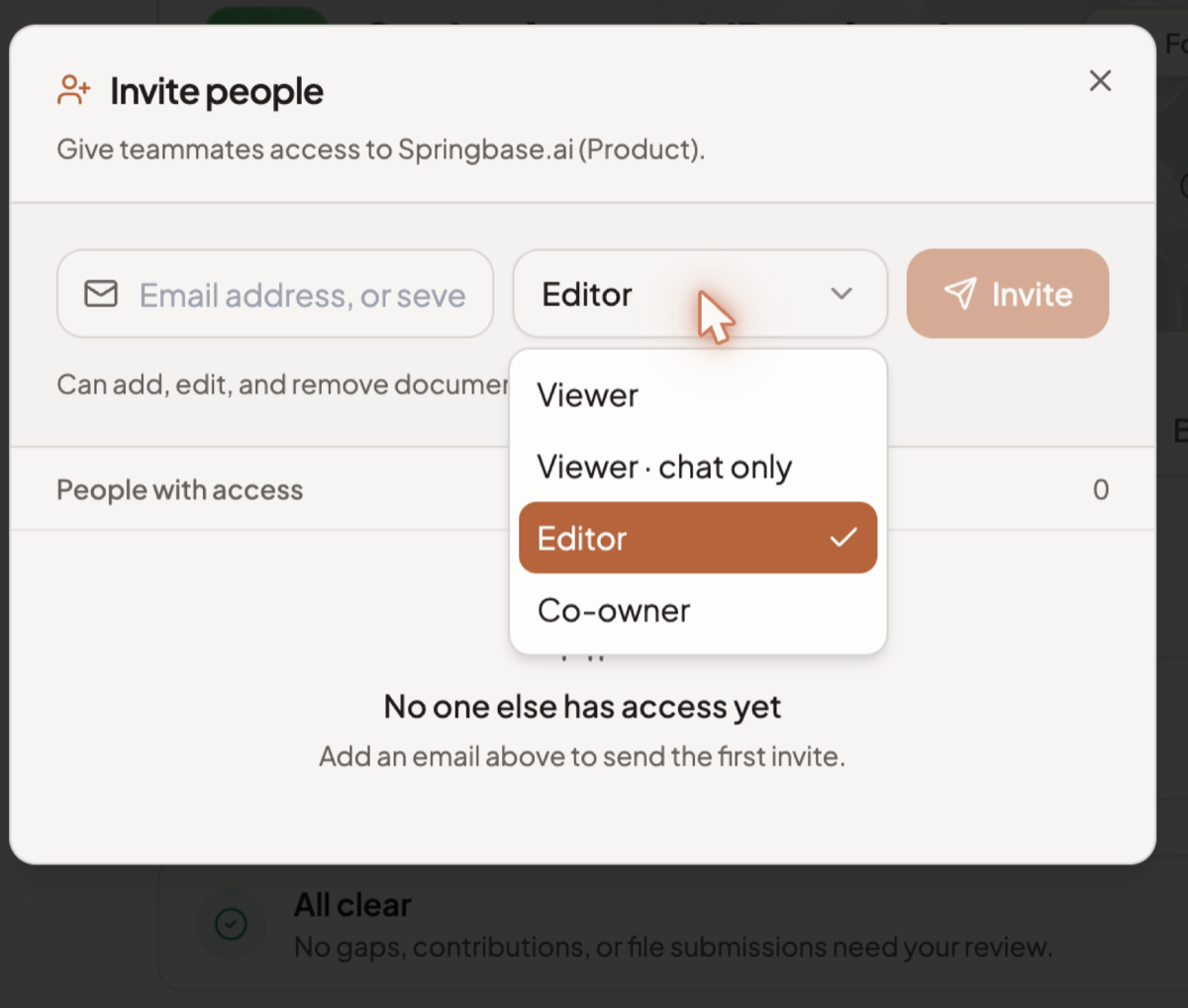
- Pick the Access level — the dropdown holds four roles, described below.
- Click Invite.
| Role | What they get |
|---|---|
| Viewer | Reads the context. |
| Viewer · chat only | Can ask the context questions but does not browse it. |
| Editor | "Can add, edit, and remove documents." |
| Co-owner | Full management of the context, including its sharing. |
Everyone you have invited is listed under People with access, with a count. Until you invite anyone it reads "No one else has access yet — Add an email above to send the first invite."
Source visibility can be overridden per invited person, so one collaborator can browse the documents while another stays on RAG-only.
Using someone else's community context
Contexts other people have published appear under Contexts in the Marketplace. Install there means Equip: the context joins your chat picker under the Community tab so you can attach it like your own. You are borrowing, not copying — the owner still controls it, and a rotate-and-revoke takes your access with it.
What sharing does not do
You cannot publish a context publicly yourself, and the wizard refuses to share an unlisted context with no documents in it. Sharing also gives no isolation: recipients query your material as it stands right now, so deleting a document removes it for everyone who has the context equipped.
Related docs
A Context is a named, reusable folder of knowledge you can pull into any chat with its @handle.
Four ways to bring a context into a chat, how citations work, and how to tell when an answer is thin.
Browse recipes, contexts and assets other people have published — run them, duplicate them, equip them, or save them as favourites.