Chatting with Springbase
The composer control by control, what an answer can contain, and the actions under every reply.
Chat is where almost everything in Springbase starts. You type one message and the assistant works out what it needs — your documents, the web, your connected apps, a file it writes for you — and does it in one turn. This page walks the composer, the reply, and the actions under it. The rest of the Chat section goes deeper on each part.
The composer, control by control

| Control | What it does |
|---|---|
| Auto ▾ | The mode chip. Left alone it reads Auto and the assistant decides each step for itself. Open it to arm a one-turn intent — see How Auto works. |
| Effort chip | Saver / Balanced / Max / Custom — how much to spend on the models a turn reaches for. See Models and effort. |
| Attach file (max 10) | Adds files from your computer. Paste and drag-and-drop work too. See Files and attachments. |
| Choose from Library | Attaches something Springbase already made or stored for you, without re-uploading it. |
| Run a recipe | Opens the recipe picker. |
| Add context | Points the message at your saved knowledge, meetings and meeting people. The label becomes "N contexts selected" once you pick some. |
More options (…) | Two rows: Voice & persona, whose subtitle names the pair you are on ("Mateo · Puck"), and Skills — "Reusable instructions the assistant…". |
| Enhance prompt | Rewrites your draft into a fuller prompt. Only appears once you have typed something. |
| Start voice input | Dictation. The mic button. |
| Live voice | The round waveform button beside Send — "Start a real-time voice conversation with AI". |
| Computer Use | An opt-in toggle that lets a turn drive your Mac. Off unless you turn it on for that message. |
Typing / at the very start of the draft opens the skills launcher, which lists your skills and the
one-turn intents together.
Sending your first message
- Type what you want in plain language. You do not have to name a mode, a model or a tool.
- Attach anything the assistant needs to see, or click Add context to point it at saved knowledge.
- Press Enter, or click Send.
- Watch the status line and the step panel while it works. Long turns are normal — a turn can run for up to 20 minutes.
What comes back
A reply is not only prose. Depending on what the turn did, it can contain:
- Text, with inline citation chips for web pages, your documents and your meetings. Click a chip to see the source.
- Inline cards — small stat, row and grid blocks the assistant lays out when a table would read worse than a card.
- Generated images, audio and video, placed inline in the reply itself.
- Deliverables — one row per artefact, each with a verb: a project you Open in Canvas, a document you Download as PDF, DOCX or PPTX.
- A model attribution line under the reply — "Auto · Chat · <provider>: <model>" — naming the model or models that actually ran. One harness turn can use several, so the line is expandable. It deliberately does not show what the turn cost.
The actions under an answer
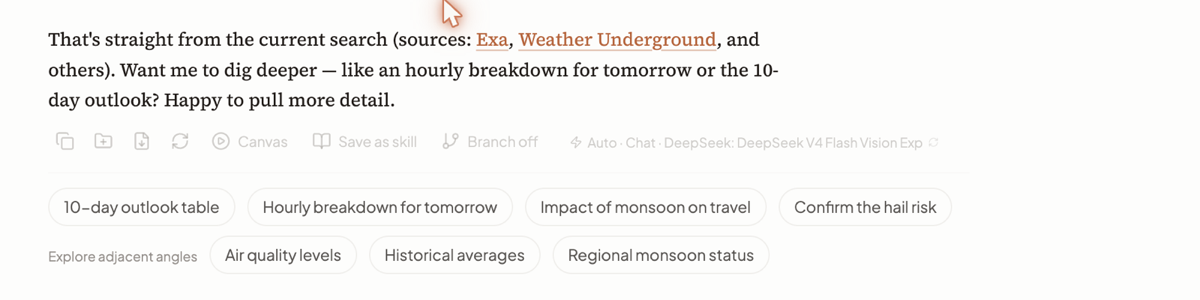
| Action | What it does |
|---|---|
| Copy output | Copies the reply text. |
| Add output to context | Saves the answer into one of your contexts as a document. |
| Export output as PDF | One click for prose. Replies containing tables get a menu with Export as Excel and Export as PDF. |
| Regenerate response | Runs the same message again. |
| Canvas | Opens the output in Canvas — labelled "Open output in Canvas", or "Open saved Canvas" if one already exists. |
| Save as skill | Seeds the Skills editor from this reply, so the instructions behind a good answer become reusable. See Skills. |
| Branch off | Creates a new chat containing the conversation up to and including this response. |
Branch off is for the moment where one answer opens two directions. Instead of derailing the thread, you branch: the new chat starts with everything up to that reply, the original stays exactly as it was, and a toast confirms "Branch created with N messages". The chat has to be saved before you can branch from it. Editing one of your own messages does something similar — it creates a branch with the edited message and a fresh reply, rather than overwriting history.
Follow-up chips
Under the action row you get a quiet row of follow-up suggestions. They are generated at the tail of the turn, so they arrive a moment after the answer finishes — that is not a bug. Most are plain pills: click one and it goes in as your next message.
Some are grouped. A multi-select shows a caption with a range beside it — "pick 1–3" — you tap the chips you want and then Submit, which sends them as one message. A slider renders as a segmented control because its options are points on one scale, not three separate choices.
Heads up: follow-up chips are optional. Nothing in a turn waits for you to click one, and ignoring them costs you nothing.
Limits worth knowing
- A turn is capped at 20 minutes. A long build or a deep research run can use most of that, and there is no way to extend it.
- Branch off needs a saved chat. Branch from the very first exchange and Springbase asks you to wait a moment while the chat is saved.
- The model attribution line never shows cost. To see what your turns are spending, open /profile → Usage.
Where to go next
- How Auto works — the one-turn intents, the live step panel, approvals
- Models and effort — Saver, Balanced, Max and Custom
- Files and attachments — limits, supported types, what happens after you attach
- Voice — dictation and live spoken conversation
- Skills — reusable instructions
- Organising your chats — folders, starring, search and sharing
Related docs
Auto is the only mode. The model decides what to do at each step instead of a router classifying your message up front.
Saver, Balanced and Max are ready-made setups. Custom is the only one where your own model choices take effect.
Attach up to 10 files per message from your computer or your Library, and know which limit actually binds.