Adding documents
Every way to get content into a context, the file types that work, and the three size limits that compound.
A context is only as good as what is in it. Here is every route content can take into one, what it accepts, and why an upload that looks small can still be rejected.
Six ways content gets in
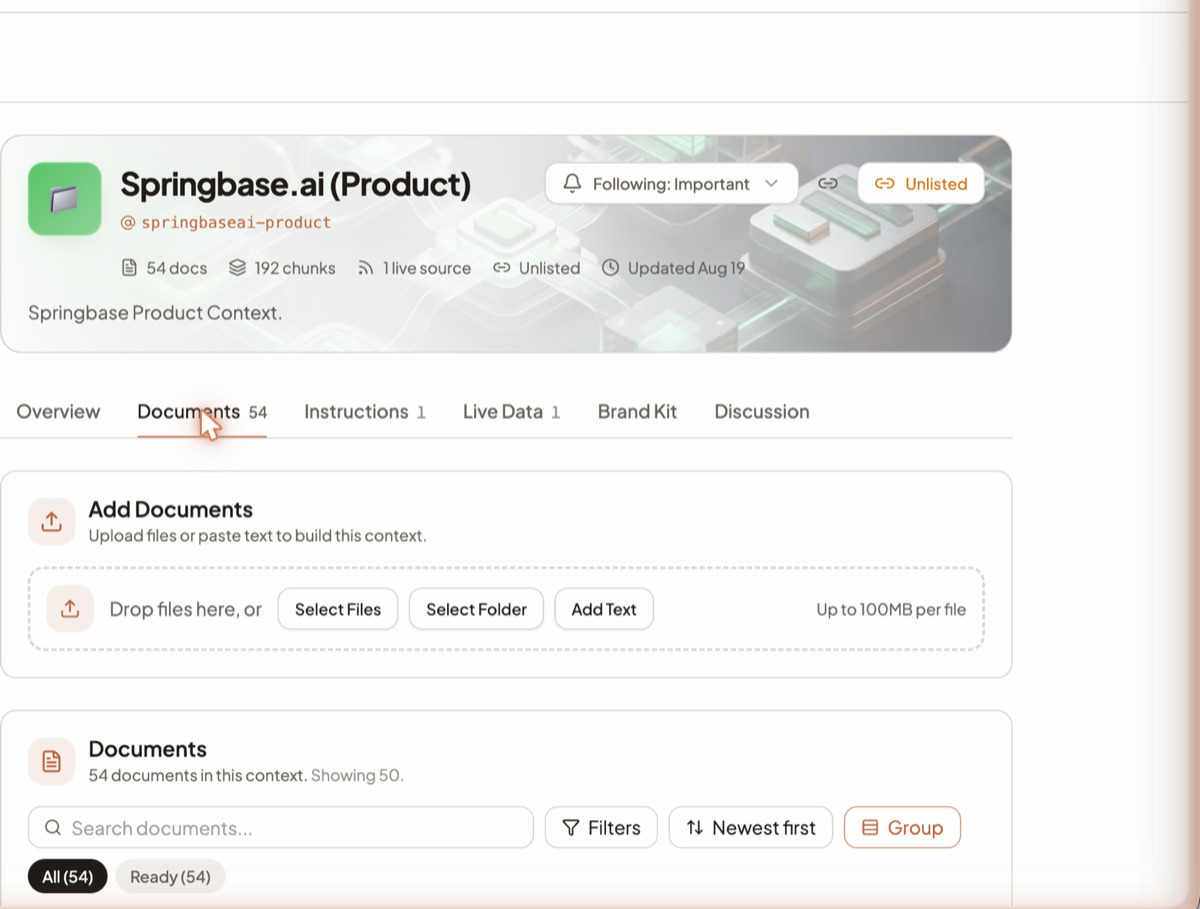
Open a context and go to the Documents tab. The Add Documents panel is at the top — "Upload files or paste text to build this context." — with a drop zone reading "Drop files here, or" and a note that it takes up to 100MB per file.
- Upload files. Drop files onto the panel, or click Select Files.
- Upload a folder. Click Select Folder. The whole tree is walked, up to 1,000 files, with 8
uploads running at a time.
node_modules,.gitand.nextare skipped, and you get a summary of anything that was skipped rather than files silently vanishing. - Paste text. Click Add Text, give it a name, and paste into "Paste or type your content here…". Leave the name blank and it saves as "Untitled Document".
- Email it in. Each context can be given a private inbound address; anything you forward there becomes documents. This lives on the Live Data tab — see Live Data.
- Collect files from other people. A file request is a link an outside person with no Springbase account can use to submit files straight into the context. The default cap is 25 MiB per file and the hard ceiling is 100 MiB. The link token is shown to you exactly once — only a hash of it is stored, so if you lose it you regenerate rather than recover.
- Save an answer from chat. Use Save Output to Context on an assistant message to file it as a searchable document. Against a context you can read but not edit, this files a suggestion for the owner to accept instead.
Finding a document again
Below the panel, the Documents list tells you what it is showing — "54 documents in this context. Showing 50." The list is capped at 50 rows, so on a large context use the search box rather than scrolling. Beside it sit Filters, a sort control set to Newest first, and a Group toggle that stacks documents under the source they came from ("Uploaded 9 of 13"). Status chips narrow the list further — "All (54)", "Ready (54)".
Each row carries the filename, its state badge, and a line of detail: type, size, chunk count, date and who added it — "markdown · 4.7 KB · 4 chunks · Aug 19 · Added by Bharat".
Supported file types
.txt .md .markdown .json .csv .html .xml .yaml .yml .pdf .xlsx .xls .xlsb
.docx .doc .pptx .png .jpg .jpeg .webp .gif
Anything else is refused up front with "We can't read <ext> files yet…". Uploading the same bytes
twice is rejected as a duplicate rather than creating a second copy.
The size limits compound
There is no single "maximum file size". Three limits apply in sequence, and a file has to clear all three. The tightest one wins.
| # | Limit | Value |
|---|---|---|
| 1 | Your plan's per-file ceiling | 50 MB on Pro and below · 100 MB on Max · 110 MB for Excel workbooks on Max |
| 2 | The per-type extraction cap | PDF 100 MB · .docx 50 MB · .doc 30 MB · .xls / .xlsb 30 MB · images 20 MB · text-like files 100 MB. .xlsx, .xlsm and CSV stream, so they take your plan ceiling |
| 3 | The text-volume gate | About 500,000 tokens of extracted text for anything that gets indexed |
Worked example: a 60 MB .docx on the Max plan clears limit 1 (100 MB) but fails limit 2, because
Word extraction stops at 50 MB. A 30 MB PDF clears limits 1 and 2 but can still fail limit 3 if it
holds more than about 500,000 tokens of text.
Spreadsheets get their own ceiling instead of limit 3, because large grids are served from a structured path rather than being embedded: unlimited on Max, 750,000 tokens on Pro, 500,000 tokens on Free and Starter.
Heads up: the Upload button in the Library is a completely different gate — 20 MB per file, with a narrower list of accepted types. Do not read one limit as the other.
Processing states
Every document lands in one of three badges.
| Badge | Meaning |
|---|---|
| Processing | Queued or being read. Not searchable yet |
| Ready | Indexed and available to answers |
| Failed | Could not be read. The row shows a plain-English reason |
A failed row offers one of two buttons, and which one you get is decided for you:
- Retry appears when the problem could go away — a timeout, a service that was briefly down, a credit check that could not complete. Retrying is the right move.
- Remove appears when the problem is permanent — a password-protected PDF, an unsupported format, a corrupted file. Retrying will fail again; fix the file and upload it fresh.
The context's header counts only successfully processed documents, so a gap between the number of files you uploaded and the count shown is your failure count.
Common failures, in plain words
- This PDF is password-protected. Remove the password and upload again.
- This file is too large. The message names the specific limit it hit, which is often limit 2 above rather than your plan ceiling.
- This scanned PDF is too large to read in one go. Split or compress it and upload the parts.
- We couldn't find any readable text. Common with screenshots and photographed pages — make sure the image is clear and the right way up.
- We couldn't read the text in this document. The scan is too blurry or low-resolution, or in a language that is not supported yet.
- You don't have enough credits to read this file. Scanned PDFs and images go through OCR, and OCR consumes credits in proportion to how much there is to read. A text-based PDF does not.
- Something went wrong on our side. These messages say explicitly that no credits were charged.
What this does not do
Uploading is not instant, and a document still marked Processing is genuinely not searchable — ask about it and the answer says so rather than working from a partial index. There is also no way to add a web page as a document from this tab; URLs come in through Live Data.
Related docs
A Context is a named, reusable folder of knowledge you can pull into any chat with its @handle.
Keep a context fed automatically — from a web page, an RSS feed, or a connected account like Slack, Gmail or Drive.
Four ways to bring a context into a chat, how citations work, and how to tell when an answer is thin.