Recipes
Save a prompt you keep retyping as a reusable recipe with fill-in-the-blank inputs, then run it from chat in two clicks.
A recipe is a prompt you have already got right, saved with the parts that change each time turned into fields you fill in. Instead of retyping "write a weekly status update, tone should be…" you pick the recipe, type this week's inputs, and send.
They are worth building when you run the same shape of request repeatedly, when the prompt is long enough that you would otherwise keep it in a note, or when you want it to run unattended — Automations always target a recipe.
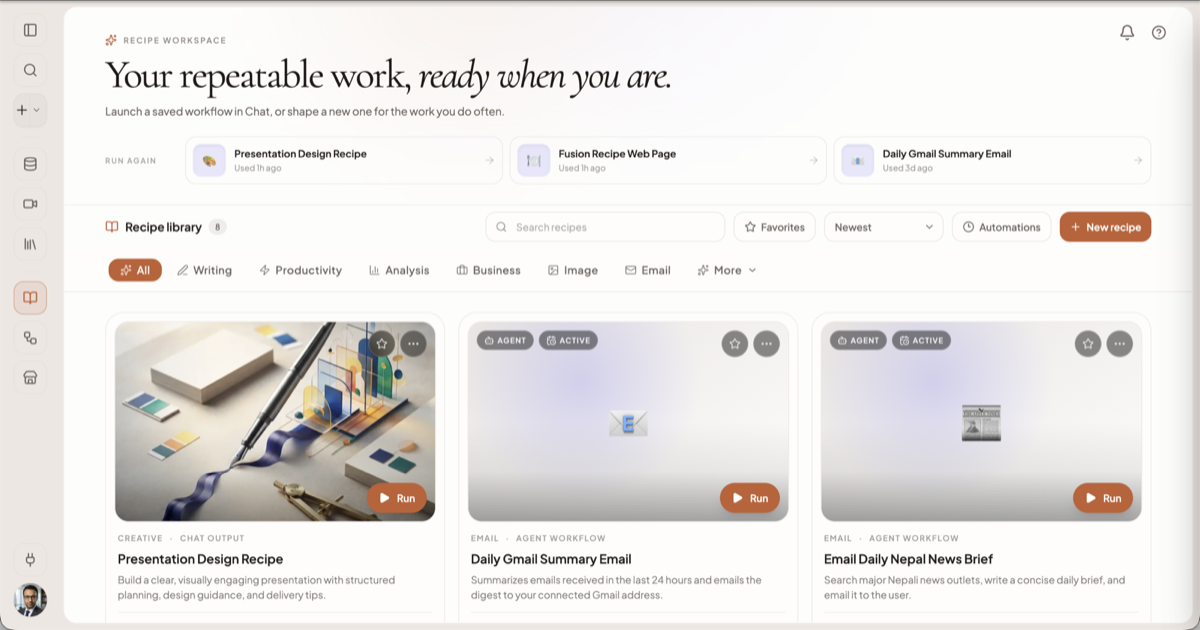
The Recipes entry in the sidebar opens the workspace: search, category pills, a Favorites toggle, sort, and a strip of the three you used most recently.
Building one
The editor is a four-step wizard: Describe → Inputs → Review → Complete.
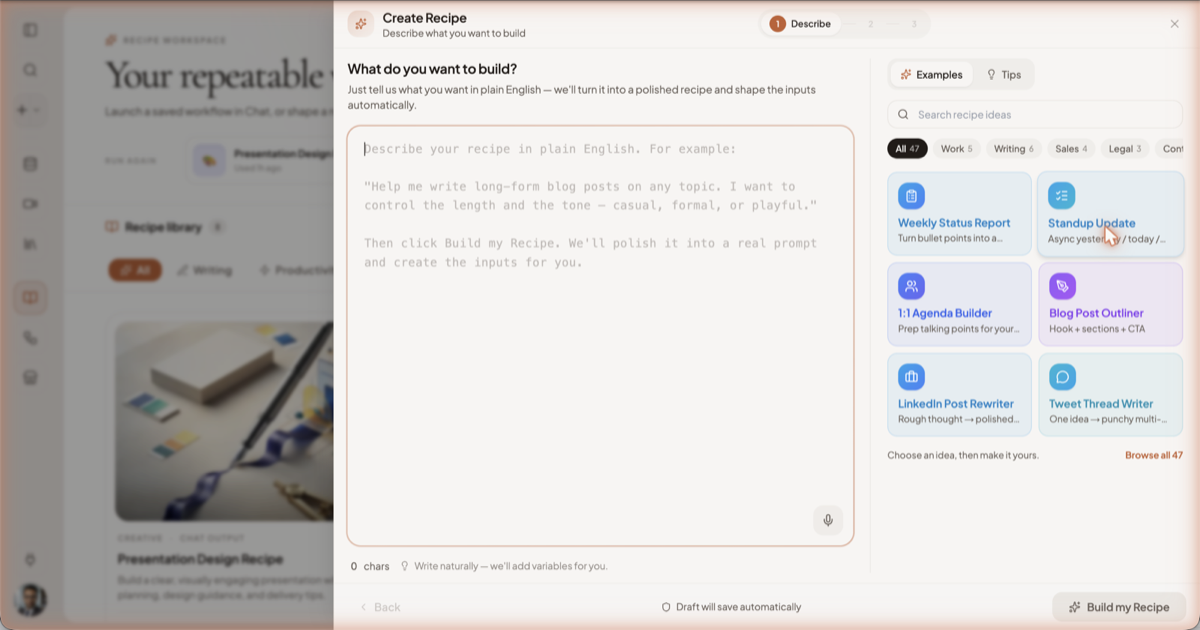
- Click Create Recipe on the Recipes page.
- Write the prompt in plain language on Describe — a rough paragraph is enough. The in-editor guidance asks you to name the outcome, the audience, and the knobs that should change per run.
- Click Build my Recipe (or press ⌘↵). Springbase rewrites your paragraph into a structured prompt, then analyses it: it scores the prompt, detects which phrases should become inputs, and suggests tools and a model.
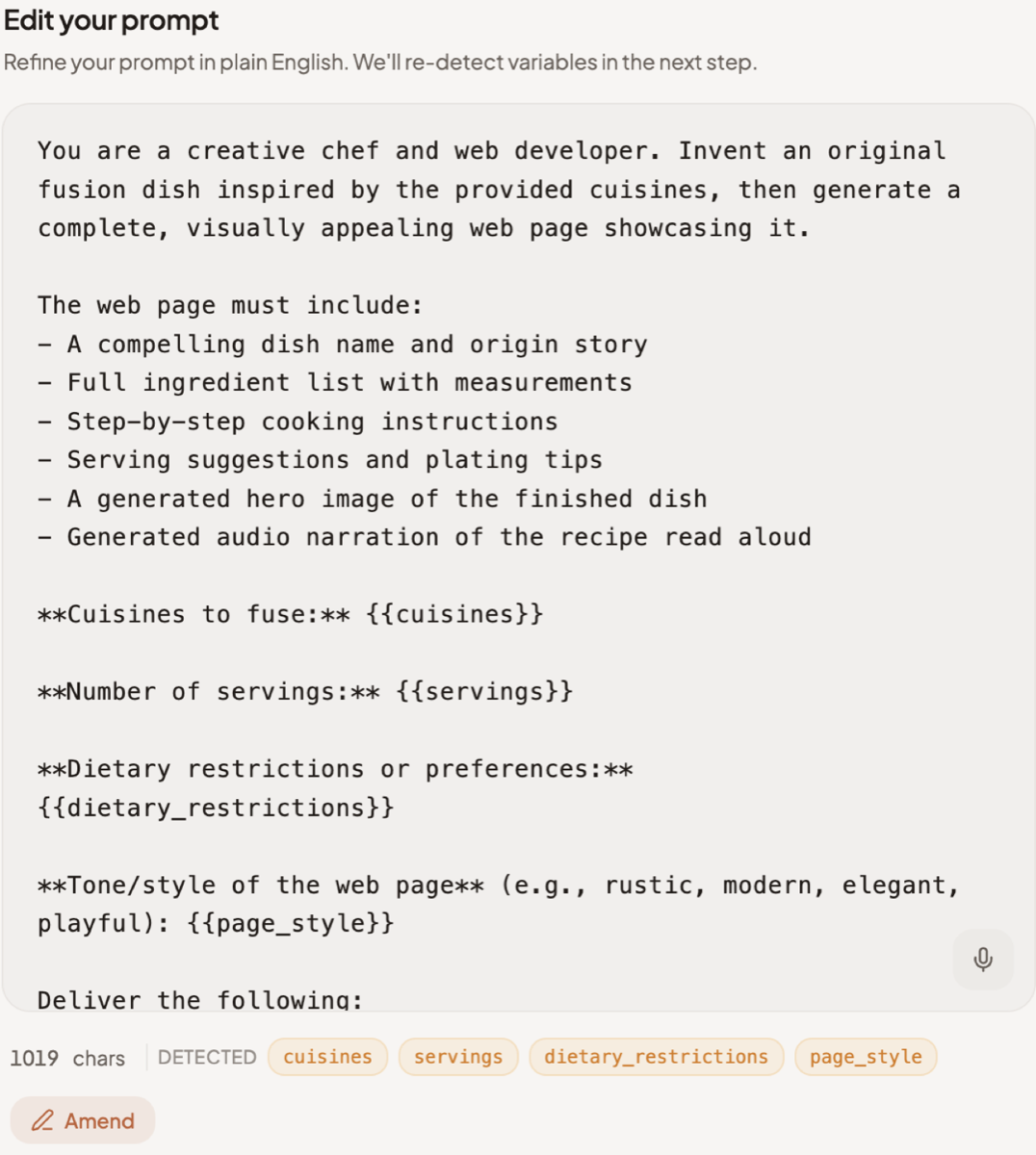
- Read the rewrite. The editor shows it under Edit your prompt — "Refine your prompt in plain
English. We'll re-detect variables in the next step." A character count sits under the box, and beside it a DETECTED
row of chips naming every variable it found (
cuisines,servings,dietary_restrictions). Click Amend to say what to change about the rewrite rather than editing it by hand, or Continue to accept it. - Adjust the detected inputs on Inputs, confirm the details on Review, and save.
Drafts are kept in your browser, so closing the editor mid-build does not lose your work.
Inputs
Each input has a name, a label, and a type. Six show by default — Short Text, Long Text, Dropdown, Date, File and Context — and the rest sit behind a "show more" link. The full picker offers seventeen:
| Type | What the person filling it in gets |
|---|---|
| Short Text / Long Text | A single line, or a multi-line box |
| Dropdown / Multi-Select | One, or several, of options you define |
| Number / Slider | A number, or a range with min, max and step |
| Toggle | A yes/no switch with labels you choose |
| Date / Date & Time | A calendar, or a calendar plus a time |
| URL / Email | A link or an address |
| Context / Meeting | A picker that attaches contexts, or meetings, as context |
| Image / File | An upload, or a pick from your Library |
| Color / Location | A colour picker; a place search or current location |
Attaching contexts
You can bake contexts into the recipe itself, so every run reads the same knowledge without the person remembering to attach it. A recipe carries at most 12 attached contexts. On a scheduled or triggered run they are equipped automatically and stamped onto the chat that run creates, so the context pills show up there too.
Heads up: attached contexts affect sharing. If one of them is deleted, or is private, sharing is refused with Sharing blocked by context visibility drift — update the context's visibility or take it off the recipe.
Running one from chat
There are three ways in:
- The chef-hat button in the composer, tooltip Run a recipe.
- The sidebar Create menu → Run a recipe, which lists recent recipes.
- The Use action on any card in the Recipes workspace.
Typing / does not open recipes — that is the skills launcher.
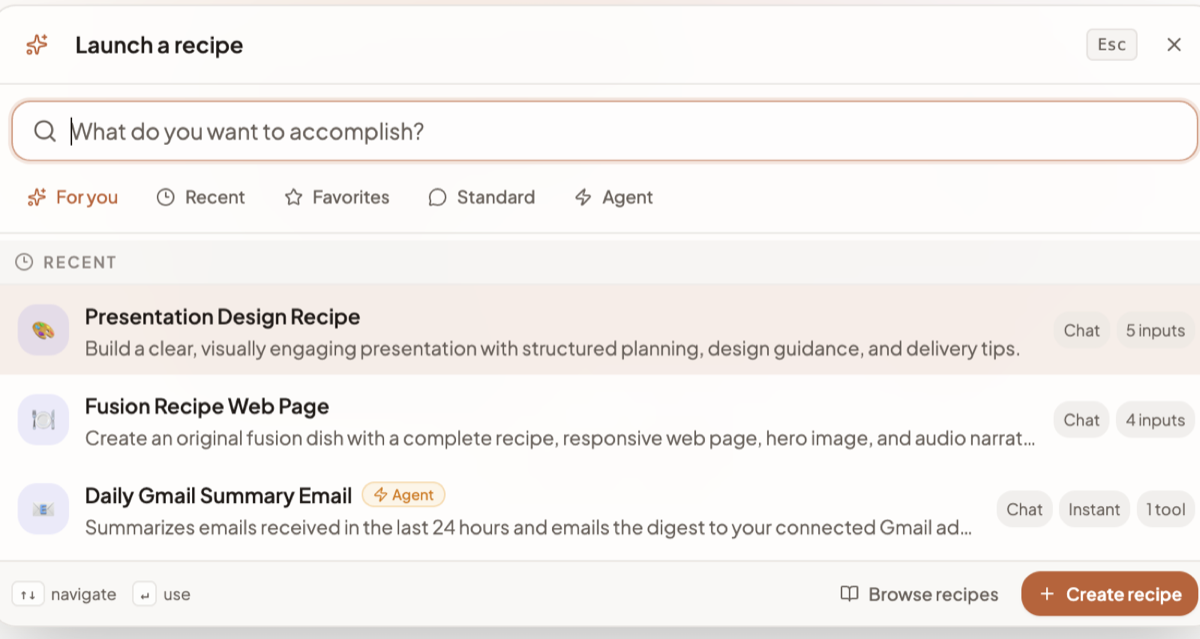
The first two open the launcher, a dialog titled Launch a recipe with one search box — "What do you want to accomplish?" — and five filters: For you, Recent, Favorites, Standard and Agent. Each row names the recipe, describes it in a line, and carries chips telling you what you are about to start: its output (Chat), how many fields it will ask for (5 inputs), an Agent badge where it uses tools, and a tool count. Browse recipes and Create recipe sit in the footer.
Pick one and an input card takes over the composer. It asks for one field at a time — the field's label, its type and whether it is required ("Text · Required") — with a progress line in the header ("0 of 4 required complete") and View all to see every field at once. Under the field, Prompt preview shows the prompt being filled in as you type, with "Click a value to edit" and a Show full prompt control.
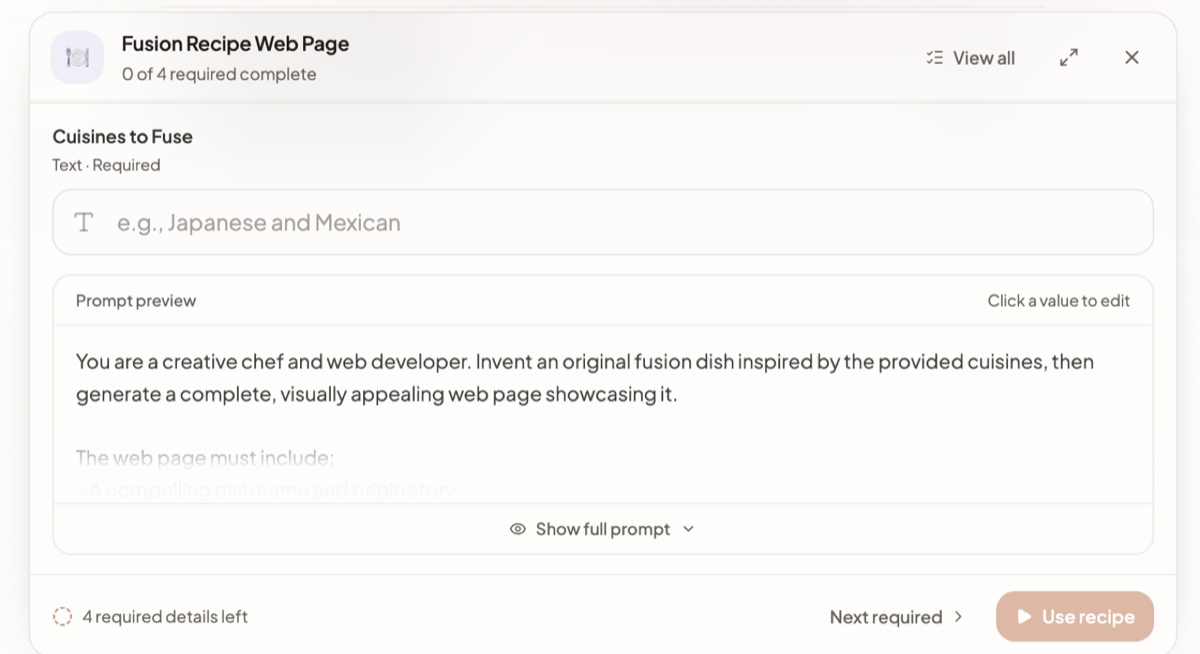
The footer counts what is left ("4 required details left"), Next required jumps to the next empty field, and Use recipe starts the run. Each launch clears the previous run's inputs, so a second run never silently inherits the first one's answers.
Favourites and sharing
Click the star on a card to favourite it; the Favorites filter narrows the list to those.
Sharing produces a link at a public address for the recipe. Open Share to copy it, post it to LinkedIn, or download a QR code. Recipes other people have shared show up in the Marketplace. To stop sharing, use Make Private — the dialog warns "Stops sharing. The link will stop working for others", and it means it: anyone holding the old link loses access.
What the card labels mean
Recipe cards show a label like Agent workflow, Chat output, Live voice or Image output. These are descriptions of what the recipe does, computed when the card renders — they are not a type you pick in the editor. A recipe becomes "Agent workflow" because it was built to use tools, not because you chose that label.
Limitations
- Recipes that run as agent workflows are locked unless your plan includes agent mode and you have agent credits available; the card opens an upgrade dialog instead of running. See Plans and credits.
- You can have 10 active schedules at once across all your recipes.
- Scheduling an agent-workflow recipe is available on paid plans only.
- Recipes run unattended — on a schedule or a trigger — cannot perform actions outside Springbase. See Automations for what that rules out.
Related docs
Run a recipe on a schedule, after a meeting ends, or when an app fires an event — and understand why unattended runs never send anything.
A Context is a named, reusable folder of knowledge you can pull into any chat with its @handle.
The composer control by control, what an answer can contain, and the actions under every reply.