Organising your chats
Star, rename, group into folders, search everything with Cmd+K, share a link, and delete what you no longer need.
Chats accumulate fast. The sidebar gives you four ways to keep them findable — starring, folders, date grouping and search — and one way to get a chat out of Springbase entirely, which is sharing. For what happens inside a chat, see Chatting with Springbase.
The sidebar
Under New chat the sidebar lists, in order:
- Folders — your own groupings.
- Starred — the chats you have pinned to the top.
- Everything else, grouped by date.
A dot on a chat row tells you what is happening in it without opening it: a pulsing dot means a turn is running in that chat right now, and a ring means a turn finished there. New chats get their title generated for them, showing a shimmer while it is being written.
The row menu
Hover a chat and open its … menu. These are all the actions there are:
| Action | What it does |
|---|---|
| Star / Unstar | Moves the chat into or out of the Starred section |
| Rename | Replaces the auto-generated title |
| Move to folder / Change folder | Puts it in a folder, or moves it between folders |
| Remove from folder | Takes it back out, without deleting anything |
| Add to context | Files the conversation into one of your contexts so future chats can search it |
| Share | Creates a link — see below |
| Delete | Removes the chat |
Heads up: there is no archive for chats. If a chat is in your way, the options are a folder, unstarring, or deletion — and deletion is permanent.
You can also rename a chat from inside it, without going back to the sidebar.
Folders
Create a folder, rename it, and delete it from the Folders section. A folder can also carry default contexts: every chat you start inside it begins with those contexts already attached, so a "Client work" folder can point at the client's knowledge without you selecting it each time.
Deleting a folder does not delete the chats in it.
Finding a chat
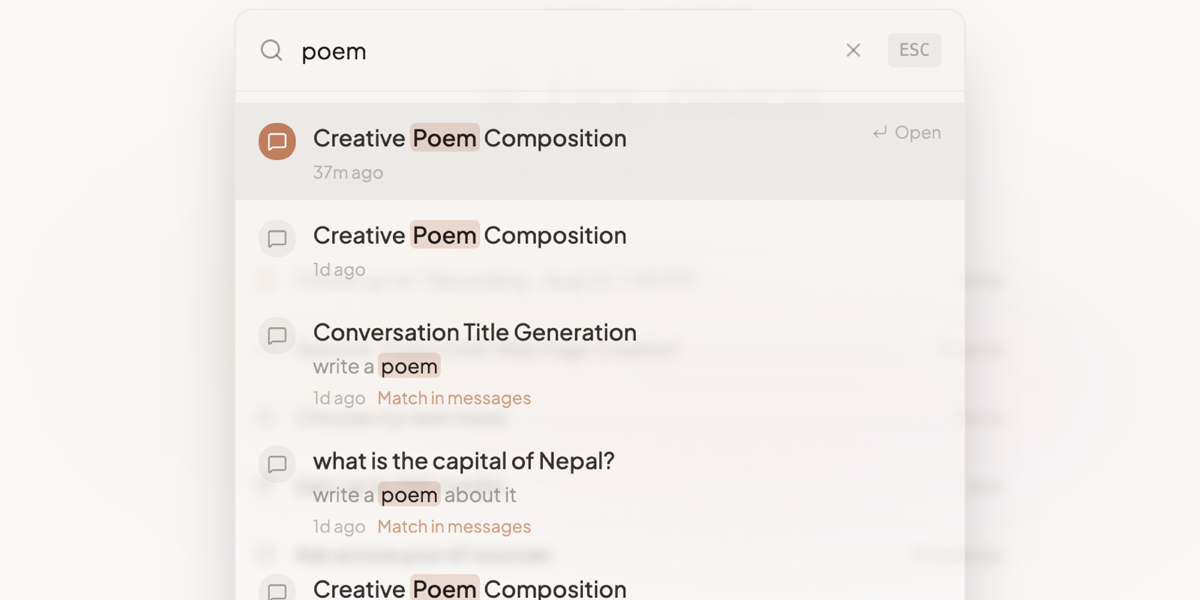
Press ⌘K (Ctrl+K on Windows and Linux) to open search. It looks at both chat titles and the content of messages, highlights what matched, and shows how long ago each result was.
The other default shortcuts:
| Shortcut | Action |
|---|---|
| ⌘N | New chat |
| ⌘R | Create recipe |
| ⌘B | Toggle sidebar |
| ⌘K | Search |
All of these are rebindable if the defaults clash with something else you use.
For a bigger view there is a chat explorer dialog with folders, starred chats, scope switching, search and infinite scrolling — useful when you are looking for something from months ago rather than something you touched today.
Sharing a chat
Sharing creates a link to the conversation. Anyone who opens it sees the messages in a read-only view of the chat.
- Open the chat's
…menu and click Share. - Choose the scope — public, or restricted to your organisation or team.
- Optionally set a password. It is hashed before it is stored, so nobody at Springbase can read it back.
- Optionally set an expiry: Never, 24 hours, 7 days or 30 days.
- Copy the link.
Reopen the modal later and it shows how many times the link has been viewed and whether a password is set. Someone who opens your link can fork the conversation into a chat of their own; the fork is recorded as having come from your share.
Public sharing can be switched off for your whole organisation by policy, in which case the public option is unavailable to you.
Limits worth knowing
- There is no archive. Delete is the only way to remove a chat from the list, and it does not come back.
- A link with no expiry and no password works forever, for anyone who has it. Set both on anything you would not want circulated.
- Renaming is cosmetic. It changes the title, not what search matches — search reads the message content too, so an old chat is findable even under a bad title.