After the meeting
What Springbase produces once a call ends — summary, decisions, action items, participants — and how to ask questions about it in chat.
When a call finishes you get a transcript you can read and search, a summary with decisions and action items pulled out of it, and a meeting you can ask questions about in chat. This page covers what arrives, in what order, and what you can do with it.
What arrives, and when
Processing happens in three stages, and they do not finish together:
- The transcript. Recorded and uploaded audio goes through transcription; bot meetings use the call recorder's own transcript pipeline; pasted text is split into speaker turns by a language model instead. Chunked recordings transcribe while you record, so the transcript is usually ready moments after you stop.
- The meeting flips to Done. This happens as soon as the transcript is stitched together.
- The summary. A separate worker writes the summary, decisions, action items and topics a few seconds later.
Heads up: the summary lands after the meeting says Done, not with it. A meeting that reads Done with an empty Summary tab for a few seconds is normal. If summarisation fails outright, the meeting still shows Done with "Transcript ready (summary unavailable)" — you keep the transcript.
You do not need to refresh — Springbase keeps polling until the summary appears. A watchdog runs every five minutes behind the scenes and rescues meetings that stall.
The two tabs
A meeting opens in the right-hand pane with exactly two tabs: Summary and Transcript. There is no separate tab for decisions or actions — they are sections inside Summary.
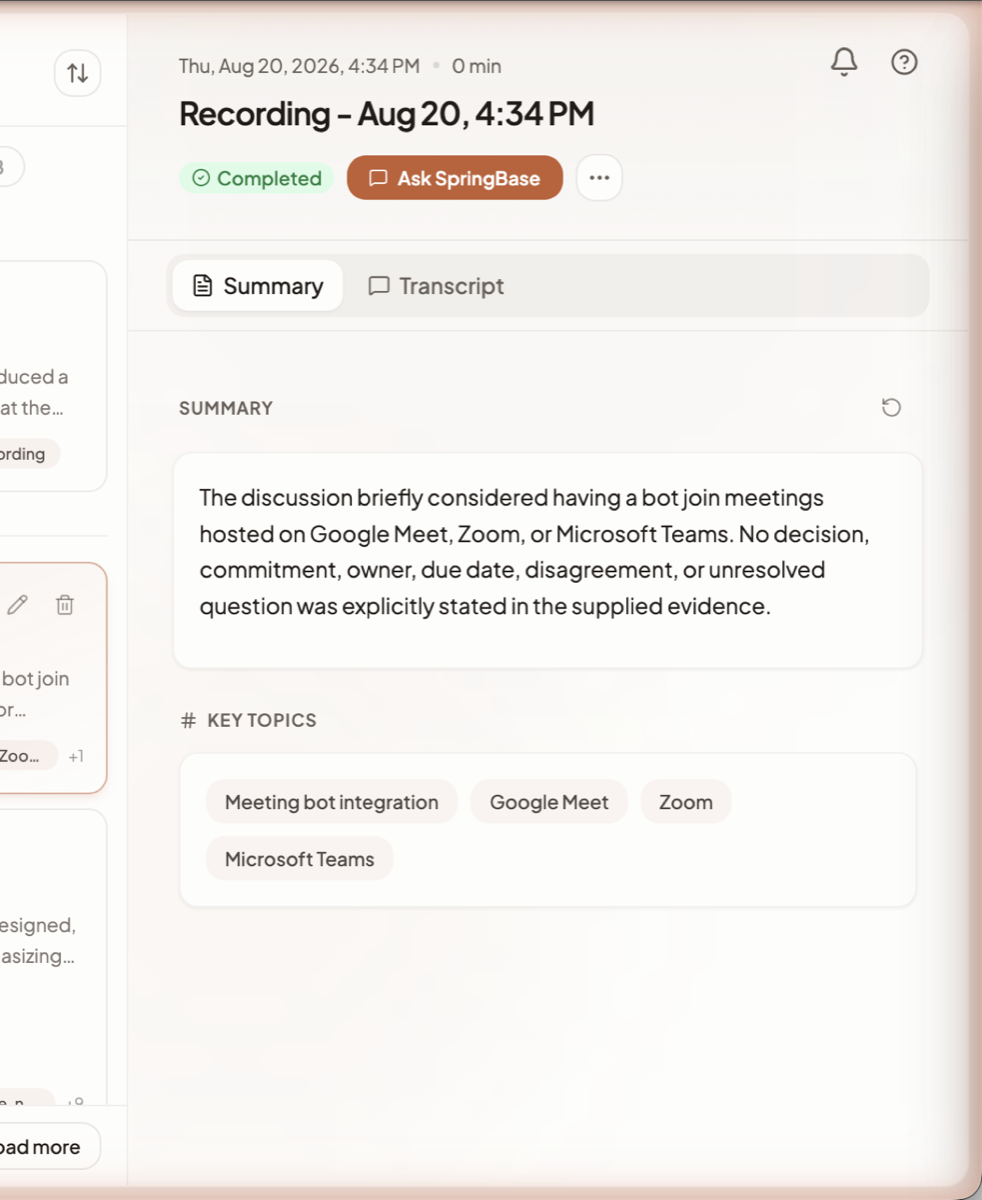
Above the tabs sits the meeting's header: the date and duration, the title, a green Completed status pill, an Ask SpringBase button that takes the meeting into a chat, and a … menu.
Summary
- SUMMARY — a written account of the call, in markdown, with a regenerate control in its corner.
- Decisions — what the group settled on.
- Action items — each with a checkbox. Tick one and it stays ticked even if you regenerate the summary later, because completion is stored against the text of the item rather than its position.
- KEY TOPICS — up to 12 per meeting, rendered as pills, and repeated on the meeting card in the list.
If the summary is wrong or thin, regenerate it from the meeting's … menu. The old summary stays on screen, dimmed, while the new one is written; after 90 seconds with no result Springbase puts the old text back.
Transcript
The Transcript tab shows speaker-grouped turns with search inside the transcript, a filter by speaker, and a copy action. You can rename a speaker inline or assign them to a real person — Springbase then refreshes the summary using the corrected names.
The Transcript tab is hidden entirely when you are viewing a meeting someone shared with you and your access is metadata-only. You will see the summary details without the underlying words.
Participants and People
Springbase records who was on the call from the call platform and from the transcript's speaker labels. Those names roll up into People in the left rail — the participants who appear most often across your meetings, with your own name excluded. Click a person to filter the list to every meeting they were in.
Because People is built from participant records and speaker labels, a meeting with unlabelled speakers contributes nothing to it until you name them in the Transcript tab.
Asking questions about a meeting
Two buttons at the top of the meeting do the work:
- Ask SpringBase — starts a new chat with this meeting attached as context and takes you to it. Ask it anything the transcript can answer: "what did we promise on pricing?", "draft the follow-up email", "who owns the migration?".
- Review actions — jumps straight to the action items in the Summary tab.
Every finished meeting is also indexed into searchable chunks, which is what lets chat answer questions spanning several calls rather than one at a time — you do not have to attach each meeting by hand. Cross-meeting questions run as a background job with a ceiling: up to 4,000 characters of question, across at most 200 selected meetings or 20 selected people.
Finding things later
- Search the list. The search box in the left rail matches on title, summary, key topics, decisions, action items and participant names. Queries are trimmed to 120 characters.
- Filter by source. Chips for Meet, Zoom, Teams, Recordings and Pasted appear above the list — but only in the All Meetings view, and only for sources you actually have. Uploaded audio files do not appear under Recordings; they only show under All Meetings.
- Sort newest or oldest. Search results ignore the sort toggle and come back ranked by relevance.
Collections
Collections are folders for meetings. Create one from the left rail, then add a meeting from its … menu — the button reads Collections, or In N once the meeting belongs to some. Names are up to 80 characters and each collection takes one of ten colours. Only the meeting's owner can change its collections.
Getting a meeting out
From the meeting's header and … menu:
| Action | What it does |
|---|---|
| Export PDF | Downloads the meeting as a PDF |
| Save to Context | Writes the meeting into one or more contexts as a markdown document, so it becomes part of your knowledge base |
| Share meeting | Changes who can see it (below) |
| Delete meeting | Removes it, after a confirmation |
Save to Context is the bridge into Contexts — use it when a call contains reference material you want answered against long after the meeting itself stops being interesting.
Want the follow-up work to happen without you? A finished meeting can trigger a recipe automatically — see Automations, or walk it end to end in From meeting to follow-ups.
Sharing a meeting
Open Share meeting from the … menu. Only the meeting's owner can change sharing. Three options are offered:
| Option | Who can see it |
|---|---|
| Private | Only you |
| Everyone in the enterprise | All members of your enterprise |
| A specific team | Members of one team you choose |
The last two are only selectable if your account belongs to an enterprise and, for teams, to at least one team. On a personal account Private is the only live option — there is no public link for a meeting from this dialog.
Retention and deletion
Deleting a meeting deletes it properly: the meeting row, its participants, its transcript segments, its indexed chunks, and every stored audio file under that meeting.
For bot-recorded calls, the recording provider's copy of the media is deleted as soon as the transcript segments are safely stored, rather than sitting out a retention window. If no segments were stored the media is kept so a retry is still possible.
There is no per-meeting retention setting and no auto-expiry you can configure — meetings stay until you delete them.
Related docs
Six ways to get a call into Springbase — a bot in the call, browser recording, the Mac app, an upload, a pasted transcript, or your calendar.
Run a recipe on a schedule, after a meeting ends, or when an app fires an event — and understand why unattended runs never send anything.
A Context is a named, reusable folder of knowledge you can pull into any chat with its @handle.