Build and publish a page
Use the Build intent to make a working one-page site, edit it in Canvas by hand and by asking, then publish it on its own web address.
By the end of this you have a working one-page site — real files, checked and repaired before you saw them — open in Canvas where you can edit it, and live on its own web address that you chose.
What you need first
- A signed-in account. The Build intent itself carries no plan gate.
- Publishing the result as a hosted site does need a paid plan, and your plan sets how many sites you can keep published at once.
- One clear description of the page. Build works in one message; it is not an interview.
Step 1 — Ask for it with Build
- Open a new chat.
- Click the Auto chip in the composer. Under the For this message heading, choose Build. The chip now reads "Build".
- Type what you want in one message. Be specific about sections, tone and anything that must appear: "A one-page site for a two-day workshop. Hero with the title and dates, three sections — what you'll learn, the schedule, who it's for — a sign-up form at the bottom, dark, no stock photos."
- Send.
The chip is a posture for one turn, not a mode. It tells the model that "the outcome of this turn
is a working artefact, not a description of one", and it does not stop the same message doing other
work — asking for a page and a launch caption is one send. It is cleared by sending, so arm it
again next time. Shortcut: start the draft with /build and the rest of the line is sent as the
prompt.
Step 2 — Watch the step panel
A Build turn does not stream one long answer. It works, and shows you the work:
- a one-line status naming the step it is on right now,
- a checklist floating over the conversation, with controls to hold, continue or amend a step,
- an activity block listing each tool call with its duration, expandable if you want the detail,
- an assets floater showing what the turn is making while it makes it.
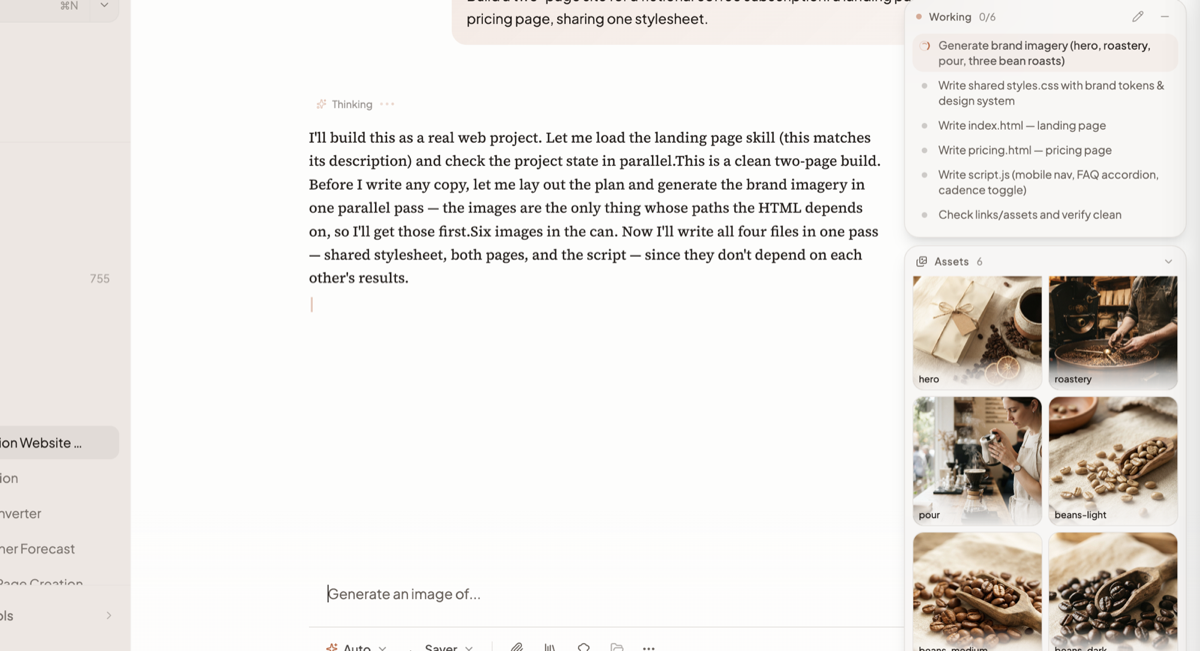
You can steer without stopping it: type while it runs and the composer collapses to a Steering · step n/N pill — your message becomes guidance picked up at the task's next step, rather than a new question.
Under the surface the run writes the files, then checks the project for broken links, missing files and empty files, and repairs what it finds before saying it is finished. A turn runs for at most 20 minutes.
Step 3 — Open what it made
When the turn finishes you get a result card for the project with these actions:
| Action | What it does |
|---|---|
| Open preview | Opens the built page in a new tab |
| View files | Opens the project's file list — every version, every file |
| Download project | Downloads the whole project as an archive |
| Download … | One row per generated document (PDF, DOCX, PPTX) if the turn made any |
| Publish site | Step 5 |
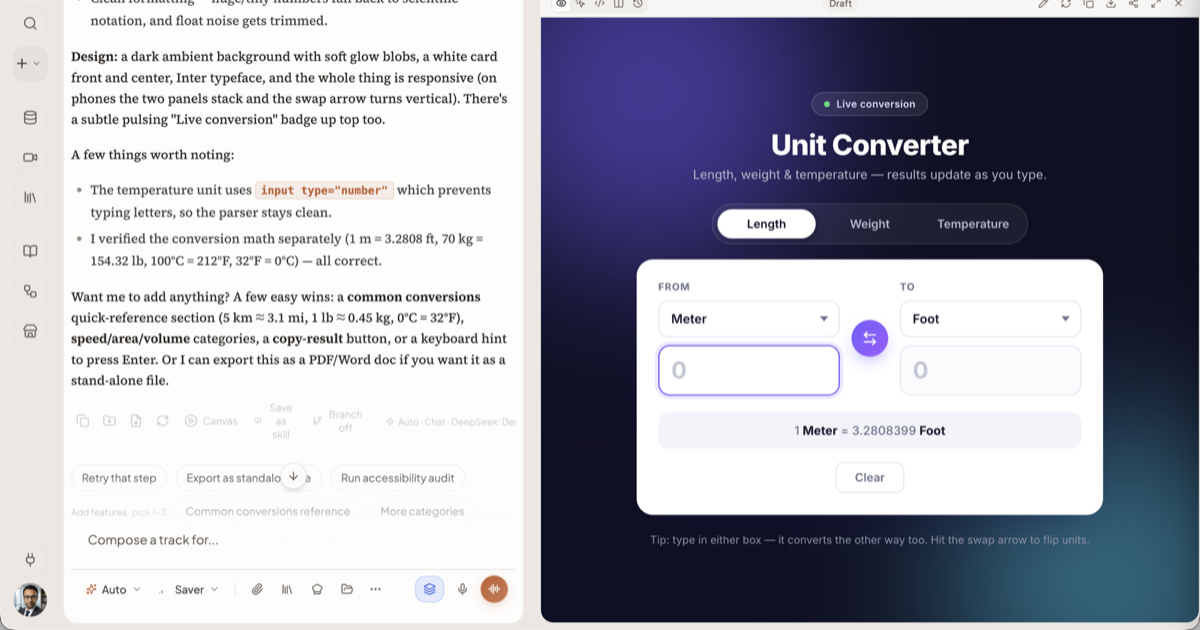
Above it, the deliverable row for the project has an Open button. That is the one that hands the flattened page to Canvas, which is where you edit it.
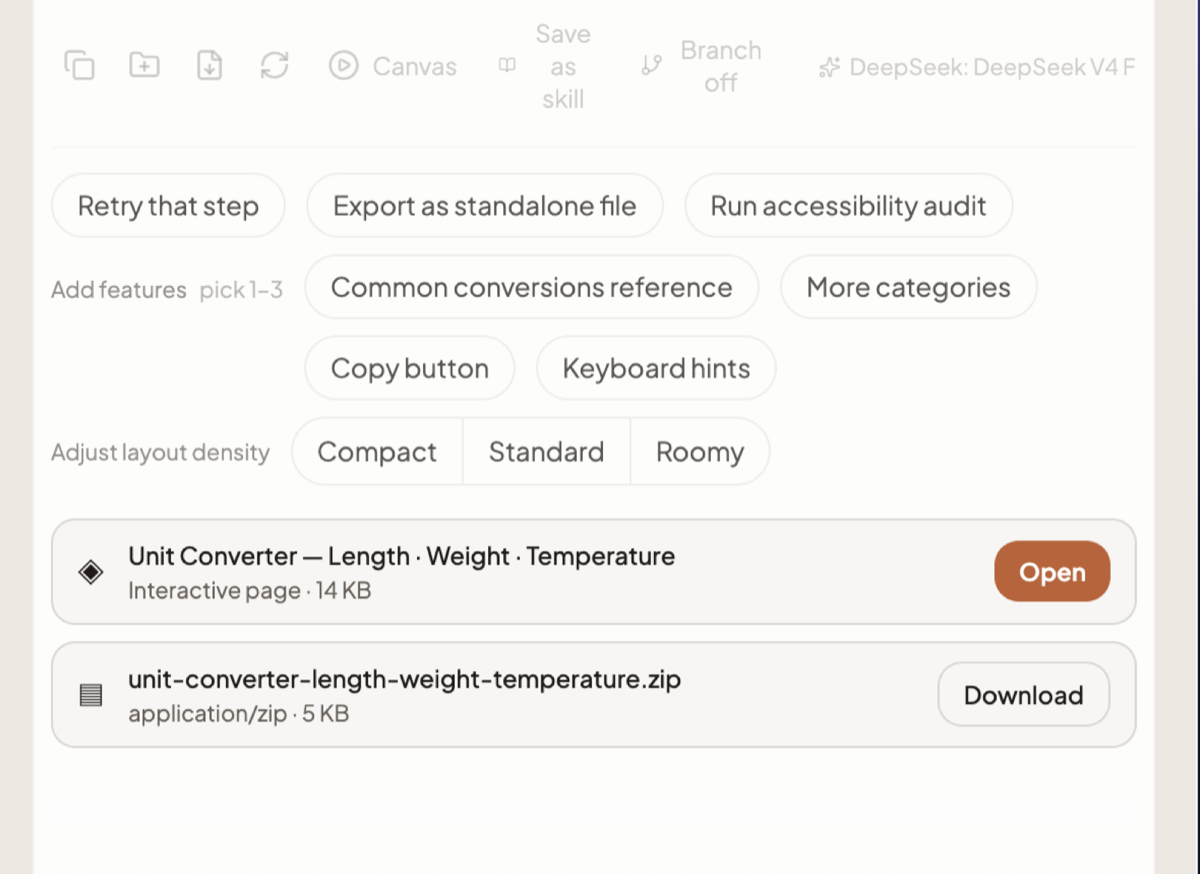
Heads up: the source files — HTML, CSS, JS — are deliberately not attached to the reply as downloads. The project is what persists, and Canvas and View files are how you open it. Generated images and audio are inlined into the reply instead, and registered in your Library.
Step 4 — Change it, two ways
Ask for the change
Describe it in the next message: "make the schedule a two-column table and drop the sign-up form". Editing an existing build restores every file of the current version and applies targeted edits rather than rebuilding the page from scratch, so the parts you liked survive.
Make one by hand
In Canvas, the toolbar switches between Preview, Visual edit, Code editor and Split view. Visual edit is available for HTML documents — click into the page and change the text or an element directly. Code editor gives you the source.
Open Document history to see the versions. Each snapshot is labelled with why it exists — "Canvas created", "AI suggestion", "Manual edit", "Published" — and carries a Restore button, so a hand edit you regret is one click away from being undone.
Step 5 — Publish it with a custom link name
- Click Publish site on the build's result card (or Share site in the Canvas toolbar).
- In the Publish site dialog, type a Site address.
- Click Publish.
You get a live address, with buttons to copy it and to open it.
The slug rules
The Site address field checks as you type and tells you exactly what is wrong:
| What you see | What it means |
|---|---|
| Available | Yours, if you publish now |
| "Use 3–63 lowercase letters, numbers, and hyphens." | The only characters allowed. No capitals, no underscores, no spaces |
| "That address is already taken." | Someone else has it |
| "That address is reserved." | It is on the reserved list and will never be issued |
What Freeze does
A freshly published site says Following new builds — "every new build publishes here automatically". That is the default, and why most people never touch this section.
Click Freeze and the site pins to the build it is serving right now. The row changes to Frozen and reads "New builds will not change this site." Use it before you experiment on a page other people are already looking at. Resume turns automatic publishing back on.
Two related controls appear once a site exists: Restore an earlier build, which picks a version and freezes the site on it, and Publish latest build, which appears only on a frozen site that has fallen behind. Unpublish takes the site down after a second click (Confirm unpublish).
The plan quota
Hosted sites are a paid feature. With no allowance, the dialog says so and offers View plans instead of a publish button. With an allowance, it shows how many of your sites are in use, and at the limit it tells you to unpublish one or upgrade. How many you get depends on your plan.
Aside — getting a PDF out
Ask for it in the chat: "export this as a PDF". A Build turn can render PDF, DOCX and PPTX from the page and hand them back as Download rows on the result card — you are not expected to export it yourself. In Canvas, the Download menu offers per-format exports for document artifacts, a raw file download, and every table in the document as one Excel workbook.
Export is best-effort by design: the guaranteed deliverable is the verified project, so a conversion that fails is reported and does not fail the build. Each format also has a character ceiling, which Canvas checks before it tries.
How to check it worked
- Open preview renders the page you asked for.
- View files lists the project's files.
- The published address opens in a private browser window, on a device that is not yours.
- Document history shows your manual edit as its own restorable version.
What commonly goes wrong
- The reply described files instead of making them. The Build chip was not armed — it clears every time you send. Arm it again and re-ask.
- The address was refused. Re-read the message under the field: too short, too long, wrong characters, taken, or reserved.
- Publish is not offered. Hosted sites need a paid plan, or you are at your plan's limit.
- The live site did not change after a new build. The site is Frozen. Click Resume, or Publish latest build.
- No PDF arrived. The conversion is best-effort and can be skipped; ask again, or open the page and print it.
- The turn stopped early. A single turn runs for at most 20 minutes. Split a very large build into "build the structure" and then "now add X".
Where to go next
- Building pages and apps — what Build can and cannot produce
- Canvas and artifacts — versions, exports and sharing an artifact
- How Auto works — why the step panel exists and what the intents do
- Library — where generated media ends up
Related docs
The Build intent makes a working project — files written, checked and handed back — instead of describing one. Plus Deck, exports and hosted sites.
Open an answer in Canvas to see it rendered, edit it by hand or by asking, roll back a version, export it, and share it at a /a/ link.
Auto is the only mode. The model decides what to do at each step instead of a router classifying your message up front.
Every file you upload and every image, clip, track and artifact Springbase makes, in one place — with a storage meter and a way back into chat.