Contexts
A Context is a named, reusable folder of knowledge you can pull into any chat with its @handle.
A Context is a named folder of knowledge that stays put. You add documents to it once, give it a handle, and then pull it into any chat by name instead of re-uploading the same files every time.
When to make one, and when not to
Attach a file straight to the composer when you have one question about one document and you will never ask again. Make a Context when the same material keeps coming back — a product spec, a set of board decks, a contract library, a research folder — or when you want other people to be able to query it without owning the files.
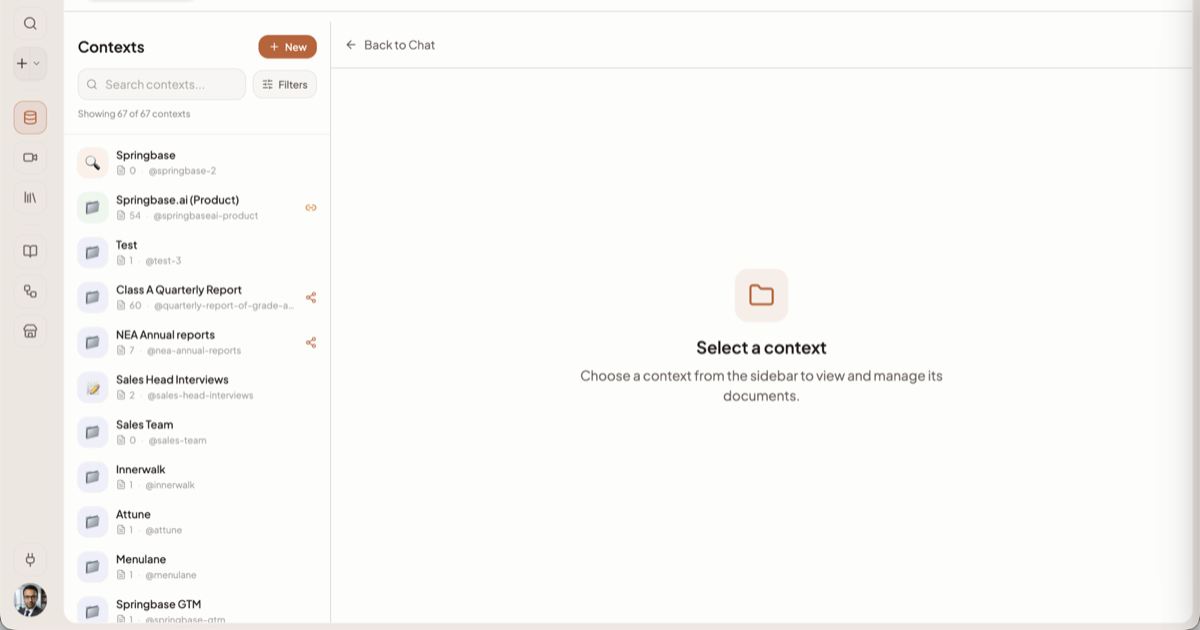
You find them in the left sidebar under Context — the nav item is singular even though it lists all of them.
Creating a context
- Open Context in the sidebar and start a new context.
- Type a name. As you type, the dialog previews the handle you will get, as
@your-name. - Add a description so other people (and the model) know what the context is for.
- Pick an icon (an emoji) and a colour. These are the only appearance choices at creation.
- Create it. A cover image, tagline, category and tags are generated in the background — you do not have to do anything.
The name is turned into a slug. If that slug is taken, Springbase appends -2, -3 and so on, so
two contexts called "Research" become @research and @research-2.
The @handle
Every context has a handle. On the context's detail page the handle is a click-to-copy button — hover it and you get "Copy @slug — mention this context in any chat". Typing that handle in the composer attaches the context to that turn. See Asking your knowledge.
Heads up: four slugs are reserved and will never resolve to a context:
meeting,meetings,contextandcontexts. Typing@contextsin a chat means "search across all of my contexts", not "open the context named contexts". Name your context something else.
The six tabs
Open a context and the detail pane is split into tabs. Zero counts are hidden, so a tab may show no number until it has content.
| Tab | What it is for |
|---|---|
| Overview | The context's quick actions — Ask this context, Add documents and Manage sharing — plus Gap history, a File Requests panel with New request and Submissions, and anything waiting on you |
| Documents | Everything in the context, its processing state, and the upload area. See Adding documents |
| Instructions | The reading guide the model gets alongside the documents. See Instructions and Brand Kit |
| Live Data | Email-to-context and connected live sources that keep adding documents on a schedule. See Live Data |
| Brand Kit | The palette and logos that generated output should inherit. Marked BETA. See Instructions and Brand Kit |
| Discussion | Comment threads. Only appears once the context is shared — a solo private context has nobody to talk to |
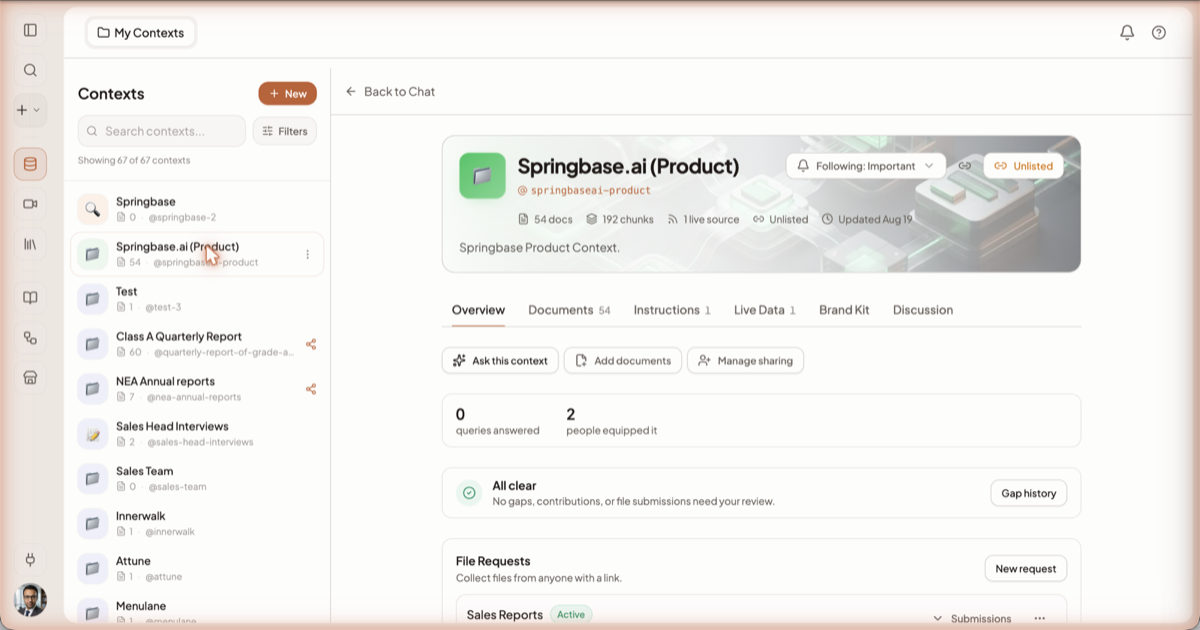
Above the tabs, the hero carries the @handle button, a Following dropdown (set to Important
by default), Copy link, and the visibility pill — Unlisted on the context above. Under the
name runs a one-line summary of the whole context: "54 docs · 192 chunks · 1 live source · Unlisted ·
Updated Aug 19".
Limits per plan
Two separate ceilings apply. Hitting the context ceiling blocks creation outright.
| Plan | Contexts you can own | Documents per context |
|---|---|---|
| Free | 3 | 10 |
| Starter | 20 | 100 |
| Pro | 100 | 1,000 |
| Max | 500 | 5,000 |
If your account has no recognised plan, you get the Starter limits when you are a paying user and the Free limits otherwise.
When a context is the wrong tool
- One-off questions. Attaching the file to the chat is faster and does not eat a context slot.
- Adding a web page. There is no generic "add a URL" button. A URL only becomes a document via a live source of type web page, sitemap, RSS or YouTube, which needs Pro or Max — see Live Data.
- Fast-moving material you have not indexed yet. Documents that are still processing are not searchable, and the answer will say so rather than guess.
- Publishing to the public marketplace. That is not self-serve — see Sharing a context.
Related docs
Every way to get content into a context, the file types that work, and the three size limits that compound.
Four ways to bring a context into a chat, how citations work, and how to tell when an answer is thin.
Four independent settings decide who can open a context, see its documents, edit it, and comment on it.