Quickstart
Four exercises, about twenty minutes: run a real turn, ask your own documents, save the prompt as a Recipe, and get actions out of a meeting.
These four exercises build on each other. Do them in order with something you actually care about — a real question, your own file, your own meeting — because the whole point of Springbase is what it does with your material, and a toy prompt will not show you that.
Budget about twenty minutes. You need a signed-in account; nothing else.
1. Ask something real, and watch Auto work
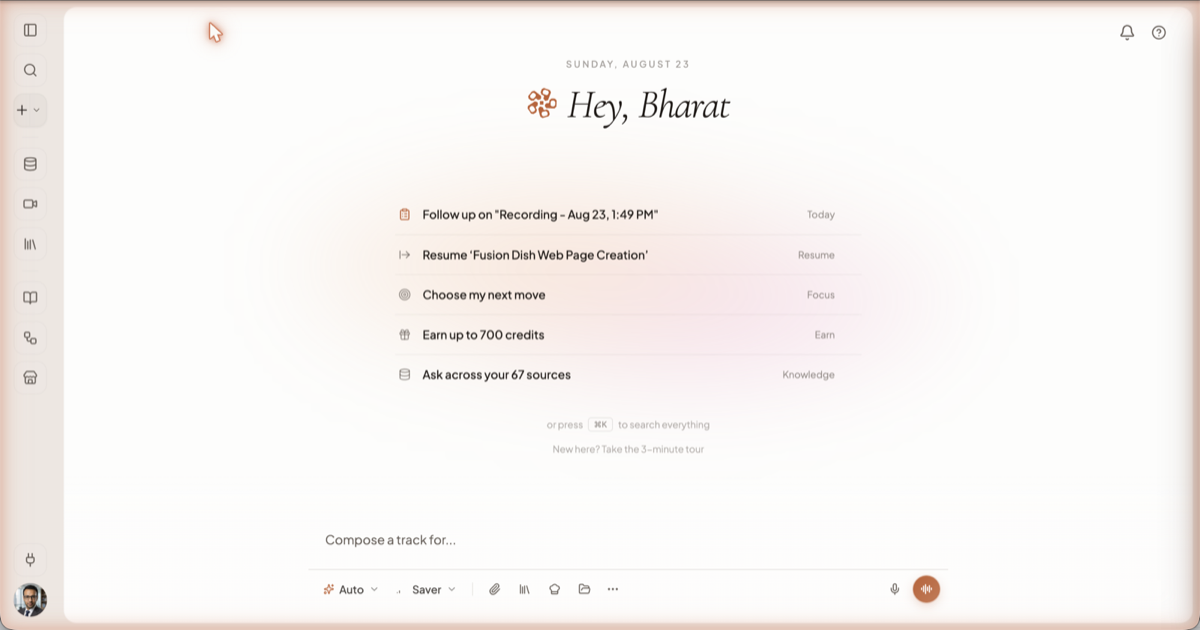
There is no mode to choose. The composer runs Auto, and the model decides what each step of your turn needs — search the web, read a page, write a file, make an image — while you watch.
What to do
- On the home screen, click the composer and type a question with a real constraint in it. Something like "Compare how three project-management tools price their free tiers, and give me a table with the catch in each one." A question with a comparison, a count or a format in it makes Auto do more than one step, which is what you want to see.
- Leave the chip on the left reading Auto. Do not arm an intent yet.
- Click the effort chip next to it and choose Balanced — "Strong models for the hard steps, cheap ones for the rest." On a Free account only Saver is unlocked; that is fine for this exercise — the turn uses cheaper models and will not retry a step that struggles.
- Press Enter.
What you should see
While the reply is still empty, a single status line naming the step it is on. Then an activity block that fills in as it goes, one row per action, with the current row pulsing. When it finishes, that block collapses to Ran N actions and you can expand it to read exactly what ran and how long each part took.
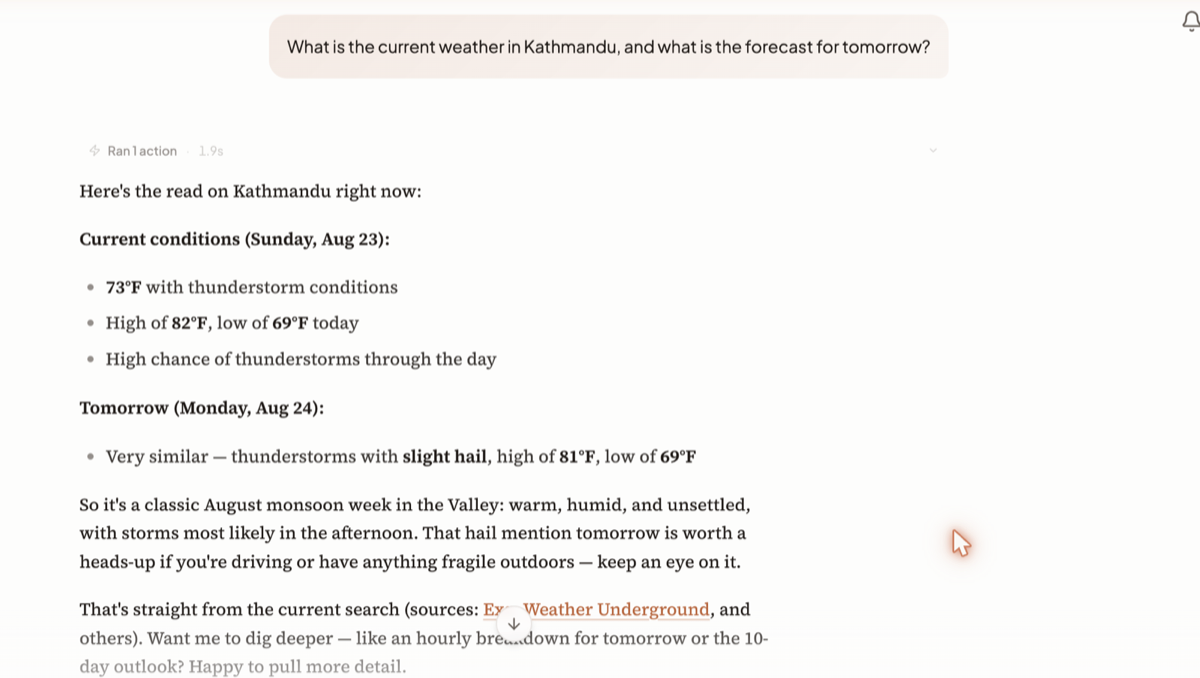
The answer itself carries numbered citation chips you can click through to the source, a route chip naming the models that actually ran, and a row of follow-up chips underneath. Clicking a follow-up chip sends it as your next message.
Heads up: the follow-up chips are generated after the answer finishes, so they appear a beat late. That is not a bug.
What trips people up
Arming the Research intent because you want it to search the web. You do not need to — Auto searches on its own when a question calls for it. Research is a posture for one message that tells it to go deeper and biases the turn towards stronger, more expensive models, and it needs a paid plan. Save it for questions that genuinely need a sweep of sources.
2. Put your own material in a Context, then ask it something
Attaching a file to one message answers one question and then it is gone. A Context is the
version that stays: indexed, reusable, and addressable by an @handle in any chat.
What to do
- Click Context in the left sidebar, then create a new context.
- Give it a name. Watch the dialog preview the handle you will get —
@your-name. Add a description, pick an emoji and a colour, and create it. - Open the Documents tab and drag in two or three real files — a spec, a contract, a report, a spreadsheet. PDFs, Office files, text, CSV and images are all accepted.
- Wait for every row to show the green Ready badge. A spinner means it is still being read.
- Start a new chat. Click Add context in the composer and tick your context — or type its
@handleinto the message. - Ask something that only your files can answer. Not "summarise this" — ask for a specific number, a named clause, a date buried on page 40. That is the test.
What you should see
A context pill on the composer before you send. In the answer, a collapsible Sources list under the reply, showing the first three chunks it used; clicking one deep-links to the exact document and passage inside the context. Citation chips in the text point at the same places.
What trips people up
Uploading and asking in the same breath. Indexing takes a moment, and a document that has not finished is genuinely not searchable — the composer shows an amber spinner with a count, and the answer will tell you some documents were still being indexed rather than quietly leaving them out. Wait for Ready. If retrieval was thin, you also get an explicit note that the answer may not fully reflect your documents — believe it, and check the sources list before you trust the answer.
3. Turn the prompt that worked into a Recipe
You now have a prompt that produced something good. A Recipe is that prompt with the changeable bits turned into named inputs, so the next ten runs take ten seconds each.
What to do
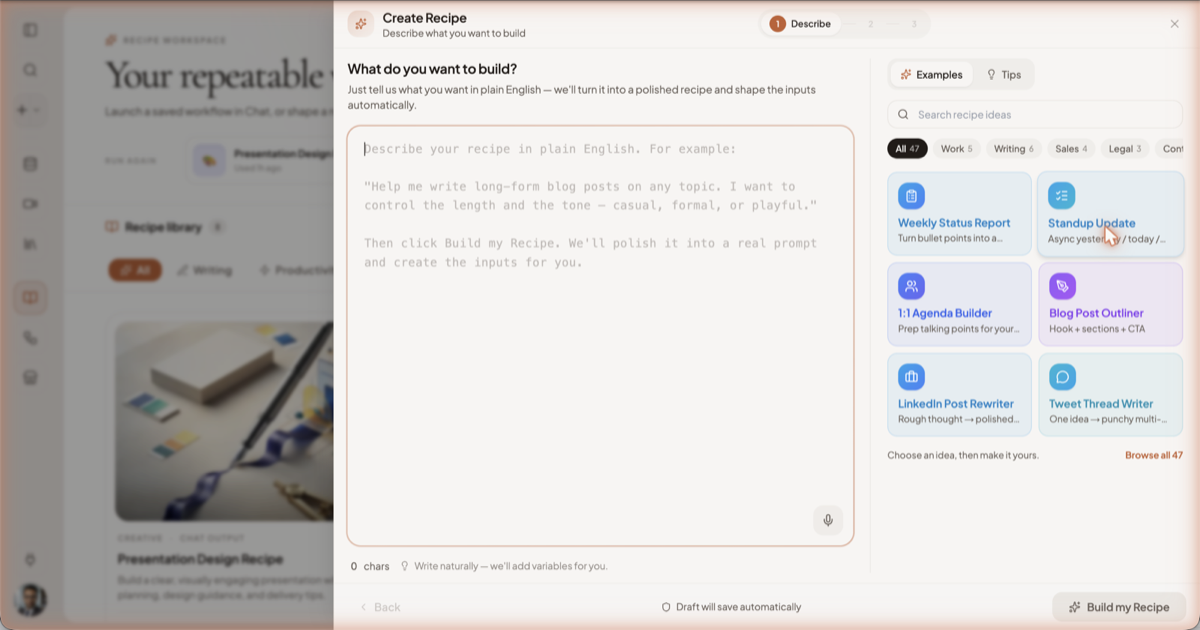
- Click Recipes in the sidebar, then Create Recipe (⌘R works from anywhere).
- On the Describe step, paste in the prompt that worked. Springbase reads it, scores it, and proposes the variables it spotted — you can also let it rewrite the prompt for you.
- On the Inputs step, confirm each variable: its label, its type (text, a dropdown, a number, a date, a file, a context, a meeting), and whether it is required. This is the form other people — or future you — will fill in.
- Attach the context you built in exercise 2 so every run comes with your material already loaded.
- Step through Review and finish. You land on Complete.
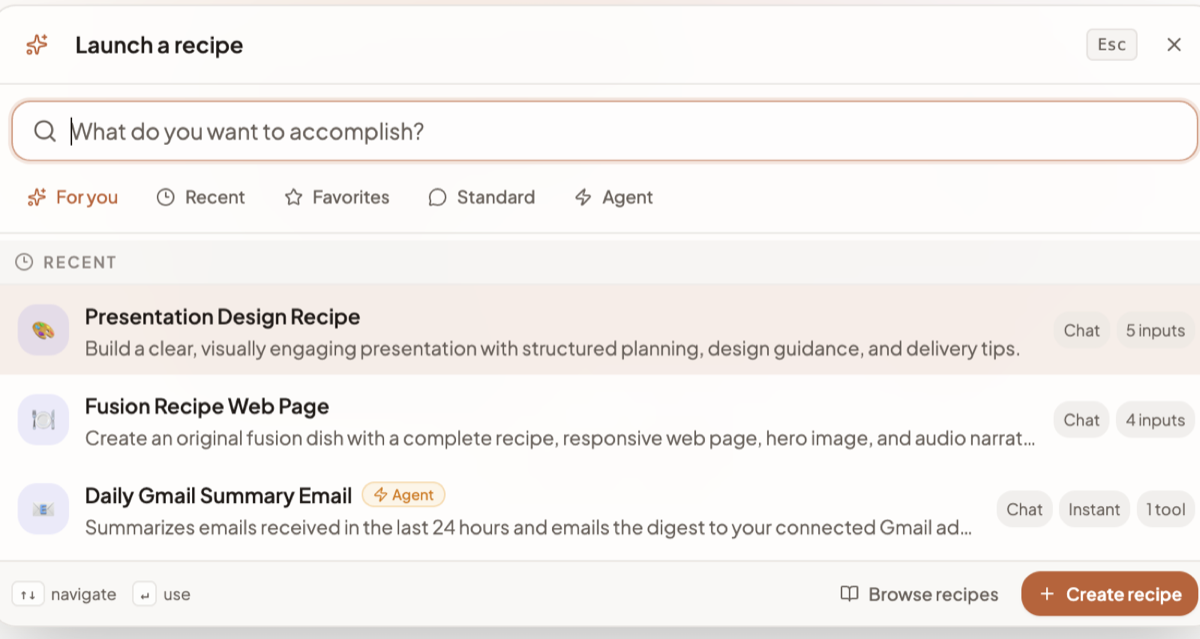
- Now run it: back in a chat, click the chef-hat button in the composer — tooltip Run a recipe — to open the Launch a recipe dialog, pick your recipe, fill in the fields it asks for, and click Use recipe.
What you should see
An input card above the composer asking for one field at a time, with a progress line ("0 of 4 required complete"), View all to see them together, and a live Prompt preview underneath. Use recipe starts the run, which then behaves like any other turn.
What trips people up
Expecting last run's answers to still be there. Launching a recipe deliberately clears the previous run's prompt, variables and attachments, so nothing leaks from one run into the next. Fill the form each time. Also, if you attach a context and then make that context private, sharing the recipe is blocked until you fix it — the recipe would be useless to whoever you sent it to.
4. Capture a meeting and get its actions
What to do
- Click Meetings in the sidebar, then New Meeting.
- Pick your path:
- Join — paste a Zoom, Google Meet or Microsoft Teams link and press Send bot. A participant named "Springbase Notetaker" joins the call.
- Upload — pick an existing audio file. Audio only, up to 1024 MB.
- Record — record in the browser, capped at 90 minutes.
- Paste — paste a transcript you already have, up to 500,000 characters, and press Process Transcript.
- Wait for the meeting card's status to reach Done.
- Open the meeting. On the Summary tab you get the summary, action items with checkboxes, decisions and key topics. Tick off an action item — it stays ticked even if the summary is regenerated later.
- Click Ask SpringBase in the meeting header. That opens a new chat with the meeting attached, so you can ask "what did we commit to?" and get an answer anchored in the transcript.
What you should see
On the Transcript tab, speaker-grouped turns with search and filtering, and inline speaker renaming — fix "Speaker 2" to a real name once and it applies throughout. Renaming can trigger a summary refresh.
What trips people up
Two things. First, the status flips to Done before the summary appears — the transcript and the summary come from different workers, so give it a few more seconds rather than assuming it failed. Second, the browser Record tab captures your microphone only. It does not capture your computer's audio, so it hears the other side of a call only if their voice comes out of your speakers and back into your mic. For clean two-sided capture, send the bot or install the Mac app, which records both sides on separate channels.
Heads up: on the Free plan you get 5 meetings per calendar month, and meeting creation is blocked if your credit balance is at zero.
Three things to do next
- Connect one app. Click Connect Tools at the bottom of the sidebar and connect Gmail, Slack or Notion. Then ask for something that needs it. Connecting an app lets Springbase write to it as well as read from it, and it will not always ask first — disconnect anything you would rather it did not touch. See Connected tools.
- Make the recipe run itself. If it should run every Monday, or after every meeting, wire it up on Automations — a Pro and Max surface. Note that an unattended run will not perform external writes.
- Ask for something you can open. Arm the Build intent and ask for a working page, a document or a deck. It lands as an artifact you can edit in Canvas — see Building pages and apps.
Then read Key concepts once, so the words in the rest of these docs mean what you think they mean.
Related docs
What Springbase is, how the pieces fit together, and what you see the first time you sign in.
Every word the rest of these docs assumes you know — Auto, intents, effort, credits, Contexts, Skills, Recipes, Automations, artifacts and visibility.
Auto is the only mode. The model decides what to do at each step instead of a router classifying your message up front.