From meeting to follow-ups
Get a call into Springbase, read the decisions and action items, ask questions about it in chat, and have the follow-up drafted for you next time.
By the end of this you have one call captured, read and searchable — and a rule that turns every future call like it into a drafted follow-up waiting in a chat, without you asking.
What you need first
- A signed-in account with a non-zero credit balance. Creating a meeting is blocked at zero.
- Free accounts are capped at 5 meetings per calendar month.
- A live call on Zoom, Google Meet or Microsoft Teams that you can admit a bot to. No call scheduled? Use the Paste path in step 1 instead and the rest of the guide works the same.
- The automation in step 4 needs Pro or Max.
Step 1 — Get the meeting in
There are four ways in. This guide uses the bot, because it is the only one that captures both sides of a remote call with nothing installed.
- Click Meetings in the left sidebar.
- Click New Meeting. It opens on the Join tab — "Drop a link and we'll handle the rest."
- Paste the meeting link. A hint appears naming the platform it recognised.
- Add a title if you want one.
- Click Send bot.
- Admit the bot when it asks. It appears in the call as Springbase Notetaker.
The status pill walks Joining → Recording → Processing → Done. Only Zoom, Google Meet and Microsoft Teams links are accepted; anything else is refused with "Unsupported meeting URL."
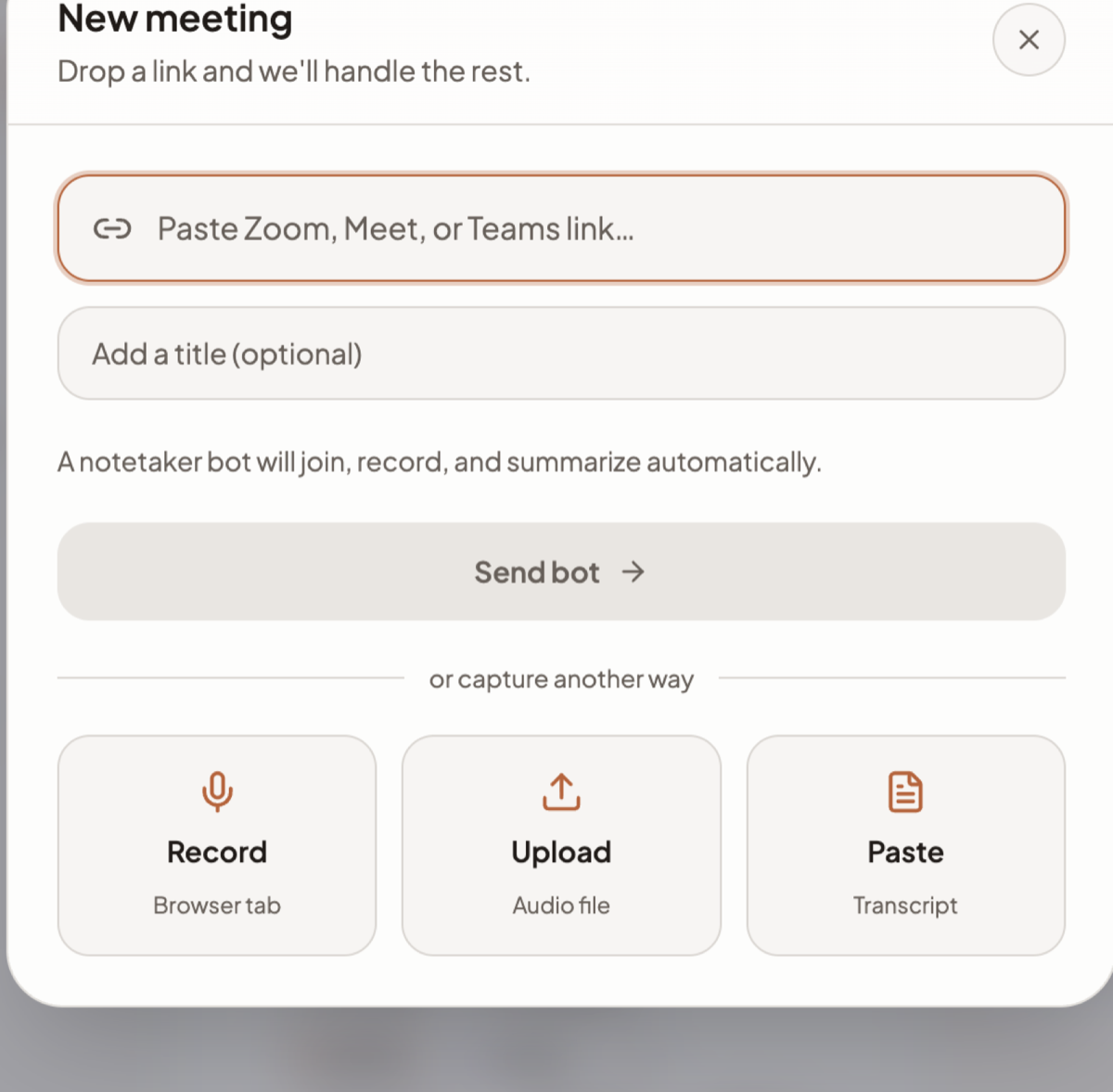
Why not the other three
| Path | Why it does not fit this job |
|---|---|
| Record | Microphone capture, not tab or system audio, despite the "Browser tab" hint — it hears the other side only if that audio comes out of your speakers and back into the mic. Good in person, unreliable for a video call. Hard stop at 90 minutes |
| Upload | Audio only. Video containers are rejected, .mp4 and .webm included, so a Zoom cloud recording will not upload until you extract the audio. Up to 1024 MB when you do |
| Paste | Works well, and the fastest way to follow this guide with no call scheduled — but it needs a transcript you already have. Title required, transcript 1–500,000 characters, then Process Transcript |
Five bot failures are permanent and hide the Retry button: a Google Meet that requires a signed-in Google account, a host who never admitted the bot, a host who ended the meeting for everyone, a meeting that never started, and a bot that was removed from the call.
Step 2 — Read the summary and the action items
Open the meeting from the list. Two stages land separately, which trips people up: the meeting flips to Done as soon as the transcript is stitched together, and the summary arrives seconds later from a different worker. Done with a blank Summary for a moment is normal.
A meeting has exactly two tabs — Summary and Transcript. There is no separate tab for decisions or actions: they are sections inside Summary, along with the written summary and up to 12 key topics.
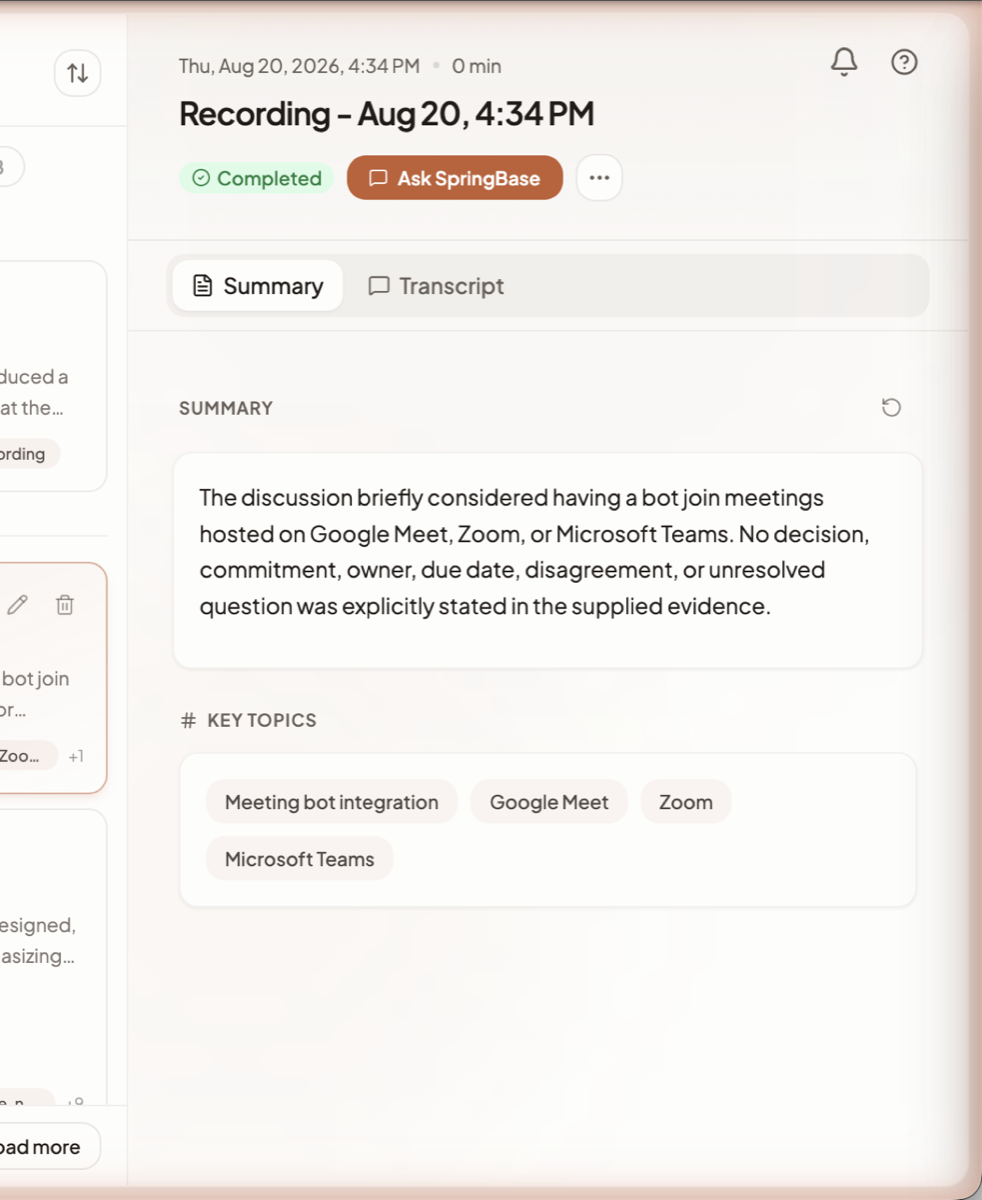
Tick the action items you have done. Completion is stored against the wording of the item, not its position, so ticks survive a regenerated summary.
Two things worth doing now, because everything downstream improves:
- Name the speakers in Transcript — rename one inline or assign it to a real person. Renaming can trigger a summary refresh with the corrected names.
- Regenerate the summary from the … menu if it is thin. The old summary stays on screen, dimmed, while the new one is written; after 90 seconds with no result the old text comes back.
If summarisation fails outright you still keep the transcript — the meeting shows Done with "Transcript ready (summary unavailable)".
Step 3 — Ask a follow-up question in chat
- In the meeting header, click Ask SpringBase. It creates a new chat with this meeting attached as context and takes you straight there.
- Ask the questions the summary did not answer: "what exactly did we commit to on pricing?", "who owns the migration and by when?", "draft the follow-up email to the attendees".
Every finished meeting is also indexed, so chat can answer across several calls rather than one at a time. To scope a question deliberately, use Add context in the composer — it has tabs for meetings and for people as well as contexts. Cross-meeting questions cap at 4,000 characters, 200 selected meetings and 20 selected people.
Step 4 — Have the next one drafted for you
A Post Meeting automation watches for meetings that finish and runs a recipe against them. The whole Automations page needs Pro or Max.
4a. Write the recipe it will run
The automation's target must be a recipe, so make one first.
- Click Recipes in the sidebar, then Create Recipe.
- On Describe, write the instruction you want run every time — for example: "Write a short follow-up email to the attendees of this meeting. One sentence on what was agreed, then the action items with owners, then the next date. Plain, no filler."
- Walk Inputs → Review → Complete, leaving a variable for each thing that changes per meeting. You bind those in the next step.
4b. Build the rule
- Click Automations in the sidebar, then the Post Meeting tab.
- Click Create Automation. The dialog is titled New automation and leads with an AI composer — describe the rule in a sentence and click Start, and it writes the whole thing. To build it by hand, use the Or build it yourself row at the foot of the dialog and take Post Meeting.
- Work through the builder:
- Which meetings count. Structured matching narrows by platform, words in the title, a specific meeting, or the calendar the meeting came from. Smart matching takes a plain-English condition instead and is paid-plans only.
- Which recipe runs. Search for and select the recipe you created.
- What it receives. Bind each recipe variable to a meeting field — title, summary, transcript, action items, decisions, key topics, platform, participants, attendee emails, organiser email, date, the full meeting context, or a fixed value.
- When. From immediately up to 7 days after the meeting completes.
- Save it. Name the rule and create it.
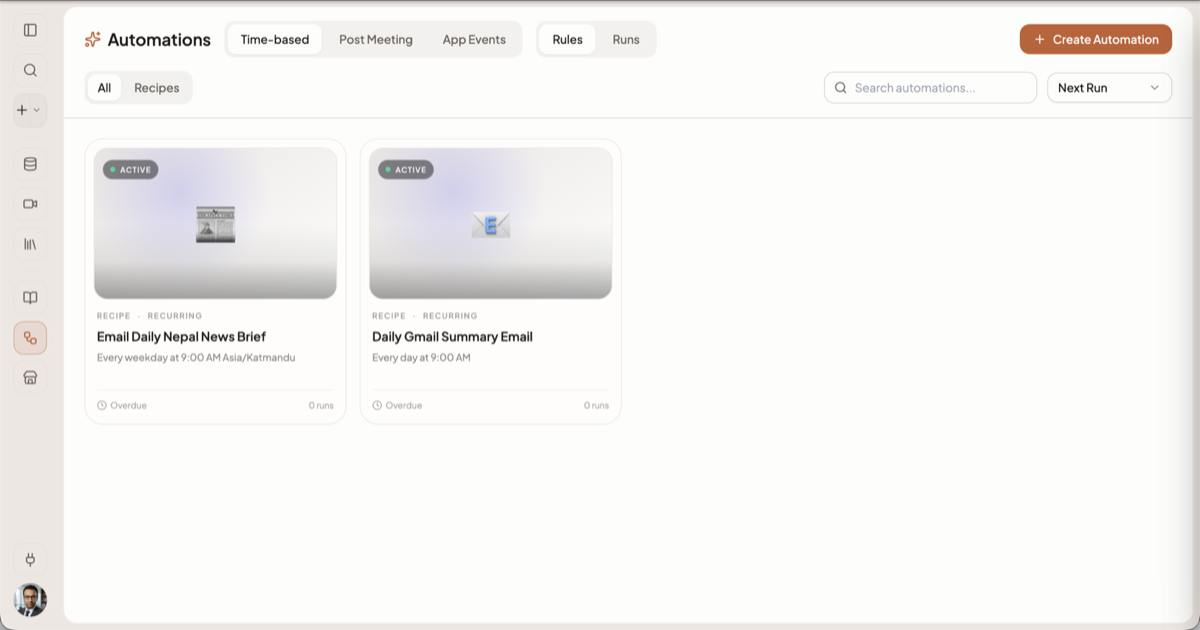
Dry-run the rule from the builder before saving — much better than waiting for a real meeting to discover the filters were too narrow. You may keep up to 10 active meeting automations.
Heads up — this is the limitation that decides your design. An automation's unattended run cannot perform external writes: it will not send the email, post to Slack, or update a CRM. Automations explains why and what is still allowed.
So do not build "email the attendees". Build "write the follow-up email and leave it ready" — the run produces a chat containing the finished draft, you open it, read it, and send it yourself. That outcome lands every time; the other one never does.
Automation output is always a chat. Find it under Automations → Post Meeting → Runs and click Open chat on a completed run. Those chats are filed into a per-automation folder and kept out of your sidebar recents until a human replies in one.
How to check it worked
- The meeting shows Done and Summary has content, decisions and action items.
- Ticking an action item sticks after you regenerate the summary.
- Ask SpringBase opens a new chat with the meeting attached as a context pill.
- The Runs view shows a completed run, and Open chat contains a usable draft.
What commonly goes wrong
- The bot never joined. Usually the host did not admit it, or the Google Meet required a signed-in Google account. Those causes are permanent — the Retry button is deliberately hidden.
- The upload was rejected. It was a video file. Extract the audio and upload that.
- The recording only has your voice. You used Record, which is mic-only.
- The uploaded recording is missing from the Recordings chip. That chip filters browser and Mac-app recordings. Uploaded audio appears only under All Meetings.
- The automation never fired. Check the plan (Pro or Max), that the filters actually match, that a one-time rule has not already used itself up, and that you are under 10 active rules.
- The automation ran and nothing was sent. Expected — see the heads-up above.
- You hit the free meeting cap. Free accounts get 5 meetings per calendar month.
Where to go next
- Capturing a meeting — all four paths in detail, and calendar auto-join
- After the meeting — collections, sharing, export and deletion
- The Mac app — records both sides of WhatsApp, Slack and Zoom calls
- Recipes and Automations
- Build a team knowledge base — Save to Context turns a call into permanent, searchable material
Related docs
Six ways to get a call into Springbase — a bot in the call, browser recording, the Mac app, an upload, a pasted transcript, or your calendar.
What Springbase produces once a call ends — summary, decisions, action items, participants — and how to ask questions about it in chat.
Run a recipe on a schedule, after a meeting ends, or when an app fires an event — and understand why unattended runs never send anything.
Save a prompt you keep retyping as a reusable recipe with fill-in-the-blank inputs, then run it from chat in two clicks.