Capturing a meeting
Six ways to get a call into Springbase — a bot in the call, browser recording, the Mac app, an upload, a pasted transcript, or your calendar.
A meeting only becomes searchable, summarised and answerable once Springbase has the audio or the text. There are six ways to get it there, and they capture very different things — pick from the table before you pick a button.
Which capture path to use
| Path | What it captures | What you need | Platforms |
|---|---|---|---|
| Send bot — a notetaker joins the call | Everyone on the call, from inside the call | A meeting link | Zoom, Google Meet, Microsoft Teams — nothing else |
| Record — browser recording | Your microphone only | A browser tab that stays open | Any desktop browser |
| Mac app | Your mic and the other side, on separate channels | The Mac app and a paid plan | WhatsApp, FaceTime, Zoom, Google Meet, Teams, Slack huddles, Discord |
| Upload — an existing recording | Whatever is in the audio file | An audio file up to 1024 MB | Any |
| Paste — a transcript | The text you paste | 1–500,000 characters of transcript | Any |
| Calendar auto-record | Same as Send bot | A connected Google or Microsoft calendar | Zoom, Google Meet, Teams |
Heads up: the browser Record tab captures your microphone, not your computer's audio. It cannot hear the other side of a call unless their voice comes out of your speakers and back into your mic. If you need both sides cleanly, send a bot or use the Mac app.
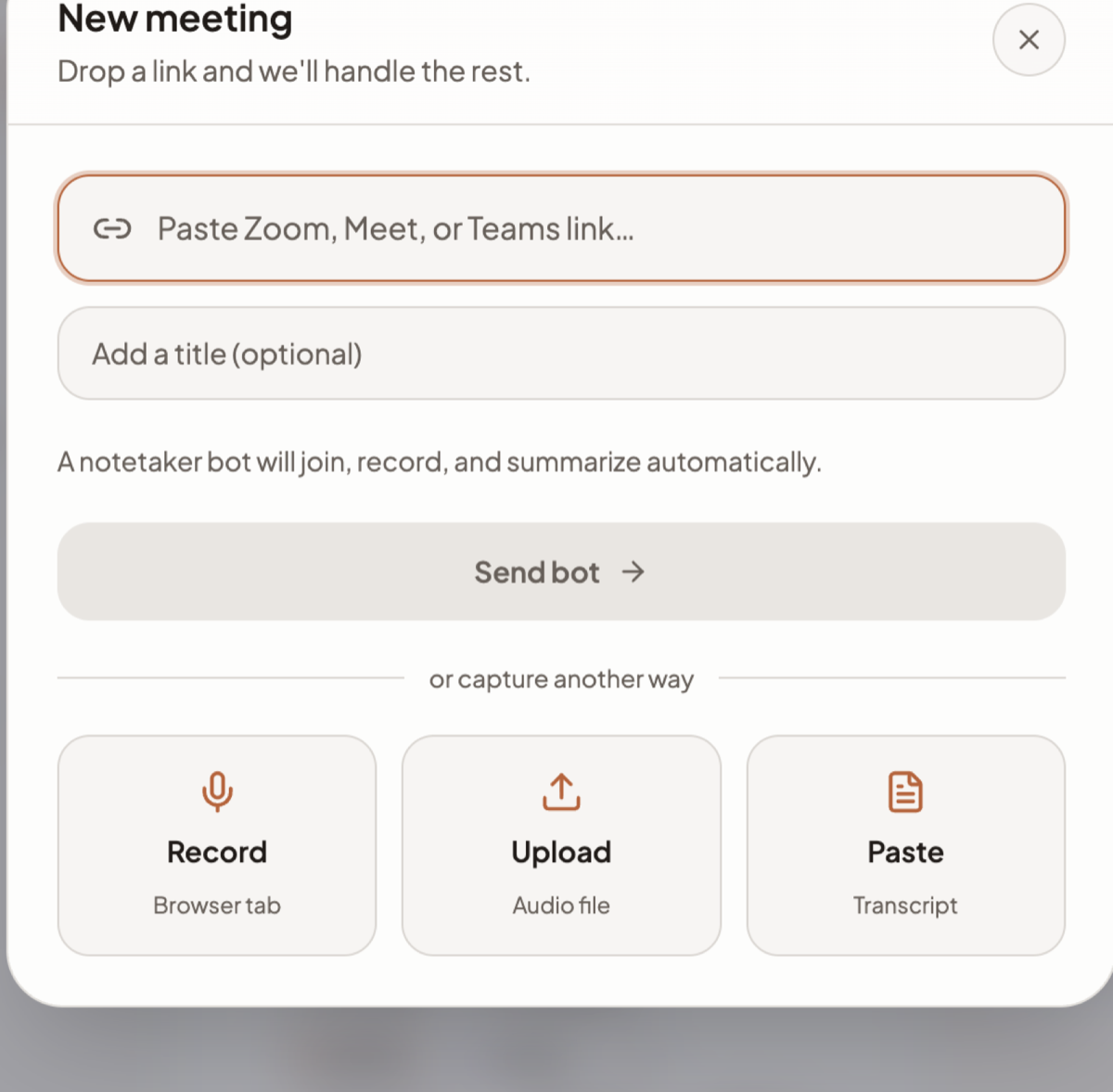
Everything starts from the same place: open Meetings in the sidebar and click New Meeting. The dialog that opens is titled New meeting — "Drop a link and we'll handle the rest." — and it leads with the bot. Under a divider reading "or capture another way" sit three cards: Record (Browser tab), Upload (Audio file) and Paste (Transcript).
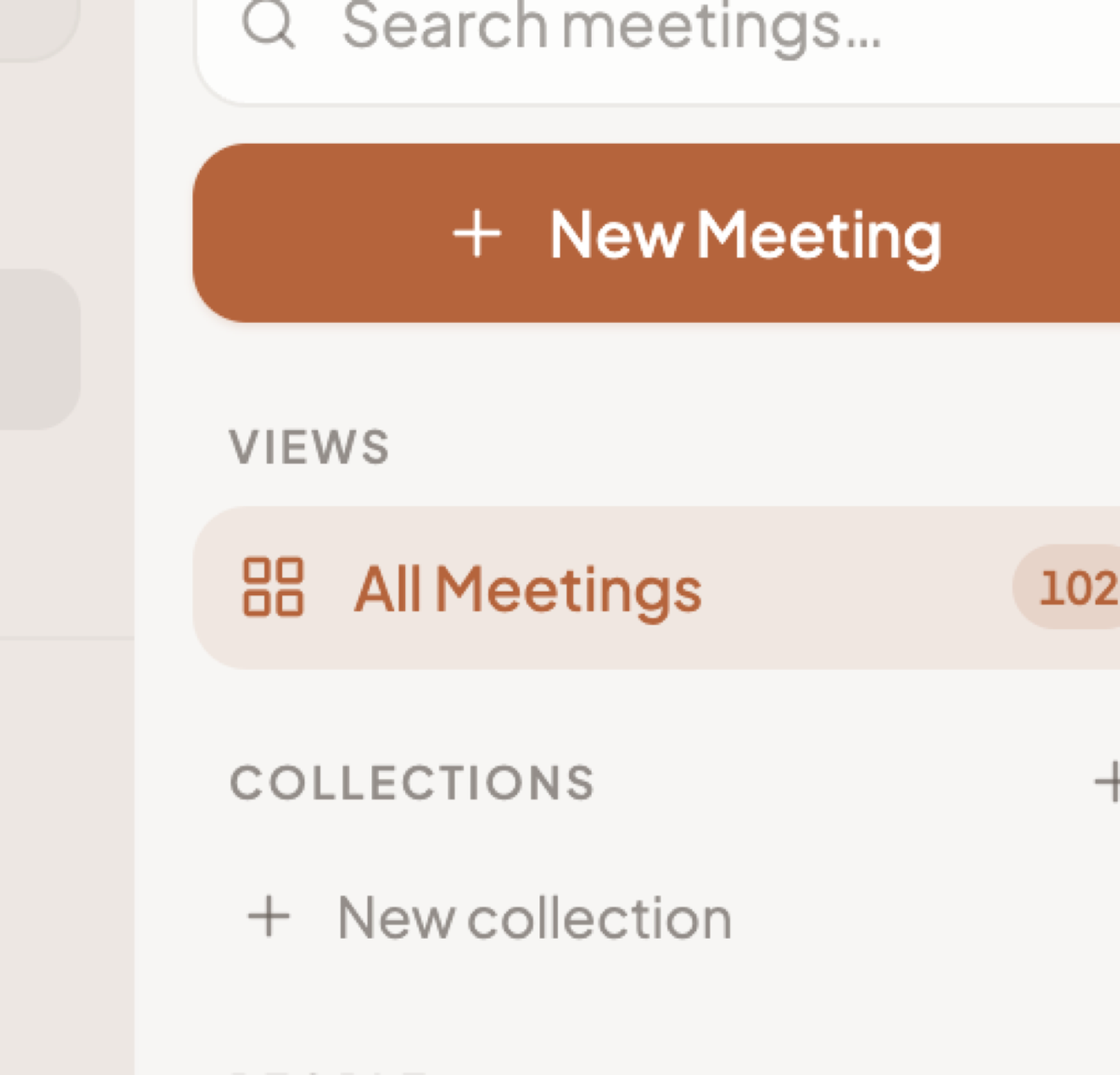
Send a bot to a live call
The bot is called Springbase Notetaker. It appears in the call as a participant, so everyone can see it is there.
- Click New Meeting. The dialog opens on the link field, "Paste Zoom, Meet, or Teams link…".
- Paste the call link. A chip appears naming the platform once Springbase recognises it — Zoom, Google Meet or Teams.
- Add a title in Add a title (optional) if you want one. Leave it blank and Springbase names the meeting for you.
- Click Send bot. The line above it states what that does: "A notetaker bot will join, record, and summarize automatically."
- Watch the status pill on the meeting card: Joining → Recording → Processing → Done.
Only Zoom, Google Meet and Microsoft Teams links are accepted. Any other URL is refused with "Unsupported meeting URL." — there is no bot for Webex, Slack huddles, WhatsApp or a dial-in number.
If you send the same link twice within two minutes, Springbase reuses the bot rather than sending a second one.
When a bot cannot join, the meeting shows the reason and hides the Retry button, because none of the five reasons can be fixed by trying again: the Google Meet requires a signed-in Google account, the host never admitted the bot from the waiting room, the host ended the meeting for everyone, the meeting never started, or someone removed the bot from the call.
Record in the browser
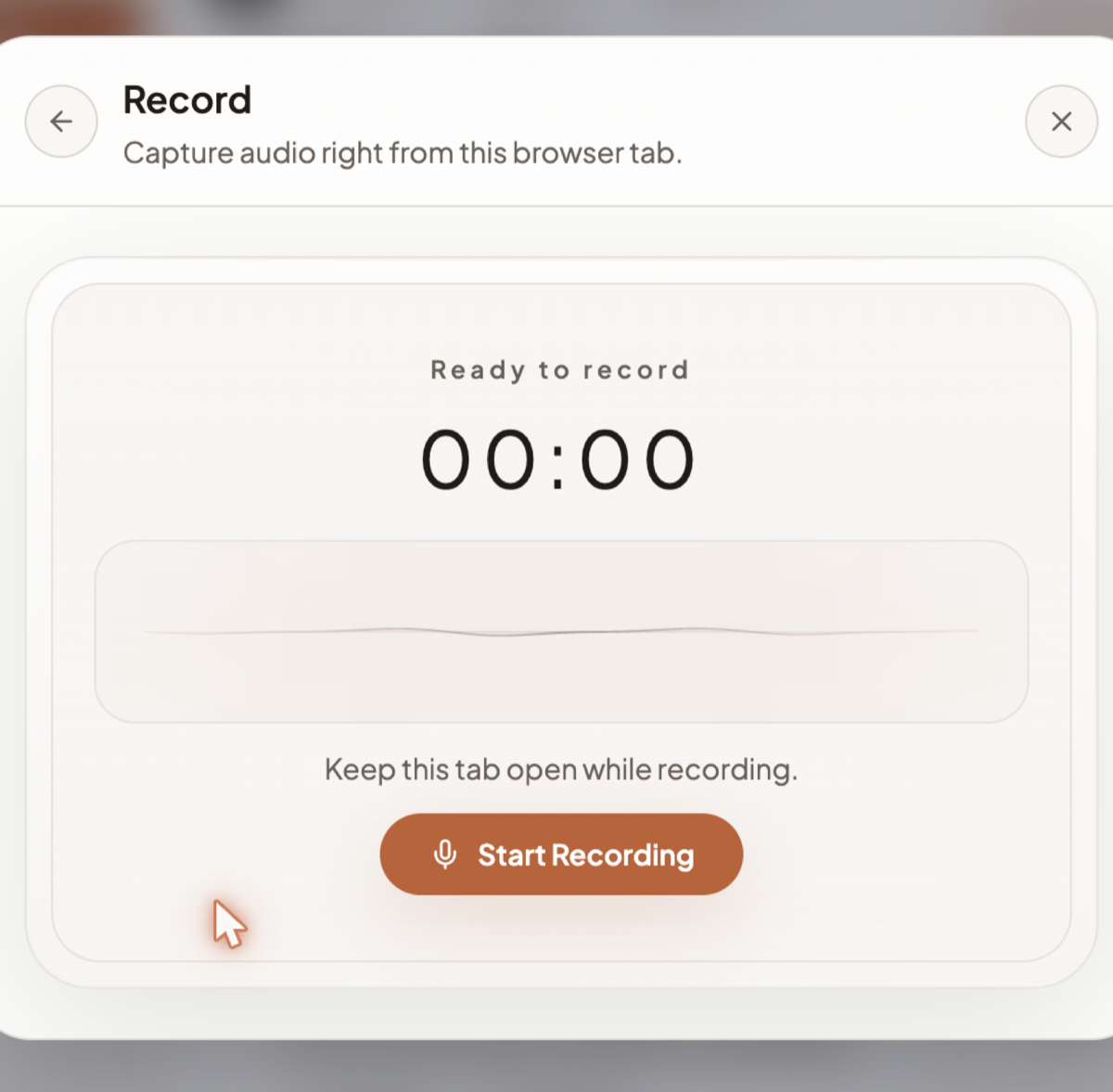
- Click New Meeting, then the Record card. The panel that replaces the dialog is headed Record — "Capture audio right from this browser tab." — with a timer reading Ready to record, 00:00.
- Allow microphone access when the browser asks. If the mic is blocked, Start Recording stays disabled until you unblock it and reload the page.
- Click Start Recording.
- Leave the tab open — the panel says so, "Keep this tab open while recording." Audio is uploaded in roughly four-minute segments while you talk, so closing the tab loses at most the segment in flight.
- Click Stop to save and process, or Cancel to discard.
Recording stops automatically at 90 minutes and processes what it has. If a recording produces no audio at all, the meeting is marked failed with "Recording produced no audio chunks."
Browser recordings land under the Recordings filter chip.
Upload a recording
- Click New Meeting, then the Upload card.
- Choose an audio file. The maximum size is 1024 MB.
- Give it a Title.
- Click Create Meeting and wait for the Uploading → Processing overlay to finish.
Audio only. Video files are rejected, including .mp4 and video/webm — extract the audio first.
Accepted extensions when the file has no MIME type are .m4a, .aac, .mp3, .wav and .ogg.
Uploaded files are stored with an unknown platform, so they show up under All Meetings but never under the Recordings chip. That is expected, not a bug.
Paste a transcript
Use this when someone else recorded the call and sent you the text.
- Click New Meeting, then the Paste card.
- Enter a Title (required, up to 200 characters).
- Paste the Transcript — between 1 and 500,000 characters.
- Optionally set the date and a duration in minutes.
- Click Process Transcript.
Pasted text skips transcription entirely — Springbase runs a language-model pass over the raw text to split it into speaker turns, then summarises it. Rough, unlabelled text still works, but the speaker split is inferred rather than measured.
Connect a calendar
Connecting a calendar turns capture from a decision you make every time into something that happens on its own.
- Open Meetings and find the Connect a calendar card at the bottom of the left rail.
- Click Google or Microsoft and complete the consent screen.
- Wait for the sync. The page polls for up to two minutes, then tells you to reconnect if nothing arrived.
- Tick Auto-record on the connected account to send a bot to every event that has a call link.
Springbase asks only for read access to your calendar — it never creates or edits events.
Once connected, an Upcoming view appears in the left rail listing events until their end time passes, and each event gets its own bot toggle that overrides the Auto-record default. Events without a call link are never auto-recorded — there is nothing for a bot to join. If the connection expires, the rail shows "Calendar disconnected — bots can't join your meetings" with Reconnect and Disconnect.
Disconnecting removes every calendar connection on your account, unschedules all pending bots and deletes the events Springbase had cached — not only the account you clicked on.
Limits worth knowing before you start
Free accounts get 5 meetings per calendar month and see a Free plan · N/5 bar at the top of the Meetings page. Once you hit five, new meetings are refused — including calendar auto-record, which marks the event with a "free meeting limit reached" note instead of sending a bot. Running out of credits blocks new meetings on any plan.
The other hard ceilings: uploads stop at 1024 MB and accept audio only; browser and iPhone recording auto-stops at 90 minutes; a pasted transcript must be 1–500,000 characters; and the bot joins Zoom, Google Meet and Microsoft Teams and nothing else.
Once a meeting finishes, see After the meeting for what you get and how to ask questions about it, or From meeting to follow-ups for the whole path from a call to a drafted follow-up.
Related docs
What Springbase produces once a call ends — summary, decisions, action items, participants — and how to ask questions about it in chat.
A menu-bar app that records calls in any app on your Mac and captures your mic and the other side on separate channels.
Run a recipe on a schedule, after a meeting ends, or when an app fires an event — and understand why unattended runs never send anything.