Connected tools
Connect Gmail, Slack, Notion and hundreds of other apps, and understand what Springbase is then allowed to do in them.
Connecting an app lets Springbase read from it and act in it during a chat — pull the thread you are asking about out of Gmail, open the Linear issue, drop a note in Notion. Connections are per-account and you make them once.
The Tools Marketplace
Open it from Connect Tools in the sidebar, or from the connected-apps indicator in chat. It opens as a dialog titled Tools Marketplace. You need to be signed in.
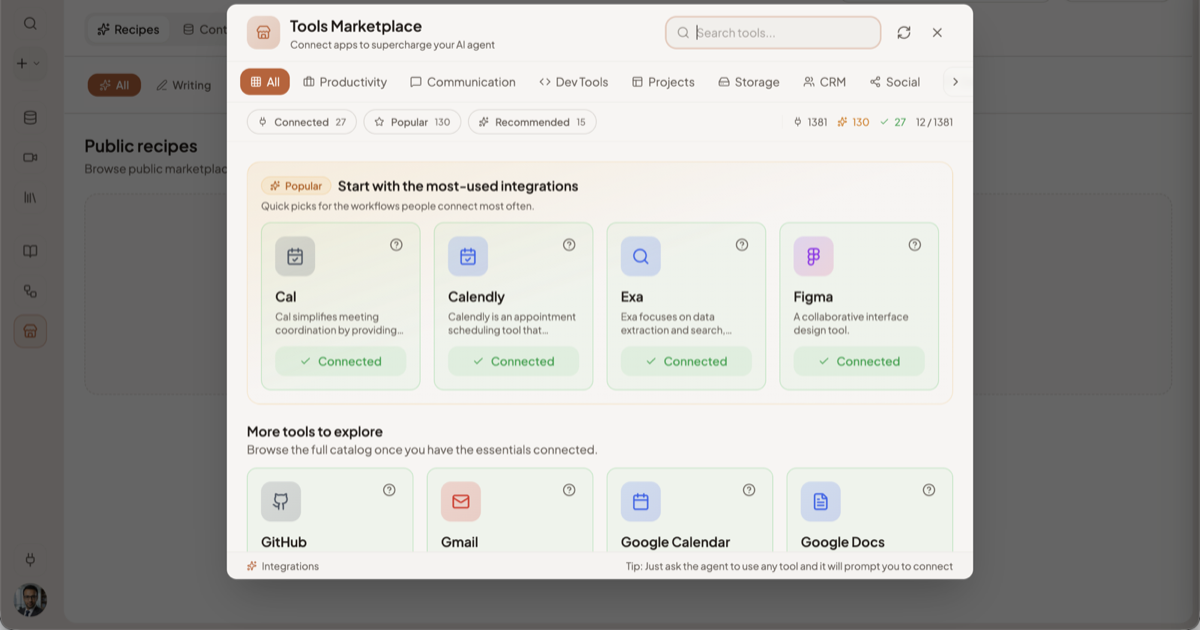
Eleven category tabs narrow the catalogue: All, Productivity, Communication, Dev Tools, Projects, Storage, CRM, Social, Design, Support and Finance. Alongside them sit three quick filters with live counts: Connected, Popular and Recommended. The list puts connected apps first, then recommended, then popular, and loads twelve at a time as you scroll. Clicking an app opens its own tool list, so you can see what connecting it would make available.
Heads up: the headline count on the marketplace is the number of apps, not the number of tools. Each app carries many individual actions. The search box reads "Search tools…", which is where the confusion comes from — you are searching app names.
Connecting an app
- Find the app and click Connect.
- Complete the sign-in in the popup that opens. This is the app's own OAuth screen, not a Springbase form — Springbase never sees your password for the connected service.
- The popup closes itself and the card updates.
The four connection states
| State | What the card shows | What to do |
|---|---|---|
| Connected | Connected, in green | Nothing. Click it to reveal Disconnect. |
| Pending | Pending, in amber | The OAuth flow started but never finished. Cancel it with the ✕ next to the button, then connect again. |
| Needs reconnecting | Listed under Needs reconnecting in the chat connected-apps panel | The connection expired, was revoked, or failed. Reconnect it — this is different from never having connected. |
| Not connected | Connect | Connect it if you want the assistant to use it. |
An expired connection is the state people miss most often: the app was working, and now the assistant quietly cannot reach it. If a tool that used to work stops, check here first.
How the assistant picks a tool
Every action from a connected app is mounted as its own separate tool — not one catch-all wrapper per app. A wrapper would mean one grant covering both "read my inbox" and "email the client", and those are not the same decision.
Only a curated set of each popular app's actions is loaded up front, to keep the working set small. Anything not loaded is still searchable, not unavailable. If you ask for something the assistant does not have to hand, it searches the catalogue for the right tool and calls it through the same guarded path.
What a connection lets Springbase do
Connecting an app gives Springbase the ability to write to it, not only to read from it. A routine write can run inside a normal turn with no confirmation card and no pause — you see it in the activity block after the fact, and in the reply. Asked in a typed chat to create a Gmail draft, it created the draft and reported back; nothing asked first.
Some actions do stop and ask. When one does, the turn is genuinely blocked behind the card:
- An unanswered card denies. You have 120 seconds, and then the silence is treated as a refusal and the turn carries on without that action.
- What you approve is what runs. The request carries no arguments of its own; it points at the specific call already shown on screen, so what you approve cannot drift from what runs.
- Approving once means once. A grant covers that call, and is forgotten when the turn ends.
But a card is not guaranteed for any particular action, so do not plan around one. In live voice the rule is stricter — a spoken task asks before every external write.
Heads up: treat a connected app as somewhere Springbase can make changes. If there is an app you do not want written to, disconnect it. That is the reliable control; the approval card is not.
Read-only actions never interrupt you, and several can run at once. Both the asking and the deciding are logged, every time.
When a tool call fails
Most failures are argument problems — a missing field, a malformed ID — and Springbase reports them back to the assistant as fixable rather than as a dead end, so it corrects the arguments and retries instead of telling you it failed.
Connection errors are shown as the app reported them, without rewording, so you can act on the actual message. If the tool catalogue itself is unreachable, the marketplace falls back to a cached list rather than showing an empty page.
Disconnecting
Click the green Connected button on the app's card, then Disconnect. The assistant loses access to that app immediately. Any automation that listens for that app's events stops receiving them.
Limitations
- Automations cannot use write tools at all. A recipe running on a schedule or a trigger has every external-write tool withheld, because nobody is present to see what it does. Connecting Gmail does not let a scheduled recipe send mail — see Automations.
- App Events automations work with 12 apps, not the whole marketplace.
- Connections are per-account, not per-context or per-chat: connecting Slack makes it available to every chat you start.
- Only a curated subset of each app's actions is loaded up front. The rest are reachable by search, which costs the assistant an extra step.
Related docs
Run a recipe on a schedule, after a meeting ends, or when an app fires an event — and understand why unattended runs never send anything.
The composer control by control, what an answer can contain, and the actions under every reply.
Browse recipes, contexts and assets other people have published — run them, duplicate them, equip them, or save them as favourites.