Troubleshooting
The problems people actually hit — stuck documents, answers that miss, disconnected apps, silent automations — and what to do about each.
Each entry below is written the same way: what you see, why it happens, and what to do. If your problem is not here, the ? button in the top-right corner answers questions about the screen you are on.
Documents and answers
A document sits on Processing, or shows Failed
Why. Processing runs in stages — text extraction, then chunking, then embedding — and large or awkward files take a while. A failure has a specific cause: a password-protected file, a file over a size ceiling, a scan Springbase could not read, a corrupt or empty file, an unsupported format, or a transient service problem.
What to do. Read the message on the failed row, then use the button it offers — see Adding documents for the full list of causes. Retry appears when the cause looks temporary and is worth another attempt. Remove appears when it is permanent — a password-protected PDF will fail identically every time, so re-uploading it unchanged will not help. Remove it, fix the file (unlock it, export it as text, re-save the scan at a higher quality) and upload again.
Heads up: scanned PDFs go through OCR, which costs credits. A large scan can cost noticeably more than a text PDF of the same length, and can fail on an OCR-specific error even though the file itself is fine.
Springbase says the answer is not in your documents
Why. Most often the documents are not searchable yet. A context whose documents are still indexing shows an amber spinner and a pending count on its chip in the composer, with a tooltip saying they are not searchable yet — and the model is explicitly told to say so rather than guess. The other cause is genuine: nothing in the context is close enough to your question.
What to do. Wait for the count to reach zero, then ask again. If everything is indexed, check you have the right context selected, and try naming the document or a phrase you know is in it. When retrieval is weak but not empty you get a badge under the answer saying confidence is low — treat those answers as a starting point, not a citation.
A file is rejected before it uploads
Why. There are three separate ceilings and they do not match, on purpose:
| Where | Limit |
|---|---|
| Attaching to a chat message | Up to 10 files per message, 25 MB each |
| Upload in the Library | 20 MB per file, narrower list of types |
| Uploading into a context | Your plan's per-file ceiling, then a per-type cap on top |
What to do. For an over-large chat attachment, take the offer to put it in a context instead — contexts allow much larger files and keep the document available to every future chat. For an unsupported type, convert it: chat and contexts read PDF, Office documents, spreadsheets, images and plain-text formats. HTML and JavaScript files are deliberately refused as chat attachments.
The Library says storage is full
Why. Every plan has a Library storage allowance, and uploads plus generated media count towards it. At the ceiling the Upload button is disabled and uploads are refused.
What to do. Open the Library, sort by Largest, and delete what you no longer need — old video and audio are usually the bulk of it. The meter in the header shows what remains. Upgrading raises the allowance.
Connected apps and automations
An app shows "needs reconnect"
Why. Connections have four states, not two: connected, pending (you started sign-in but never finished it), needs-reconnect (the access expired or was revoked at the provider), and not connected. An expired connection looks connected from a distance but cannot do anything.
What to do. In the Tools Marketplace, or on the Live Data tab of a context, use the amber Reconnect action and complete the sign-in popup. If a popup opened and you closed it, the pending state clears itself after a few minutes and you can start again.
An automation stopped running on its own
Why. Repeated failures pause things deliberately, so a broken automation does not burn credits in a loop. A schedule that keeps failing is auto-paused by a circuit breaker and you are notified once. A live source is disabled after five consecutive errors. A revoked app connection does the same thing to anything that depended on it.
What to do. Open Automations → Runs, filter to Failed, and read the error on the most recent run — it is printed inline on the row.
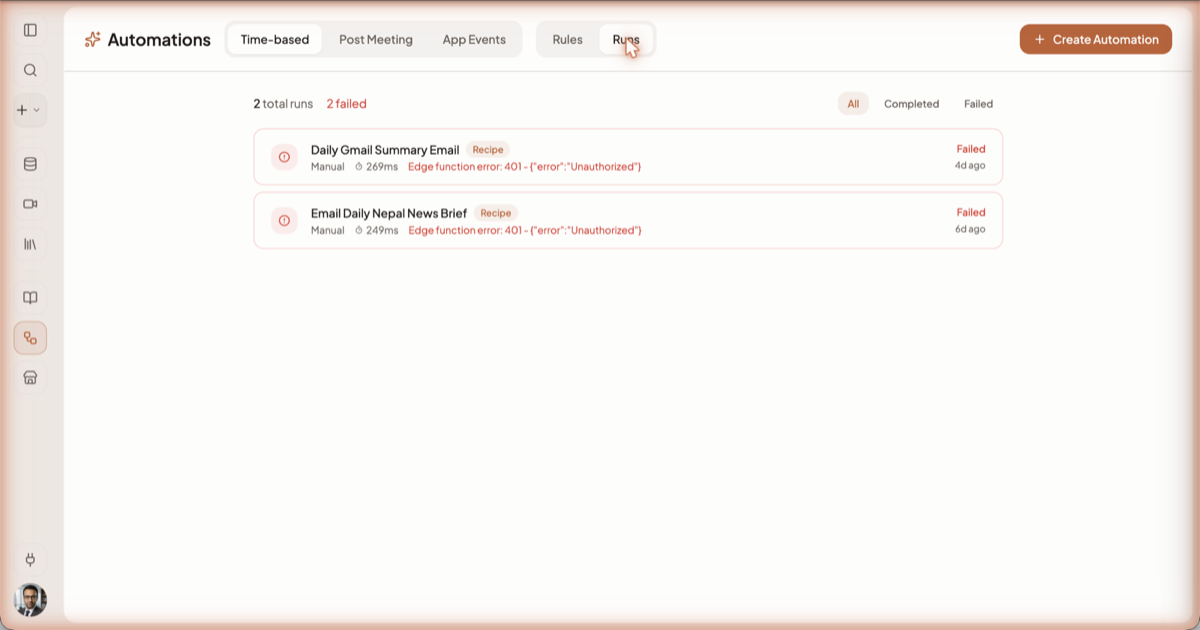
Fix the cause — usually a reconnect, a renamed field, or a recipe input that no longer resolves — then turn the automation back on. A run marked skipped is not a failure: a rule decided the event did not match.
A scheduled run finished but did not send anything
Why. This is intended behaviour, and the single most surprising thing about automations. Unattended runs cannot write to outside apps. A recipe running on a schedule, after a meeting, or from an app event will not send email, post to Slack, or write to a CRM — because nobody is there to approve it. The model is told which tools were withheld and why, so the resulting chat says so.
What to do. Let the automation produce the draft, then open its chat and send it yourself; an interactive turn is allowed to use write tools. Images, voiceover and music are pre-authorised and do run unattended.
Springbase changed something in a connected app without asking
Why. This is how it works. A connection lets Springbase write to the app as well as read from it, and a routine write can run inside a turn with no confirmation card. Asked in a typed chat to create a Gmail draft, it created the draft and reported back — nothing asked first. Some actions do raise a card, but you should not count on one for any particular action.
What to do. Expand the activity summary under the answer ("Ran N actions") to see every call the turn made, in order, with its result — that is the record of what happened. If there is an app you do not want written to, open the Tools Marketplace, click its green Connected button and Disconnect. That is the reliable control.
Credits and billing
You have run out of credits
Why. Your monthly and purchased balance is at zero. A banner appears on every screen, and sending a message returns a top-up prompt instead of an answer.
What to do. Three options, in order of speed. Keep using a model your plan covers — those keep working at a zero balance, within their fair-use ceiling, and the composer's send button tells you when the next send is free. Open Earn credits in the account menu and clear a quest or two. Or use Manage billing to top up or upgrade. See Plans and credits.
Meetings
The recording only captured your side of the call
Why. The browser Record tab records your microphone, not the call audio. The other person is only picked up if their voice comes out of your speakers and back into the mic.
What to do. For a Zoom, Google Meet or Teams call, use the Join tab and send the notetaker bot instead — it records both sides; see Capturing a meeting. For anything else, including WhatsApp calls, install the Mac app, which captures system audio and your microphone separately. Local recording in the Mac app needs a paid plan.
The bot could not join the call
Why. Five causes are permanent, and Springbase hides the Retry button for all of them: the call required a signed-in Google account, the host never admitted the bot, the host ended the meeting for everyone, the meeting had not started, or the bot was removed from the call.
What to do. Admit the bot from the host's waiting room next time, or start the call before sending it. Only Zoom, Google Meet and Microsoft Teams links are accepted — any other link is refused as an unsupported meeting URL. If nothing works, record locally and upload the audio.
Builds
The build worked but the export failed
Why. An export to PDF, DOCX or PPTX is always best-effort. The guaranteed deliverable is the verified project itself; a failed file conversion is reported and deliberately does not fail the build.
What to do. Open the project in Canvas and try the export again, or export a different format. Very long documents can exceed a per-format character cap — Springbase checks before it tries and tells you, rather than failing halfway. Split the document and export in parts.
Getting help
- The ? button in the top-right corner opens an in-product coach that answers questions about the screen you are on and can walk you through a task.
- AI Playbook in the account menu turns a goal you describe into a personalised plan of steps, recipes and tools.
- Docs in the account menu opens this documentation in a new tab.
There is no support link in the signed-in navigation — the ? button and AI Playbook are the in-app routes, and neither can see your account's billing history or reverse a charge.
Related docs
Every way to get content into a context, the file types that work, and the three size limits that compound.
Run a recipe on a schedule, after a meeting ends, or when an app fires an event — and understand why unattended runs never send anything.
How credits are spent, why one answer costs more than another, where to see your balance, and what each plan unlocks.