Files and attachments
Attach up to 10 files per message from your computer or your Library, and know which limit actually binds.
Attaching a file puts it in front of the assistant for that message: it reads the text, looks at the image, or queries the spreadsheet, and answers from what is actually in the file. For a document you will ask about repeatedly, put it in a context instead — attachments are for the file you need right now.
Attaching from your computer
- Click Attach file (max 10) on the composer toolbar.
- Pick your files. You can also paste an image straight into the composer, or drag files onto it.
- Wait for each thumbnail to finish uploading. Live voice will not start while an upload is still in flight.
- Type your message and send.
Attaching from your Library
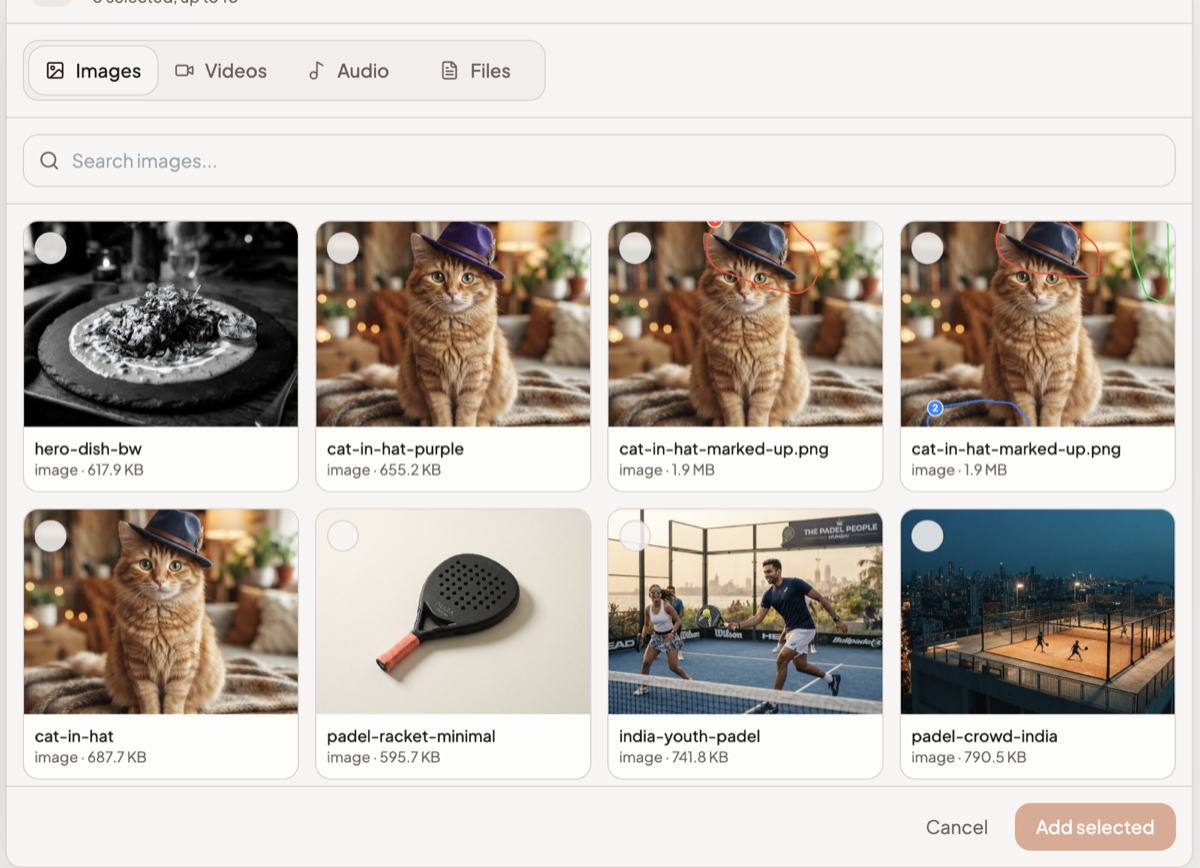
Choose from Library attaches something Springbase already has — an image it generated, a video, an audio file, or a file you stored — without you downloading and re-uploading it. On a narrow layout the button is shortened to Library. See Library.
The picker has four tabs — Images, Videos, Audio and Files — and opens on Images, with a search box scoped to the tab you are on ("Search images…"). It shows 24 items at a time. A counter at the top tracks your selection against the cap: "0 selected, up to 10". Tick what you want and click Add selected, or Cancel to back out.
The limits
| Limit | Value |
|---|---|
| Files per message | 10 |
| Size per file in chat | 25 MB |
| Images | up to 20 MB |
| up to 100 MB | |
| .docx | up to 50 MB |
| Legacy .doc | up to 30 MB |
| Text and CSV | up to 100 MB |
The per-type numbers come from the shared uploader; chat's own 25 MB cap is the one that binds. A 60 MB PDF is fine as a context document and too large as a chat attachment.
Supported types
- Images — JPEG, PNG, GIF, WebP
- Documents — PDF, DOC, DOCX, PPTX
- Spreadsheets — CSV, XLS, XLSX, XLSM, XLSB
- Text and code — TXT, MD, JSON, YAML, XML, CSS, PY, SQL, LOG, and HTML/JS/TS files, which are read as plain text
HTML and JavaScript are deliberately never treated as web content when attached — they are read as text, so a page you upload cannot execute anything.
What happens after you attach
The file uploads to your chat attachment storage, and Springbase extracts its text server-side. That extraction is cached, so attaching the same file again in a later message does not repeat the work. Extraction is metered like any other AI work, so very large documents cost credits on top of the turn itself.
How a file is used depends on what it is:
- Images are looked at directly. Once a generated or attached image is in the thread you also get Edit image, Mark up and edit, Download, View fullscreen and Open in new tab on it.
- Documents are read as text. The assistant can quote and cite them in the answer.
- Spreadsheets get the spreadsheet tools — the assistant can query a sheet, compare sheets, consolidate several, and hand back a new workbook rather than pasting numbers into prose.
Attachments can also seed a live voice session, so you can talk about a document you have attached.
When a file is too large
If a file is over the size cap, or its text is too long to sit in a turn safely, Springbase stops before sending and shows a dialog headed "This file is too large for Chat". Each offending file is listed with the reason — "Exceeds Chat's 25 MB file limit" or "Exceeds Chat's safe token limit" — and the dialog offers Upload to Context instead. That is the right move: a context document is indexed once and searchable from every future chat.
The token check is generous. Auto sizes documents against a notional 1,000,000-token window, because every model that drives a turn holds that much, so most real documents pass and only genuinely enormous ones are refused.
Heads up: if your plan does not include file attachments, the button is still there but the tooltip reads "File attachments require Pro" and clicking it opens the upgrade modal. Choose from Library is locked by the same entitlement, with "Library requires file attachment access".
Limits worth knowing
- Ten files per message is a hard ceiling — once you hit it the tooltip changes to "Max 10 files" and further files are refused.
- The Attach file button is hidden entirely on dedicated text-to-speech models, and disabled while background work is running in that chat, with the tooltip "Background work is running".
- Attachments belong to the message, not the chat. A file you attached ten messages ago is not automatically re-read later — put it in a context if you want it to persist.
Related docs
The composer control by control, what an answer can contain, and the actions under every reply.
Every way to get content into a context, the file types that work, and the three size limits that compound.
Every file you upload and every image, clip, track and artifact Springbase makes, in one place — with a storage meter and a way back into chat.