Canvas and artifacts
Open an answer in Canvas to see it rendered, edit it by hand or by asking, roll back a version, export it, and share it at a /a/ link.
Canvas is the side-by-side workspace where a document, page or diagram Springbase wrote stops being text in a chat bubble and becomes something you can render, edit, version and share. An artifact is one saved thing inside it.
Opening something in Canvas
- Under an answer, click Canvas — labelled Open output in Canvas the first time and Open saved Canvas once it exists.
- A code block in a reply has its own Open in Canvas.
- A Build turn hands back a project with an Open button that goes straight to Canvas.
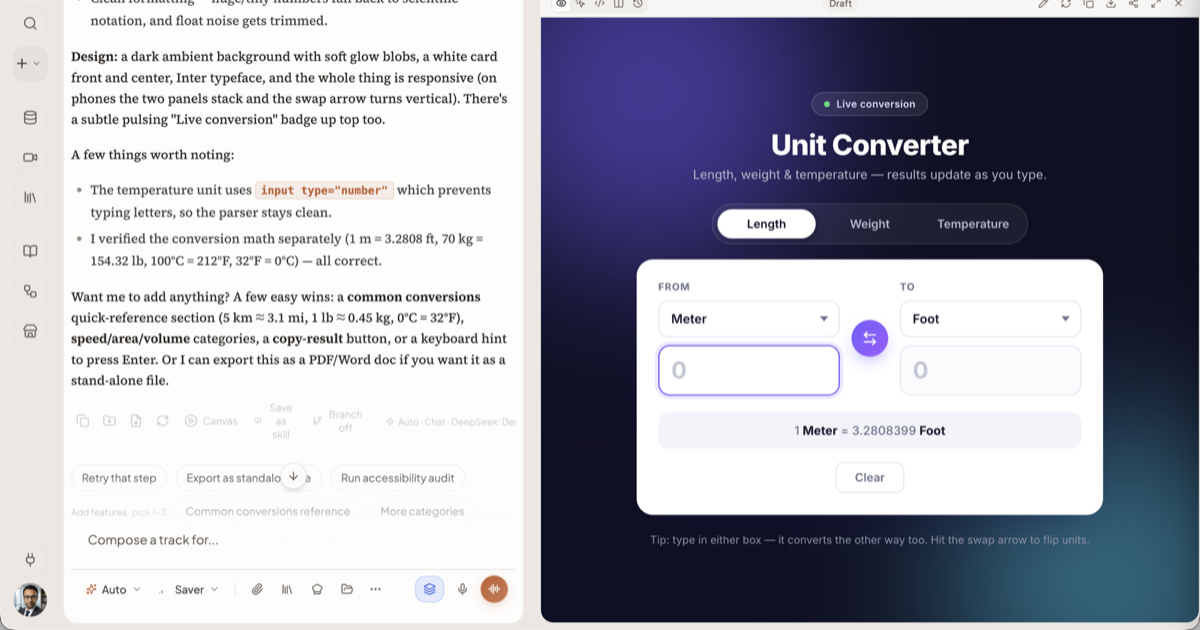
The four view modes
| Mode | What it shows |
|---|---|
| Preview | The rendered result |
| Edit | Click-to-edit on the rendered page — HTML artifacts only |
| Code | The underlying code or markdown |
| Split | Code and preview together |
The click-to-edit mode only applies to HTML. A markdown document has three modes, not four.
Editing: by hand, or by asking
Type into Code editor or Source and the change is yours immediately. Or describe the change in chat and Springbase edits the artifact in place — it reads and searches the document first, then makes a targeted edit or a full rewrite. Proposed changes arrive as their own bubble in the conversation so you can see what it wants to do before it lands.
Version history
Open Document history in the toolbar. Versions are labelled s1, s2, s3 and up, newest
highest, each with the reason it was created:
| Label | What happened |
|---|---|
| Canvas created | The first version, when the artifact was opened |
| AI suggestion | Springbase changed the document |
| Manual edit | You typed into it |
| Published | The version that went out on a share link |
Every snapshot has a Restore button. Restoring does not delete anything — it adds a new version carrying the older content.
Exporting
The download menu offers different formats depending on what the artifact is.
| Format | Available for |
|---|---|
| Markdown documents, and HTML artifacts | |
Word (.docx) | Markdown, and HTML that reads as a document |
PowerPoint (.pptx) | HTML with slide structure |
Excel workbook (.xlsx) | Any artifact containing tables |
Raw file (.md, .html, .svg) | Its own type |
An Excel export puts every table in the artifact into one workbook. A raw markdown download inlines stored images and strips citation markers so the file reads cleanly outside Springbase. The export menu appears for markdown and diagram documents; PowerPoint stays available whenever the document looks like a deck.
Heads up: each format has its own character ceiling, and it is checked in the browser before the request is sent — so an oversized artifact gives you a message rather than a broken file. Split a very long document into two artifacts rather than trying again.
Sharing an artifact
Open the share control on the artifact.
- Pick a visibility. Publishing defaults to Unlisted — reachable by anyone with the link, not listed anywhere. The values are the same set contexts use, so Sharing a context explains what each one means.
- Copy the link. It is
/a/<link name>, or/a/<token>until you claim a name. - Optionally click Customize link (later Edit link name) and type a name. Availability is checked as you type.
- To take it down, set visibility back to Private — the tile reads Unpublish on a live artifact.
If you keep editing after publishing, the published copy does not follow along. Springbase compares the live artifact with what was published and offers Republish when they have drifted apart.
Interactive artifacts
An artifact can be a working page, not only a rendered document — and a published one can call AI on the viewer's behalf: chat, text generation, streaming, images, vision, and reading the author's contexts and meetings where the author allowed it.
That means a viewer can hit limits the author never sees. The errors an interactive artifact can surface are: no credits, rate limited, timeout, concurrency limit, cancelled, network error, API error, login required, and protocol mismatch. Artifacts can also store data — either shared across everyone viewing, or mine, private to each viewer — with a byte cap per key.
The two places artifacts show up
This trips people up regularly:
- Library (in the sidebar) lists your artifacts under the Other tab, alongside your media.
- My Assets is a separate standalone page for artifacts. It is not linked from the sidebar and is not indexed by search engines.
They are different surfaces over related things. If you cannot find an artifact, check the Other tab in Library first.
Related docs
The Build intent makes a working project — files written, checked and handed back — instead of describing one. Plus Deck, exports and hosted sites.
Every file you upload and every image, clip, track and artifact Springbase makes, in one place — with a storage meter and a way back into chat.
The composer control by control, what an answer can contain, and the actions under every reply.