Library
Every file you upload and every image, clip, track and artifact Springbase makes, in one place — with a storage meter and a way back into chat.
Library in the sidebar is where everything you and Springbase have made ends up. Nothing has to be filed there by hand: media generated in chat, files you attached to a message, and Canvas artifacts all arrive automatically.
What it holds
Four kinds of media asset — images, videos, audio and files — plus your Canvas artifacts. Items get there from an upload, from generation in chat, from a recipe run, or from the workbench. The empty state says it plainly: "Files you upload in chat or here will appear here." and "Media you generate in chat will appear here."
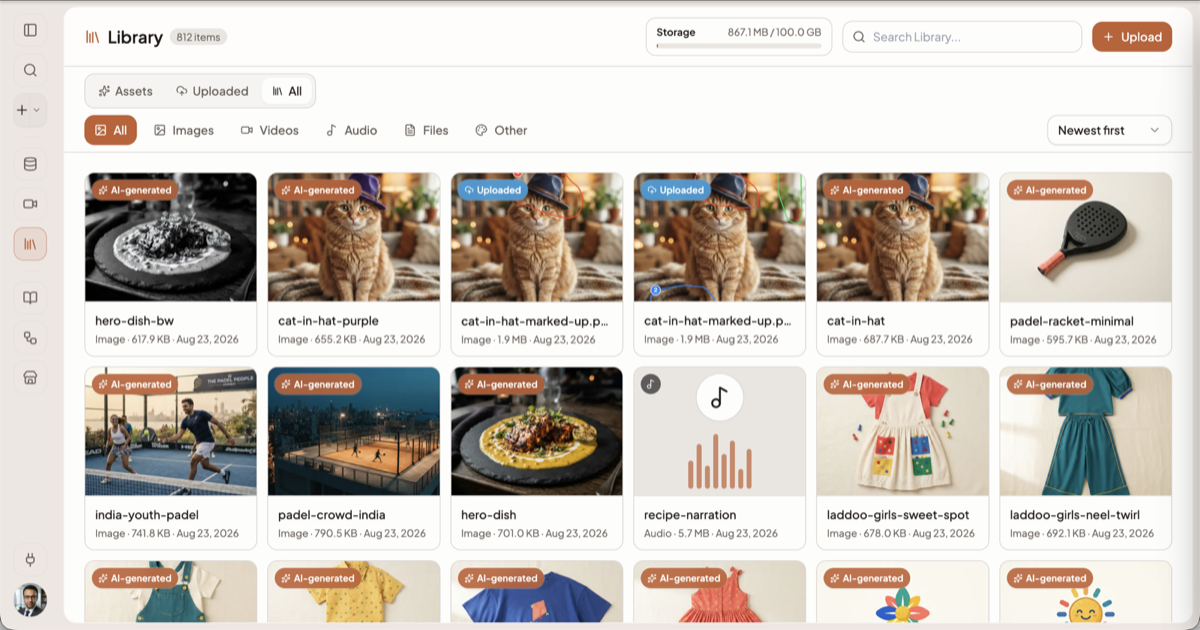
Scopes: where an item came from
The top row splits the Library by origin. Pick a scope first, then filter by type inside it.
| Scope | Shows |
|---|---|
| Assets | Everything Springbase generated for you, plus Canvas artifacts |
| Uploaded | Everything you put in |
| All | Both |
Type tabs
Below the scope row: All, Images, Videos, Audio, Files, Other.
Other is where Canvas artifacts live. That is the single most-missed thing in the Library — an artifact is not a file, so it will never appear under Files. See Canvas and artifacts.
On Files only, an extra filter breaks the list down by extension with a count against each one. Sorting offers Newest, Oldest, Title A–Z, Title Z–A, Largest and Smallest; artifacts sort by Newest or Most viewed instead. The grid loads 30 at a time as you scroll and tells you "Showing X of Y" until it reaches "All items loaded".
Storage
The header carries a meter showing how much of your quota is used, with the remaining amount in its tooltip.
| Plan | Library storage |
|---|---|
| Free | 250 MB |
| Starter | 5 GB |
| Pro | 25 GB |
| Max | 100 GB |
When you run out, uploads are refused and the toast reads "Storage full. Delete Library items before uploading." The Upload button disables itself at that point. The meter calls itself full slightly early — under 100 KB remaining, or at 99.9% — so treat "full" as "effectively full".
The Upload button
Upload takes files straight into the Library without going through a chat. It has its own limits, and they are not the chat attachment limits:
| Library Upload | Chat attachment | |
|---|---|---|
| Size per file | 20 MB | 25 MB transport cap |
| Files at once | — | 10 per message |
| Accepted | JPEG, JPG, PNG, GIF, WebP, HEIC, HEIF, PDF, CSV, XLS/XLSX/XLSM/XLSB, DOC/DOCX, PPTX | A wider list including text, markdown, JSON, YAML and code |
Uploads are checked by their actual file signature, not only the declared type, so a renamed file is rejected rather than stored. Images are compressed in the browser before upload; PDFs and Word documents get a rendered first-page thumbnail.
Heads up: Upload is disabled while you are in the Assets scope or on the Other tab — both hold things Springbase produced, so there is nothing to upload into. Switch to Uploaded or All first.
The documents you add to a context have different, larger limits again. There is no single "maximum file size" in Springbase — check the limit for the door you are using.
Reusing an item in chat
Two routes, and they behave slightly differently.
From the Library. Open an item and choose Add to chat. Springbase stashes it and takes you to a new chat with the item attached.
From the composer. Click Choose from Library. The picker opens on images, shows 24 at a time, and lets you select up to 10 items in one go — see Files and attachments.
Both need file-attachment access on your plan; without it the button is disabled with the tooltip "Library requires file attachment access".
Heads up: video is the exception. Add to chat on a video answers "Video chat attachments are not supported yet." You can generate and store video, and download it, but you cannot feed one back into a message.
What the Library does not do
It is storage and retrieval, not a knowledge base. Items in the Library are not searched when you ask a question in chat — only documents inside a context are. If you want Springbase to be able to read a file in future conversations, add it to a context; the Library alone will not make it findable.
Related docs
Arm the Image, Video or Music intent for one message to get a picture, a clip or a track — inline in the reply and saved to your Library.
Open an answer in Canvas to see it rendered, edit it by hand or by asking, roll back a version, export it, and share it at a /a/ link.
Attach up to 10 files per message from your computer or your Library, and know which limit actually binds.