Live Data
Keep a context fed automatically — from a web page, an RSS feed, or a connected account like Slack, Gmail or Drive.
Live Data keeps a context current without you re-uploading anything. You point it at a page, a feed or an account, pick how often to check, and new material arrives as documents on its own. As the tab puts it: "Connect links or apps once. This context keeps itself up to date in the background."
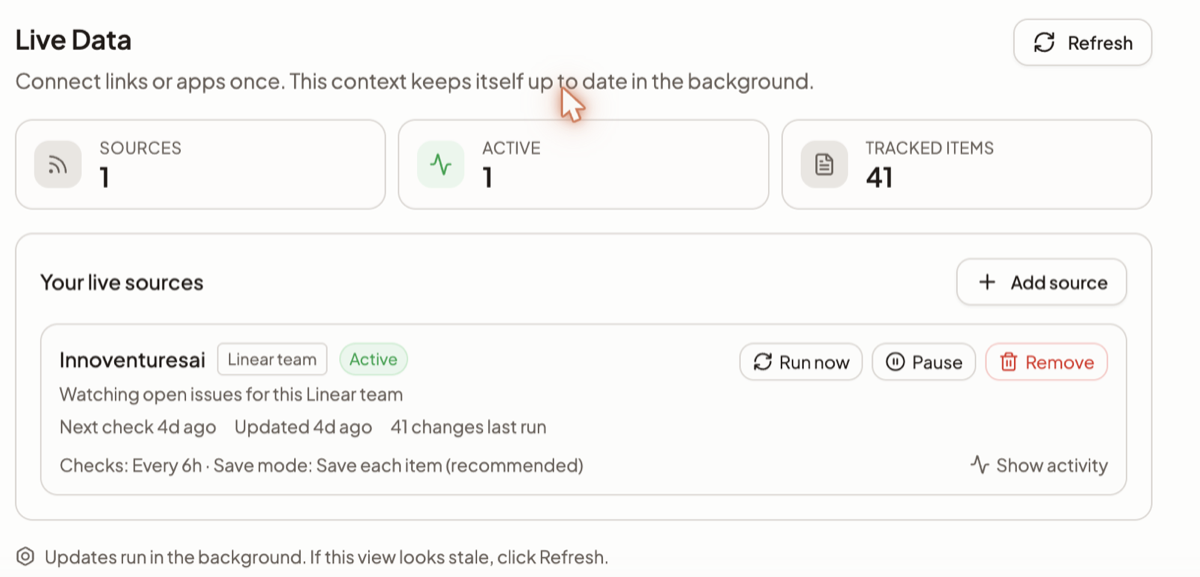
Open a context and select the Live Data tab. Three tiles across the top track the whole set — SOURCES, ACTIVE and TRACKED ITEMS — with a Refresh button beside them, and your sources are listed underneath as Your live sources.
Heads up: Live sources need Pro or Max. On other plans the crawler will not run. If you are in an organisation, an administrator can switch live sources off entirely — sources are then paused rather than shown as broken.
The 12 sources
They split into two kinds, and the kind decides how you connect.
| Kind | Sources | How you connect |
|---|---|---|
| Web | YouTube video, Web page, Sitemap, RSS feed | Paste a URL |
| Service | Google Drive, OneDrive, Notion, Slack, Gmail, Outlook, GitHub, Linear | Sign in to the account once, then pick what to watch |
Adding a source
- Click Add source on the Live Data tab.
- Pick the source type.
- For a web source, paste the URL. For a service source, sign in.
- Choose the sync cadence, the ingestion mode, and — where it applies — the page cap.
- Save. The first crawl starts from there.
Signing in to a service. Connecting opens an OAuth popup for that provider. While it is open, the row shows a pending sign-in and re-checks every couple of seconds; if the popup was blocked or opened in a tab where Springbase cannot see it, the pending state clears itself after three minutes so the row never gets stuck.
Accounts are shared with your connected tools, so a Slack account you signed in to for agents is reusable here and vice versa. Each account row has its own Stop syncing, which pauses this context's sources for that account without disconnecting it elsewhere — see Connected tools.
Backfill window. Slack, Gmail and Outlook ask how far back to reach on the first pass: Last 7 days, Last 30 days or Last 90 days, defaulting to 30. Backfill is charged on the first crawl only — later runs pick up new items, not the whole window again.
Cadence, and what it really means
| Option | Stored as |
|---|---|
| Every hour | 1h |
| Every 6h | 6h |
| Every day | 24h |
| Every week | 7d |
The dispatcher wakes on a fixed schedule every 15 minutes and takes up to 8 due sources per pass. So "Every hour" means "checked within roughly 15 minutes of becoming due", and it can be longer when many of your sources come due at once. Treat the cadence as a floor, not a promise. If you need something now, use Run now on the source.
Ingestion modes
| Mode | What lands in the context |
|---|---|
| Save each item (recommended) | One document per item found |
| Daily AI summary | A single summarised document per day |
| Weekly AI summary | A single summarised document per week |
The two summary modes are lossy on purpose — you get the gist, not the originals. Use them for high-volume feeds where every message is not worth indexing.
Page cap
Crawling sources have a ceiling on how many pages one source may pull: 50 on free accounts and 500 on paid ones. You can lower it in the Max pages field when adding the source. A sitemap larger than the cap is truncated, not queued for later.
Status and upkeep
| Status | What it means |
|---|---|
| Active | Running on its schedule |
| Paused | Stopped by you, or by an organisation policy |
| Setup | Configured but not yet crawled |
| Error | The last run failed. The row shows "Needs attention" and the reason |
| Reconnect required | The sign-in expired. An amber Reconnect button appears on the row |
Each source row shows the source name, the account it is connected through, its status, and the buttons Run now, Pause (or Resume) and Remove, plus Show activity for the run history. Under the name sits the row's own summary — "Next check 4d ago · Updated 4d ago · 41 changes last run" — and its settings, "Checks: Every 6h · Save mode: Save each item (recommended)".
Nothing on this tab is live: the footer says so, "Updates run in the background. If this view looks stale, click Refresh."
Two things to plan for. A source that fails 5 times in a row is disabled automatically — it waits for you rather than retrying forever. And crawls consume credits: every run reports what it discovered, fetched, created, updated and removed, along with the credits it used, so a fast cadence on a large source is a recurring cost.
Documents arrive grouped under readable titles — "#general", "Drive folder · Q3 Reports" — so you can see in the Documents tab where something came from.
Email to context
Above the live sources sits Email to context, an owner-only card with an On toggle. Turn it on and the context gets a unique inbound address. In the card's own words, "Forward or send emails to a unique address and they are added to this context — the message body and supported attachments each become documents." A counter under it tracks what has arrived — "3 emails received".
- Toggle Email to context on. An On badge appears.
- Click Copy to take the address.
- Forward mail to it, or add it as a recipient.
The address is a capability, not an account. The card says as much in its own footnote: "Anyone with this address can add documents to this context." There is no sign-in. Treat it like a secret, and if it leaks, use Regenerate — the old address stops working immediately.
This feature depends on inbound email being configured for your deployment. If it is not, the card does not appear at all.
What Live Data does not do
It is not real-time — nothing is pushed the moment it changes, everything waits for the next scheduled pass. Remove is destructive — it asks you to confirm, and it takes the source's tracked items with it, so use Pause if you only want it to stop. And there is no user-facing push or webhook source; the picker's 12 options are the whole list.
Related docs
Every way to get content into a context, the file types that work, and the three size limits that compound.
A Context is a named, reusable folder of knowledge you can pull into any chat with its @handle.
Connect Gmail, Slack, Notion and hundreds of other apps, and understand what Springbase is then allowed to do in them.